> For the complete documentation index, see [llms.txt](https://help.timelygrader.ai/llms.txt). Markdown versions of documentation pages are available by appending `.md` to page URLs; this page is available as [Markdown](https://help.timelygrader.ai/canvas-support-articles/assignments/ai-rubric.md).
# AI Rubric in Assignment Setup
Generate a point-based rubric from your assignment details and sync it to Canvas.
Turn your assignment details into a structured, point-based rubric with defined rating levels, customize the criteria and scores, and sync it to Canvas for quicker, more consistent grading.
## Steps
{% stepper %}
{% step %}
### Bring your assignment into TimelyGrader
Create the assignment in Canvas, then import it into TimelyGrader so the two are linked. That link is what lets TimelyGrader send the generated rubric back to Canvas, with no copying and pasting.
{% endstep %}
{% step %}
### Open the Rubric section
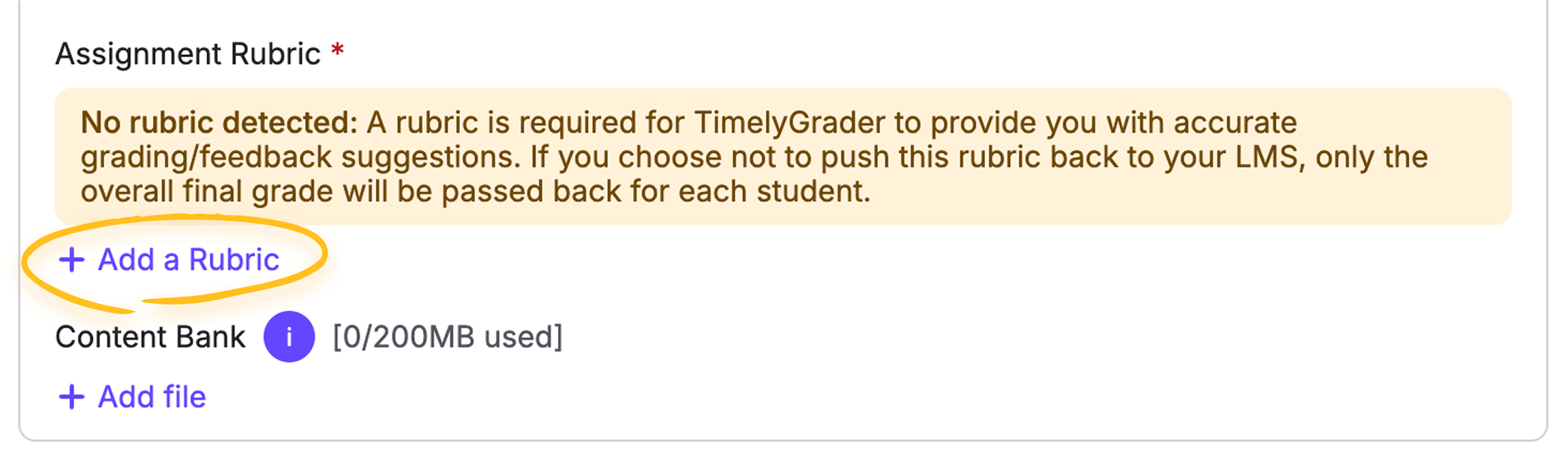
Open the assignment, click **Edit**, and find the **Rubric** in **Description & Settings**. Along with the Assignment Description, it’s one of the two mandatory items. Add a rubric there and choose the **Rubric Generator** to have AI draft one.
{% endstep %}
{% step %}
### Choose criteria and scores
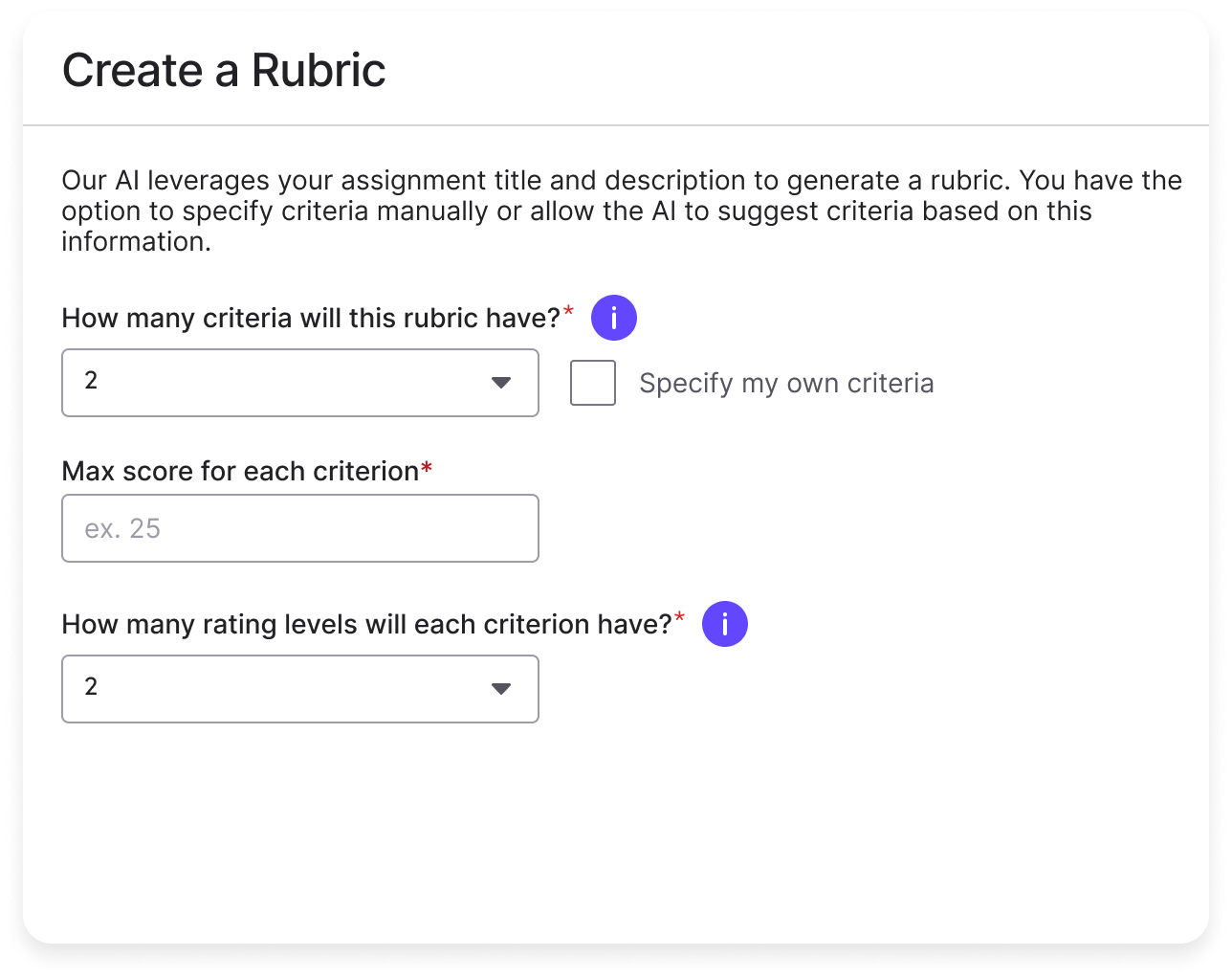
Decide how many criteria to evaluate and, optionally, name them (for example Clarity, Use of Evidence, Formatting). Set a maximum score for each, and choose the number of rating levels, such as Needs Improvement, Meets Expectations and Exceeds Expectations.
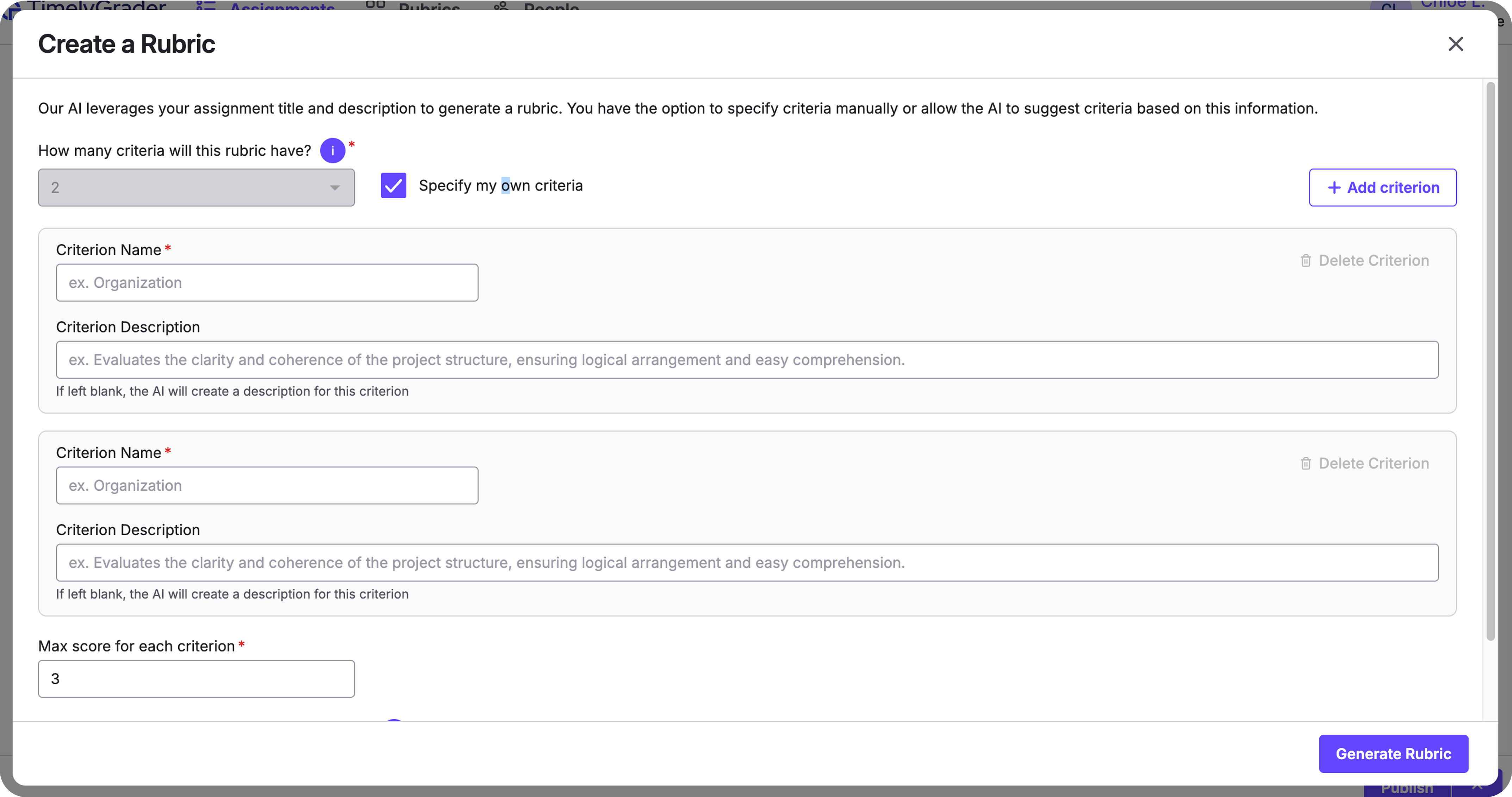
Not sure of the criteria? Leave them blank and the AI will suggest a sensible set for the assignment type. To set your own, select **Specify my own criteria** and enter names and descriptions.
{% endstep %}
{% step %}
### Generate the rubric
Click **Generate Rubric**. The AI creates criteria with point values, labels the rating levels, and writes student-friendly descriptors that match your grading style. It runs in the background, so you can keep working; the draft appears in the Rubric section when it’s ready.
{% endstep %}
{% step %}
### Review, edit and confirm
Check the draft for accuracy, tone and fit, and edit criterion names, point weights or descriptors directly. To change the structure or voice, adjust your inputs and regenerate. When you’re happy, click **Create Rubric** at the bottom right.
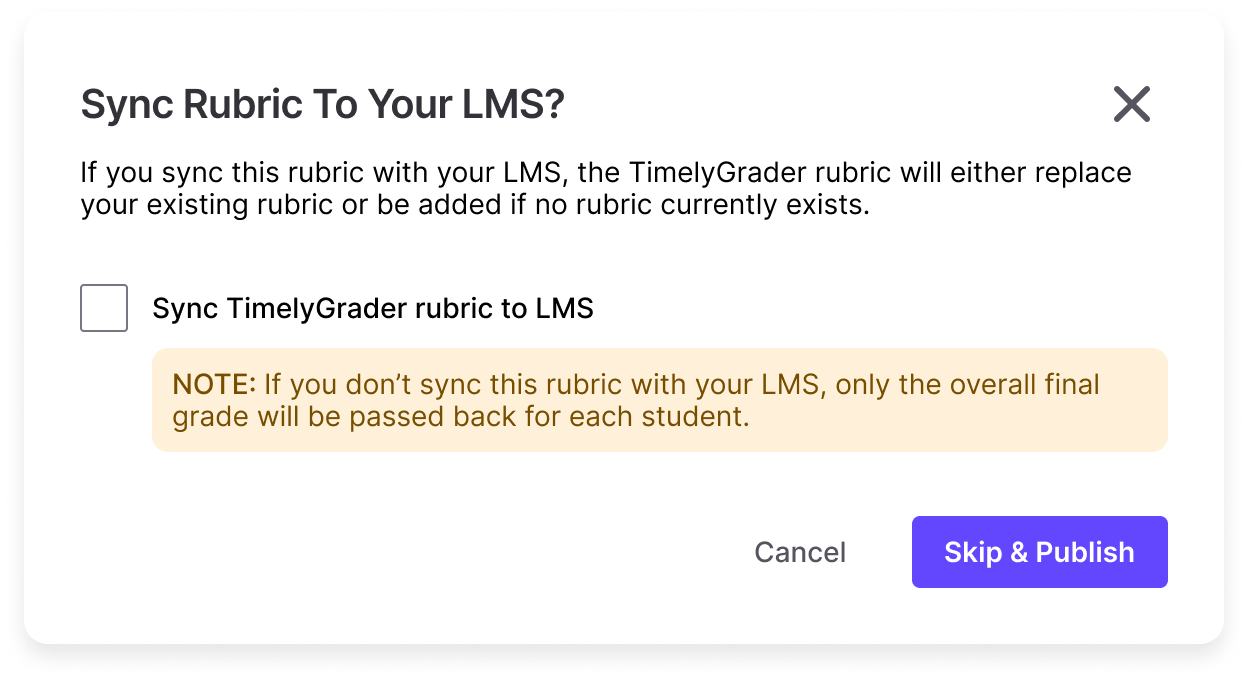
Then click **Publish** and choose **Sync TimelyGrader rubric to LMS** in the dialog to push the rubric to Canvas. Students and TAs then see the same criteria you do.
{% endstep %}
{% endstepper %}
## Best practices
* **Be specific.** Clear criterion names and descriptions produce better descriptors.
* **Use 3 to 5 rating levels** as a starting point, and keep the same number across criteria unless there’s a strong reason not to.
* **Describe every level**, not just the top one, in observable terms.
* **Balance points.** Keep totals simple (100 points, say) and make the weights meaningful.
* **Pilot it.** Check the suggestions on a few submissions at different performance levels before grading the whole class.
More in [Building rubrics that are clear, consistent, and free of error](/user-guides-get-started-here/rubrics.md).
## FAQ
Can I reuse a rubric later?
Yes. Save it as a Rubric Template and apply it to future assignments. You can edit a template before generating. Templates are shared, so editing one changes every assignment that uses it; duplicate it first if only one assignment needs the change.
What if I already have a partial rubric?
Enter the criteria you have, and the AI fills in the missing descriptors and rating levels.
Will syncing overwrite my rubric in Canvas?
If the assignment already has a rubric in Canvas, syncing updates it. You confirm before any change is applied.
Can TAs generate or edit rubrics?
No. TAs can’t edit assignment settings, including the rubric. Once an instructor publishes and syncs a rubric, TAs can view it and review submissions in their assigned sections.
## Related articles
* [Creating Rubrics on TimelyGrader](/canvas-support-articles/assignments/creating-rubrics.md)
* [Importing or Creating an Assignment](/canvas-support-articles/assignments/importing-or-creating-an-assignment.md)
* [Refining AI Accuracy in TimelyGrader: A Practical Guide](/canvas-support-articles/assignments/refining-ai-accuracy.md)