For the complete documentation index, see llms.txt. This page is also available as Markdown.

9. Advanced: Creating a Content Bank

Upload course materials so the AI has more context for grading and feedback.

A content bank gives the AI richer context from your course materials. That improves feedback quality, refines grading suggestions and deepens the AI’s understanding of the assignment.

  • Recommended files: syllabus, high-scoring exemplar papers, grading guidelines, lecture slides and readings.

  • Supported file types: .pdf, .docx, .xls, .xlsx, .ppt, .pptx and .csv.

How to create a content bank

1
Add a file

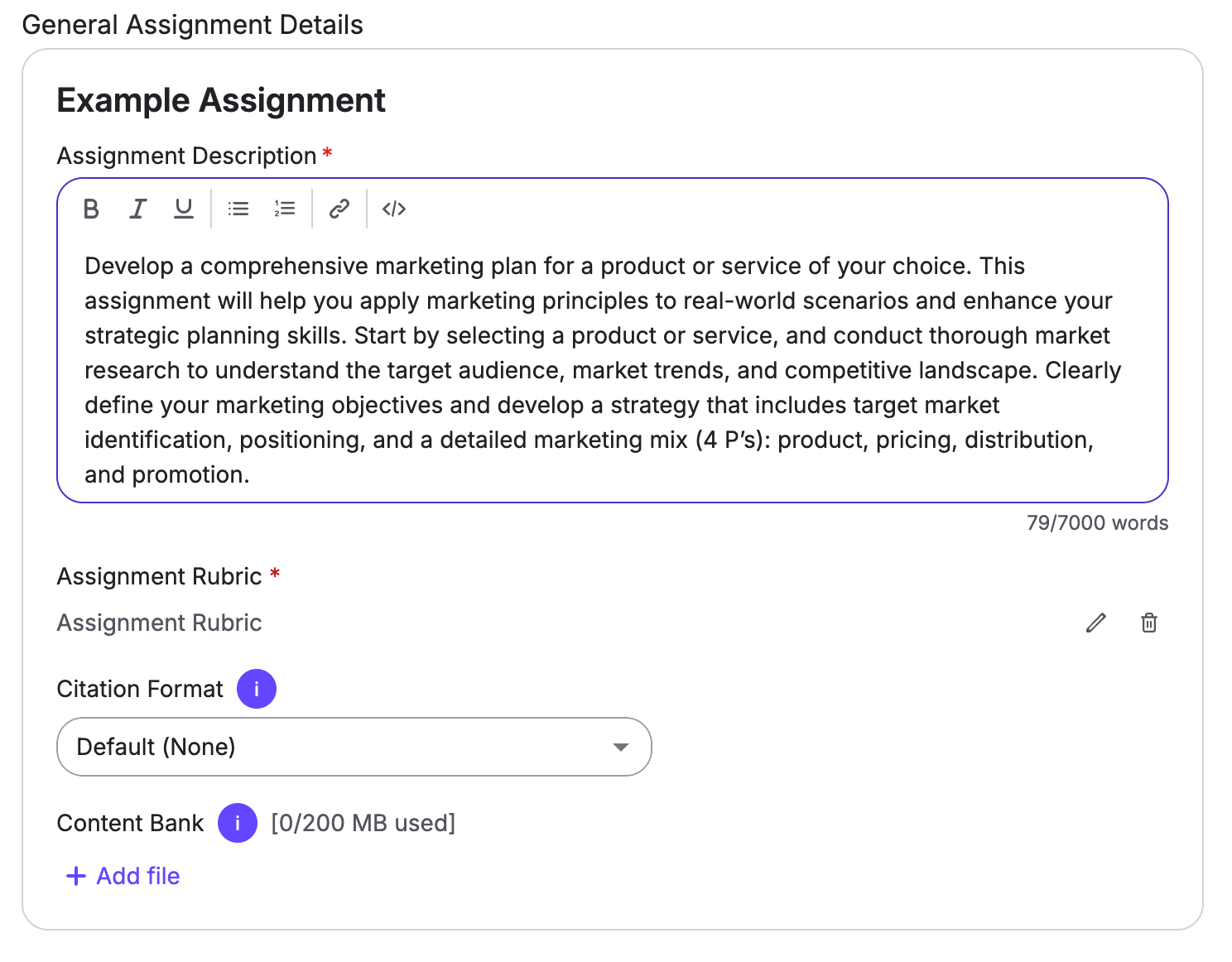
In assignment setup, under Description & Settings, find Content Bank and click + Add File.

The Content Bank in General Assignment Details
2

Upload

Select the files you want to add, then click Upload.

3

Describe each file

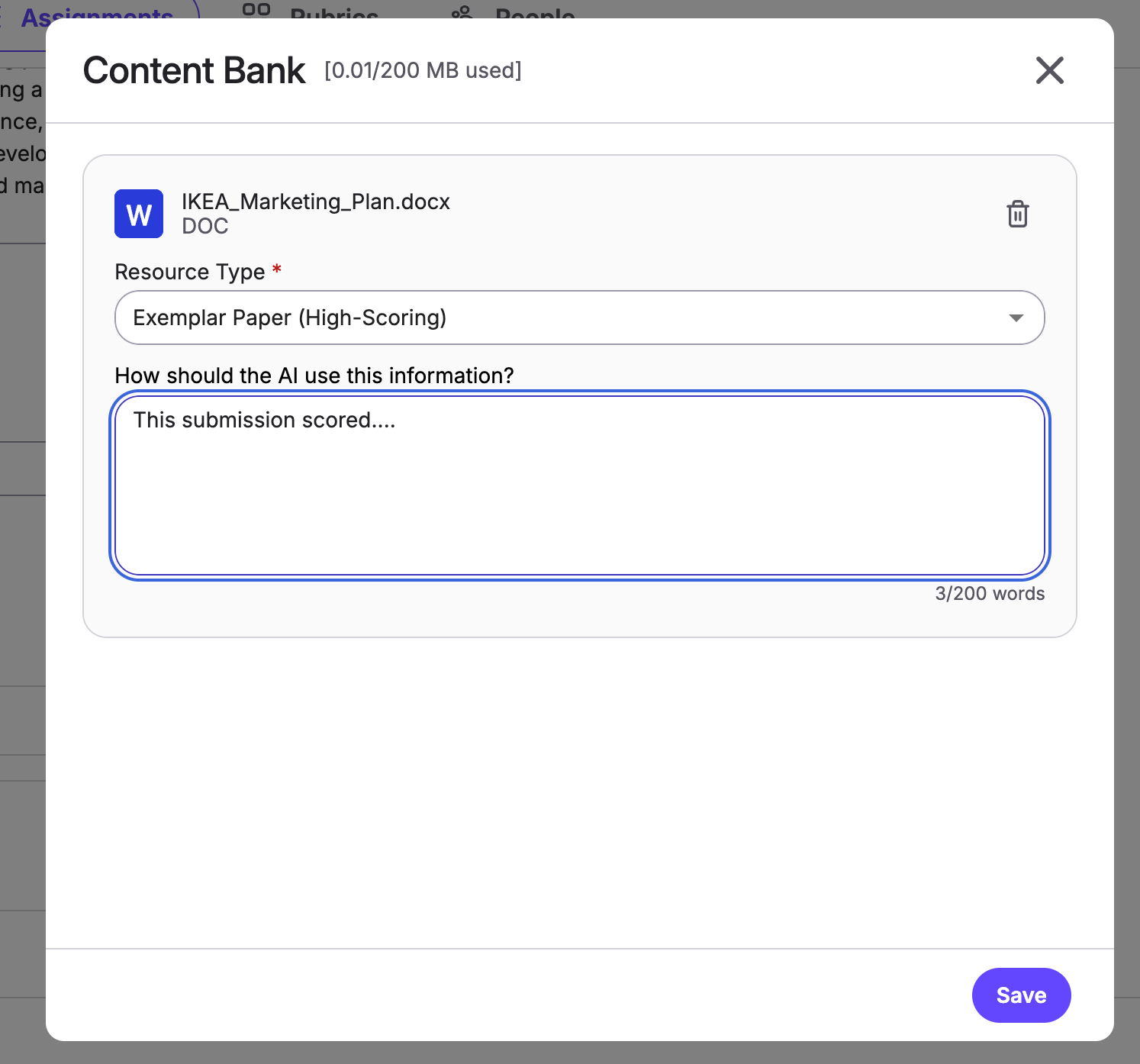
Choose a resource type from the dropdown and describe which parts of the file TimelyGrader should focus on when making grading and feedback suggestions.

Choosing a resource type and describing the file

If no resource type fits your document, choose Other and describe how you want the AI to use the document.

4

Save

Click Save to add the files to your content bank. Click Add file to add more, or the pencil button to edit one.

Files saved in the content bank

Last updated

Was this helpful?