> For the complete documentation index, see [llms.txt](https://help.timelygrader.ai/llms.txt). Markdown versions of documentation pages are available by appending `.md` to page URLs; this page is available as [Markdown](https://help.timelygrader.ai/canvas-support-articles/assignments/content-bank.md).
# Advanced: Creating a Content Bank
Upload course materials so the AI has more context for grading and feedback.
A content bank gives the AI richer context from your course materials. That improves feedback quality, refines grading suggestions and deepens the AI’s understanding of the assignment.
* **Recommended files:** syllabus, high-scoring exemplar papers, grading guidelines, lecture slides and readings.
* **Supported file types:** .pdf, .docx, .xls, .xlsx, .ppt, .pptx and .csv.
## How to create a content bank
{% stepper %}
{% step %}
### Add a file
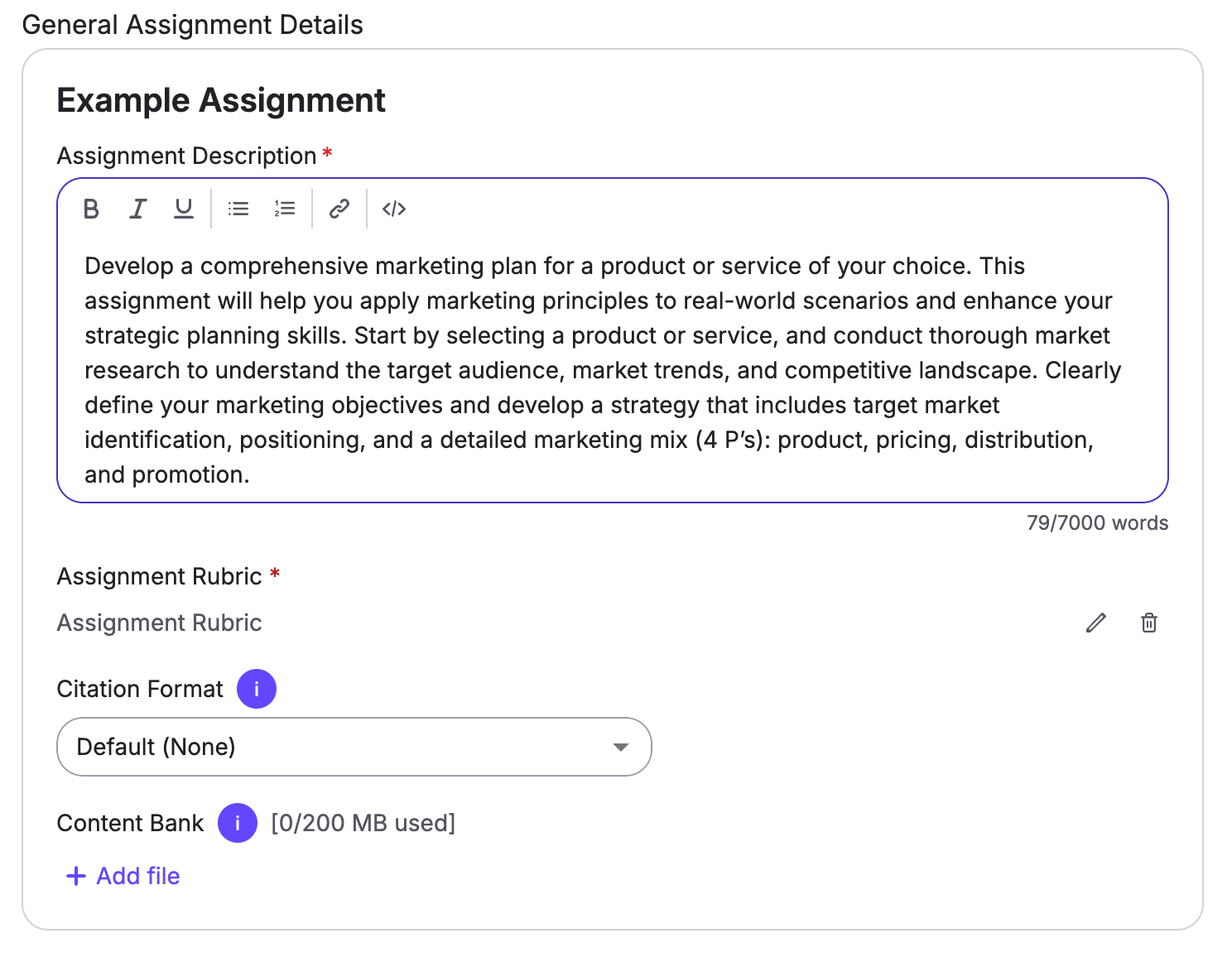
In assignment setup, under **Description & Settings**, find **Content Bank** and click **+ Add File**.
{% endstep %}
{% step %}
### Upload
Select the files you want to add, then click **Upload**.
{% endstep %}
{% step %}
### Describe each file
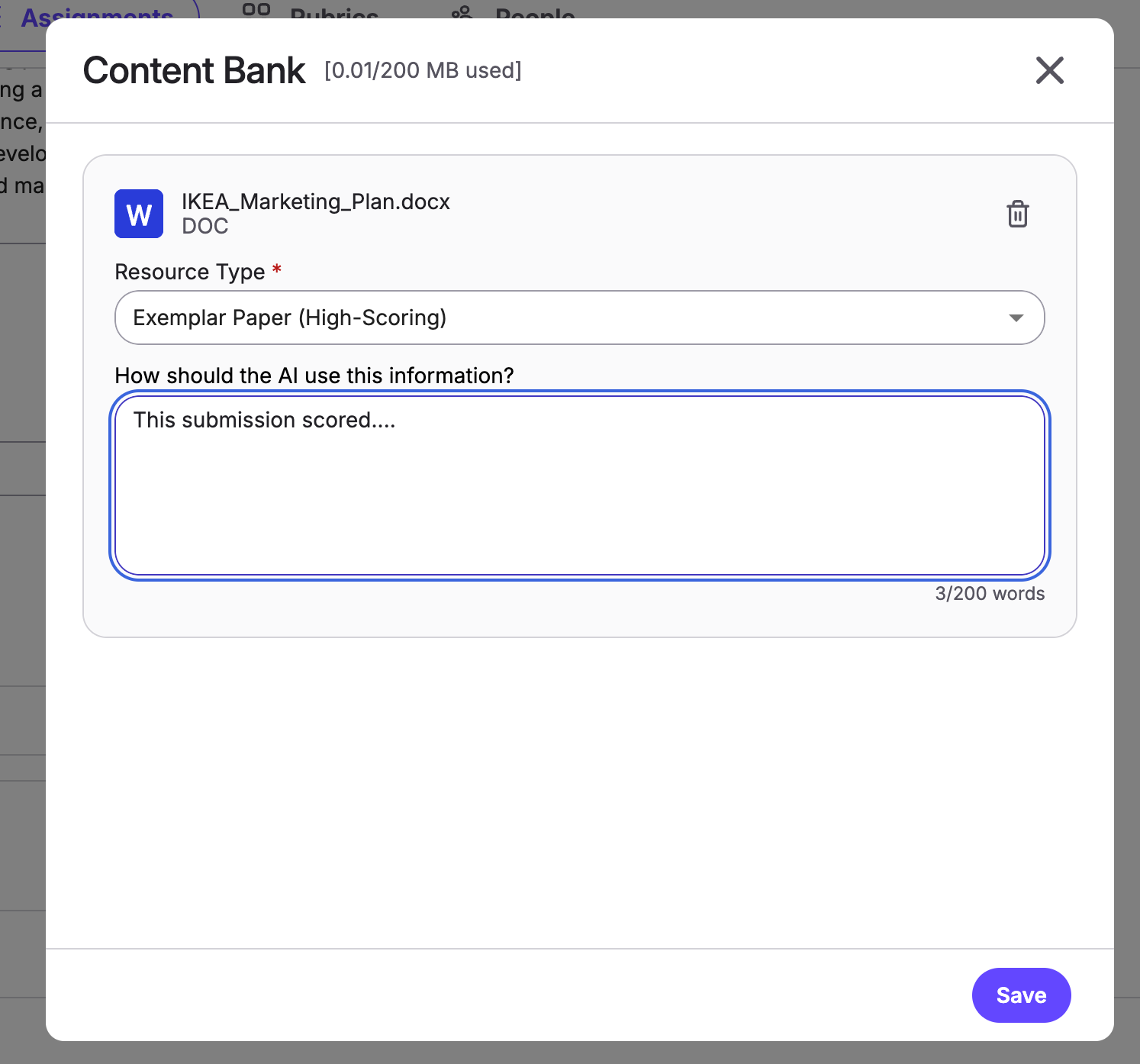
Choose a resource type from the dropdown and describe which parts of the file TimelyGrader should focus on when making grading and feedback suggestions.
{% hint style="info" %}
If no resource type fits your document, choose **Other** and describe how you want the AI to use the document.
{% endhint %}
{% endstep %}
{% step %}
### Save
Click **Save** to add the files to your content bank. Click **Add file** to add more, or the pencil button to edit one.
{% hint style="warning" %}
The more files you add here, the longer it takes for the AI to process files.
{% endhint %}
{% endstep %}
{% endstepper %}
## Related articles
* [Advanced: Customizing Grading](/canvas-support-articles/assignments/customizing-grading.md)
* [Advanced: Customizing Feedback](/canvas-support-articles/assignments/customizing-feedback.md)
* [Refining AI Accuracy in TimelyGrader: A Practical Guide](/canvas-support-articles/assignments/refining-ai-accuracy.md)