

11. Advanced: Customizing Feedback
Adjust the tone, length and structure of first-pass feedback.

Feedback Settings let you adjust the structure, tone, language level and length of AI-generated feedback, and give instructions for how it’s written. By default, feedback gives clear, criterion-based comments tied to your rubric.
 Hugo’s tip: Feedback Settings control the structure of feedback. What the feedback says follows the grading rationale, so to change its content, adjust Grading Settings first.
Steps

Choose a structure and customize it
The options available depend on the feedback structure you choose:
Rubric-Based Feedback (default): one positive comment and one improvement suggestion per rubric criterion. Adjust suggestion length, language level, tone, and what to focus on.
General & Detailed Feedback: a general feedback paragraph plus up to five targeted improvement suggestions. Adjust the number of suggestions, their length, language level, tone, and focus.
Smart Feedback Templates (manually created): write feedback in advance for each rubric rating; it is applied automatically during grading.
Custom Feedback Settings: when the other structures don’t fit, write your own instructions for tone, structure and content.
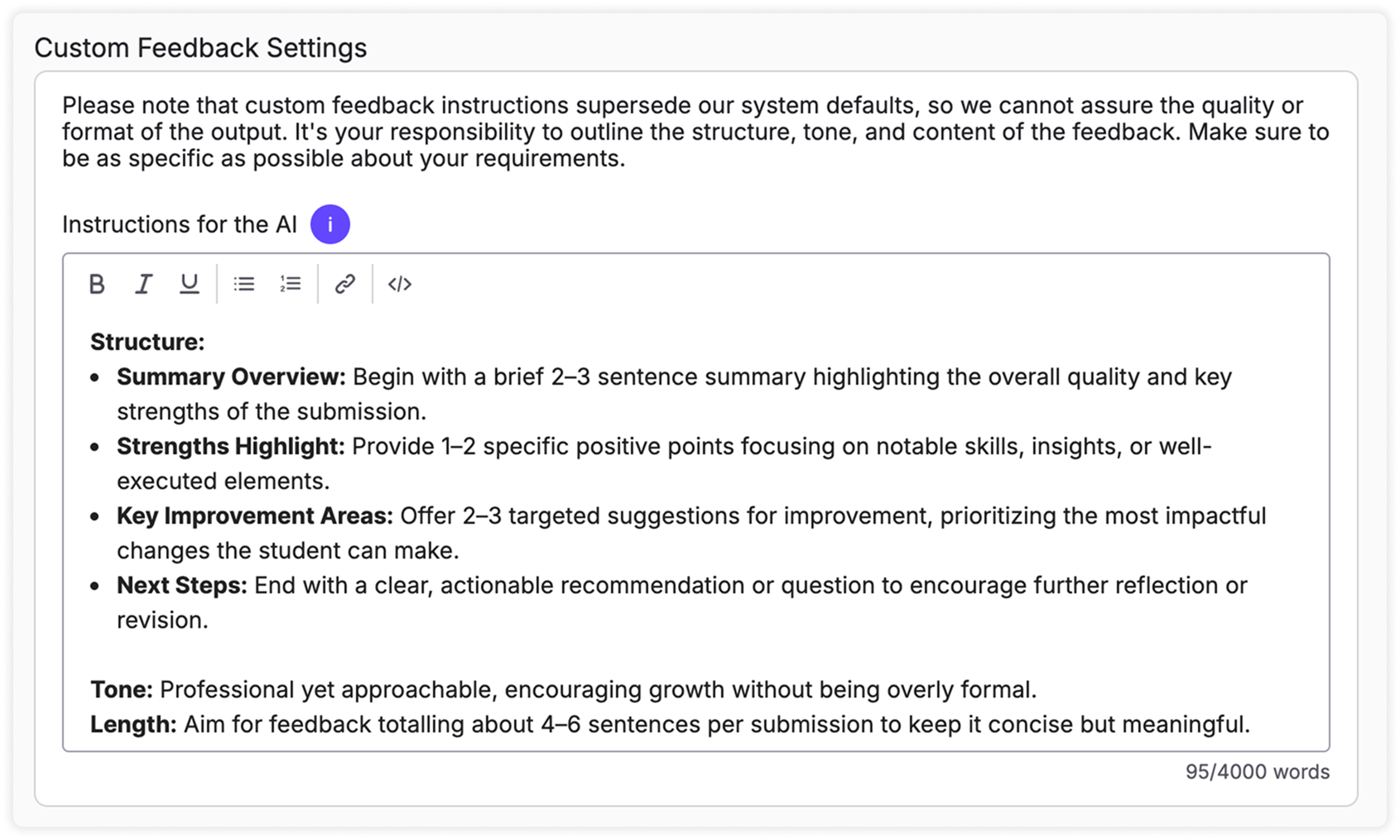
Hugo’s tip: Custom structures can take some trial and error. Iterating on your instructions is called fine-tuning; see Refining AI Accuracy.
Inline comments and feedback language
Inline Comment Settings control how inline comments on the student’s text are created. They work much like Feedback Settings.
Feedback language is set per course, under Settings → Course Details. Changing it only affects submissions processed afterwards; feedback already processed or released stays as it is.
See Understanding your Settings page for your defaults and language options.
Related articles
Last updated
Was this helpful?