> For the complete documentation index, see [llms.txt](https://help.timelygrader.ai/llms.txt). Markdown versions of documentation pages are available by appending `.md` to page URLs; this page is available as [Markdown](https://help.timelygrader.ai/canvas-support-articles/assignments/customizing-grading.md).
# Advanced: Calibrating Grading Accuracy
Use Grading Settings to control how TimelyGrader reads your rubric: general instructions, look-fors, violations and omissions.
**Grading Settings** influence how TimelyGrader interprets your rubric. They decide what suggestions to make and what the evidences are to support that suggestion but you still decide the actual grade.
{% hint style="info" %}
Settings are per assignment, and they start from your defaults in **Settings → Preferences**. Review a few processed submissions before changing anything, so you know what needs adjusting.
{% endhint %}
## Steps
{% stepper %}
{% step %}
### Open Grading Settings
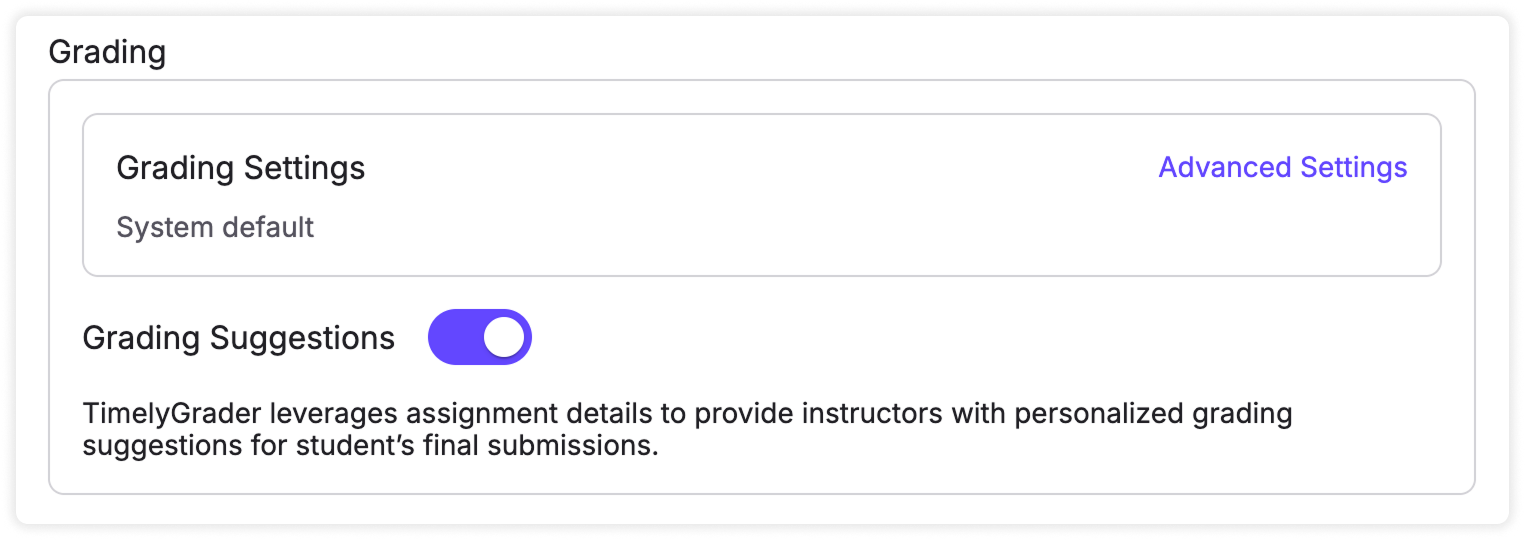
Open the assignment, click **Edit**, and go to **Grading Settings**. Make sure **Grading Suggestions** are on: with them off, there are no grading suggestions and you grade from the rubric manually.
{% hint style="info" %}
Your institution may have turned off Grading Suggestions. If so, you can’t turn them back on yourself; contact your administrator.
{% endhint %}
{% endstep %}
{% step %}
### Add general grading instructions
General instructions apply to the whole rubric. For example: “When identifying a weakness, explain what the student could do to improve.” or “Give credit for a valid alternative approach.” If you want suggestions to be stricter or more generous, say exactly what that means. Put guidance that applies to only one criterion under that criterion instead.
{% endstep %}
{% step %}
### Add criterion-specific instructions
Each criterion can take three kinds of instruction:
* **Look-fors:** one observable statement each, such as “Names the alternative they rejected and explains why.” Look-fors clarify the rubric; they mustn’t add new requirements.
* **Violations and omissions:** a violation is something present that conflicts with an expectation (“Interprets a correlation as proof of causation”); an omission is something required that’s missing (“Does not address the required counterargument”). Don’t treat an acceptable variation as an omission.
* **Custom instructions:** context, exceptions and distinctions, such as “Distinguish between an incorrect method and an arithmetic mistake.”
{% hint style="success" %} **Hugo’s tip:** **Suggested from your rubric wording** offers look-fors drawn from your rating descriptions.
{% endhint %}
{% endstep %}
{% step %}
### Changes are saved automatically.
We will also show you a timestamp of when the assignment was last updated.
{% endstep %}
{% endstepper %}
## Reviewing criterion instructions while grading
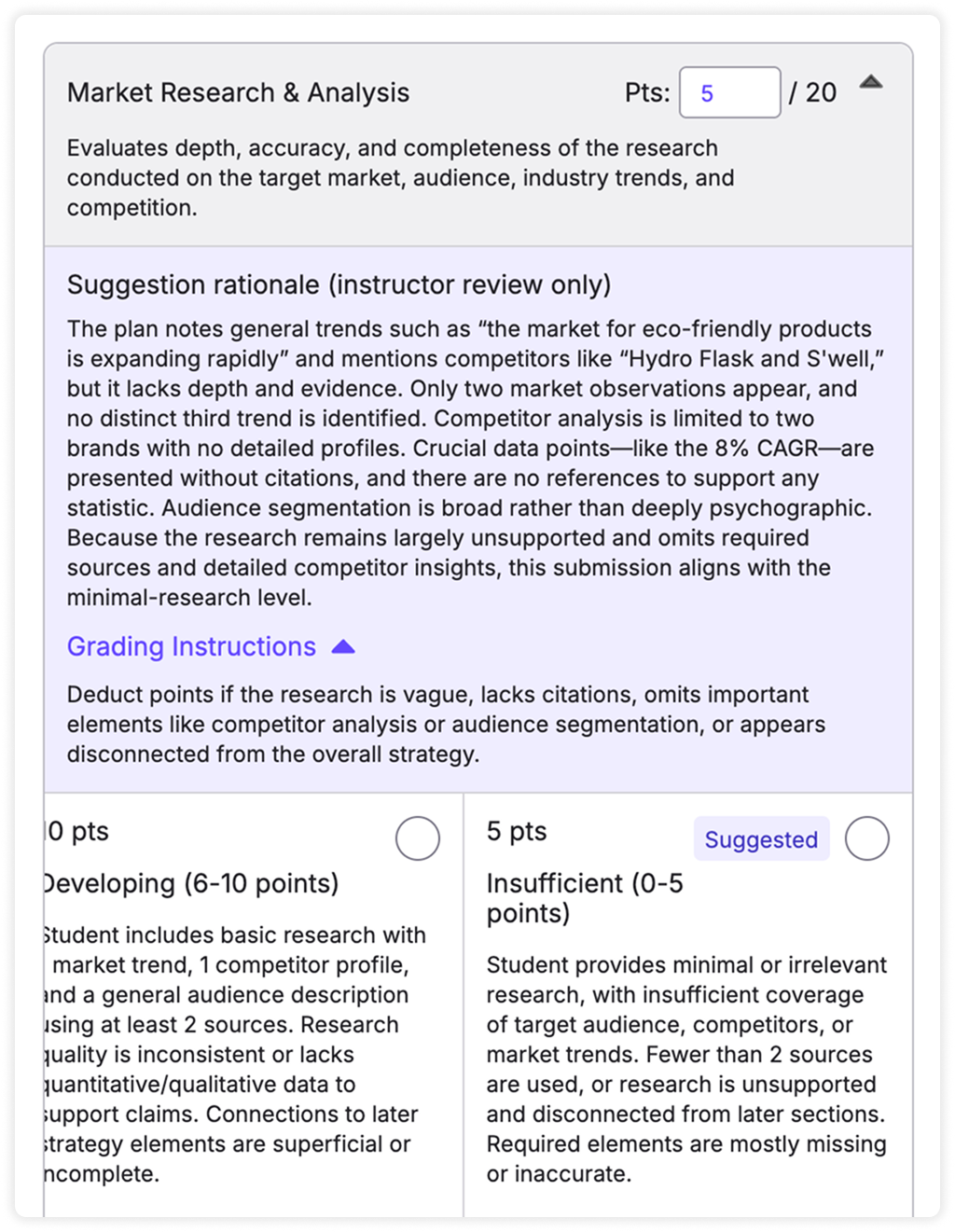
While grading, open the **Grading Instructions** dropdown on the rubric to see the instructions for each criterion.
## If suggestions still miss
* **A requirement is missed:** state it explicitly as a look-for or an omission.
* **The AI comments on things that don’t matter:** set the scope in the general instructions.
* **Suggestions are inconsistent:** check for instructions that conflict, and change one thing at a time.
* **Suggestions are too harsh or too lenient across the board:** that usually comes from the rubric, not these settings. Tighten the rating descriptions.
After any change, check the new suggestions on a few submissions at different performance levels. Criterion instructions can also be brought in from another assignment with **Import Assignment Settings**; see [Reusing settings from other assignments](/user-guides-get-started-here/reuse-assignment-settings.md). More in [Calibrating grading suggestions](/user-guides-get-started-here/grading-settings.md).
## Related articles
* [Refining AI Accuracy in TimelyGrader: A Practical Guide](/canvas-support-articles/assignments/refining-ai-accuracy.md)
* [Advanced: Customizing Feedback](/canvas-support-articles/assignments/customizing-feedback.md)
* [Advanced: Creating a Content Bank](/canvas-support-articles/assignments/content-bank.md)



 **Hugo’s tip:** **Suggested from your rubric wording** offers look-fors drawn from your rating descriptions.
{% endhint %}
{% endstep %}
{% step %}
### Changes are saved automatically.
We will also show you a timestamp of when the assignment was last updated.
{% endstep %}
{% endstepper %}
## Reviewing criterion instructions while grading
While grading, open the **Grading Instructions** dropdown on the rubric to see the instructions for each criterion.
**Hugo’s tip:** **Suggested from your rubric wording** offers look-fors drawn from your rating descriptions.
{% endhint %}
{% endstep %}
{% step %}
### Changes are saved automatically.
We will also show you a timestamp of when the assignment was last updated.
{% endstep %}
{% endstepper %}
## Reviewing criterion instructions while grading
While grading, open the **Grading Instructions** dropdown on the rubric to see the instructions for each criterion.