> For the complete documentation index, see [llms.txt](https://help.timelygrader.ai/llms.txt). Markdown versions of documentation pages are available by appending `.md` to page URLs; this page is available as [Markdown](https://help.timelygrader.ai/canvas-support-articles/assignments/grade-submissions.md).
# How to Grade Submissions with TimelyGrader
Review and confirm grades and feedback in the grading view.
Once submissions finish processing, review TimelyGrader’s suggested grades and feedback, then make the final decisions yourself.
## Steps
{% stepper %}
{% step %}
### Open the grading view
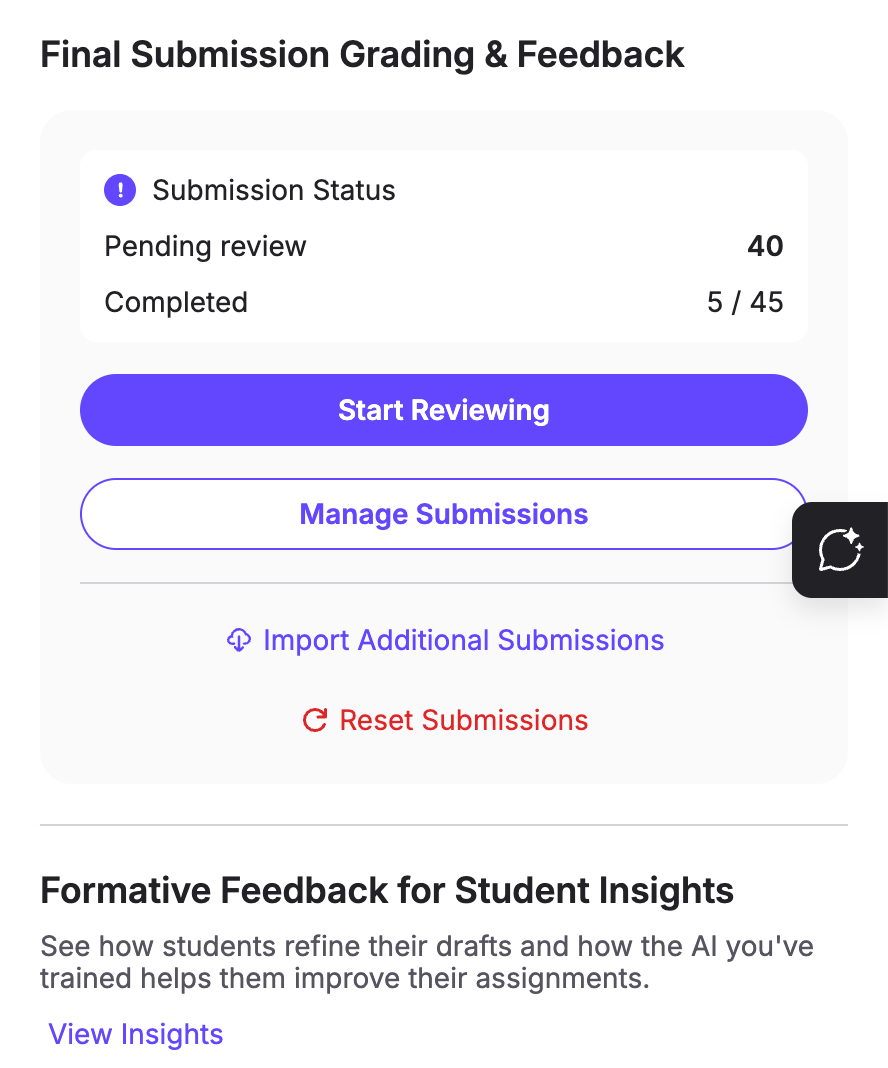
Open the assignment and click **Manage Submissions**, or **Start Reviewing** to begin with the first submission ready for grading.
{% hint style="success" %} **Hugo’s tip:** Need to bring submissions in first? See [Importing or Uploading Submissions](/canvas-support-articles/assignments/import-submissions.md).
{% endhint %}
{% endstep %}
{% step %}
### Select grades
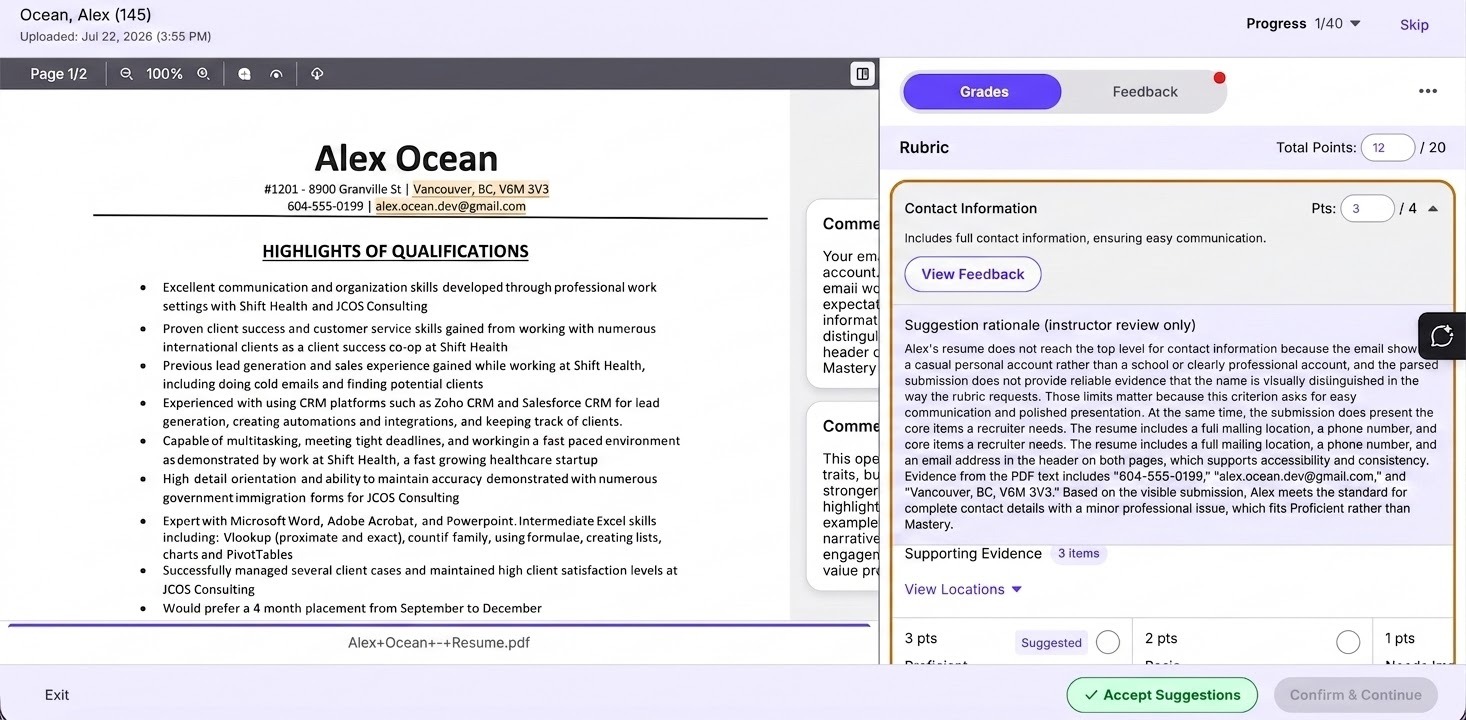
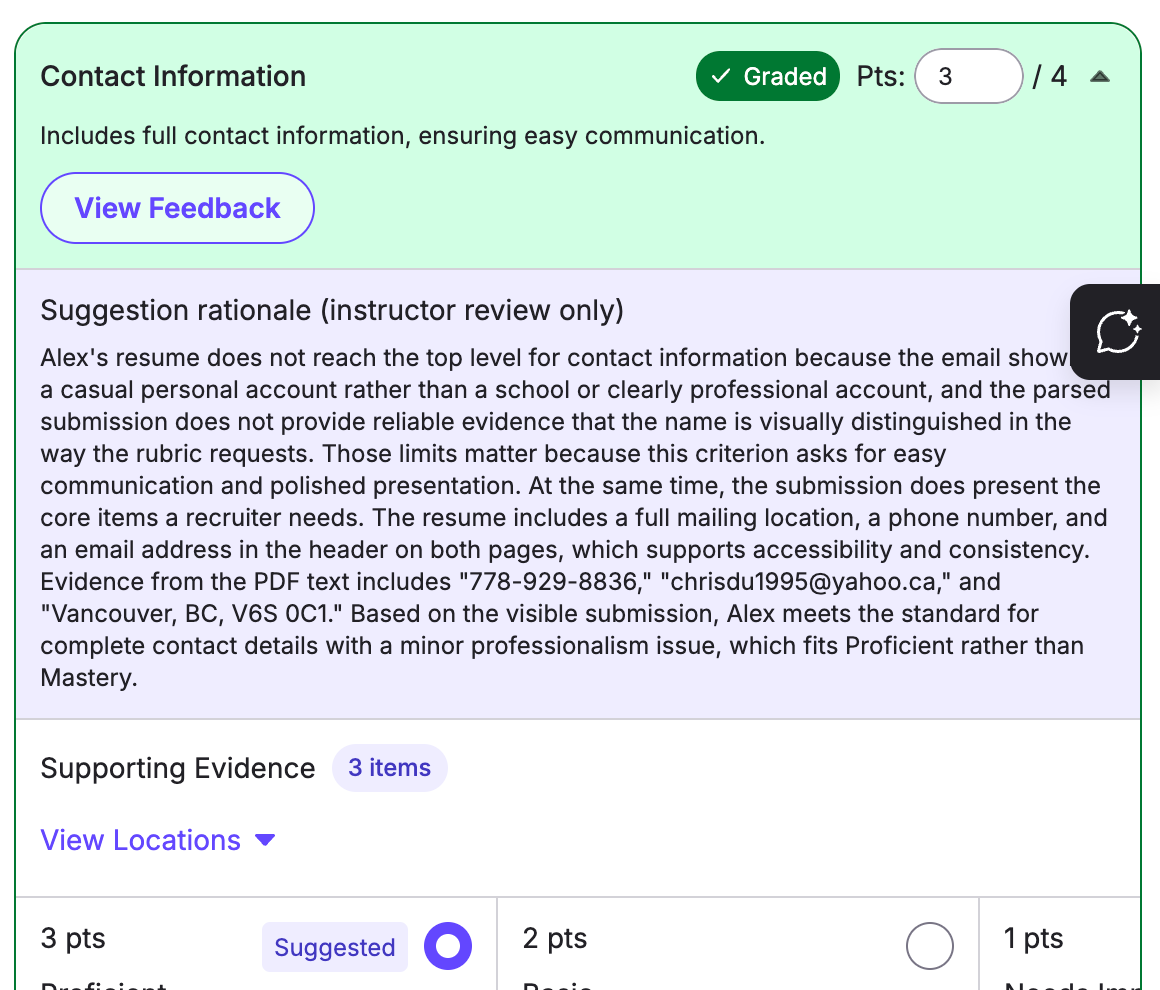
The grading view opens on the first submission ready for grading, with the rubric in the right sidebar. Select a criterion to see TimelyGrader’s suggested grade, the reasoning behind it, and highlighted annotations on the submission.
Enter a grade by selecting a rating level or typing points in the **Pts** field. To apply suggestions in bulk, click **Accept Suggestions** at any time; it only fills criteria you haven’t graded yet.
{% hint style="success" %} **Hugo’s tip:** Use the **Progress** dropdown to jump to a specific submission.
{% endhint %}
{% hint style="success" %} **Hugo’s tip:** If a score falls between two rating levels, type a custom score. Decimals work.
{% endhint %}
{% endstep %}
{% step %}
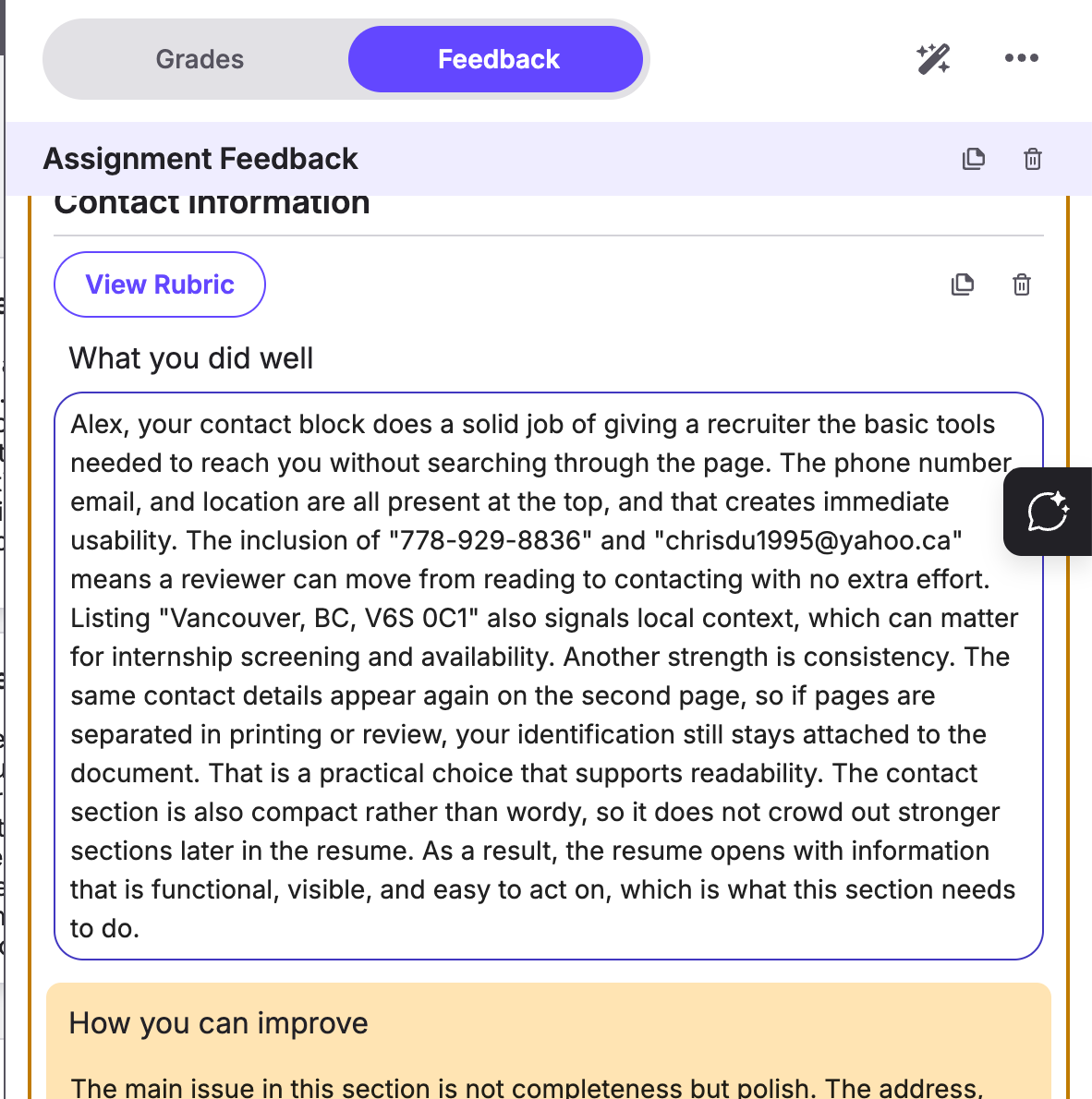
### Review and revise feedback
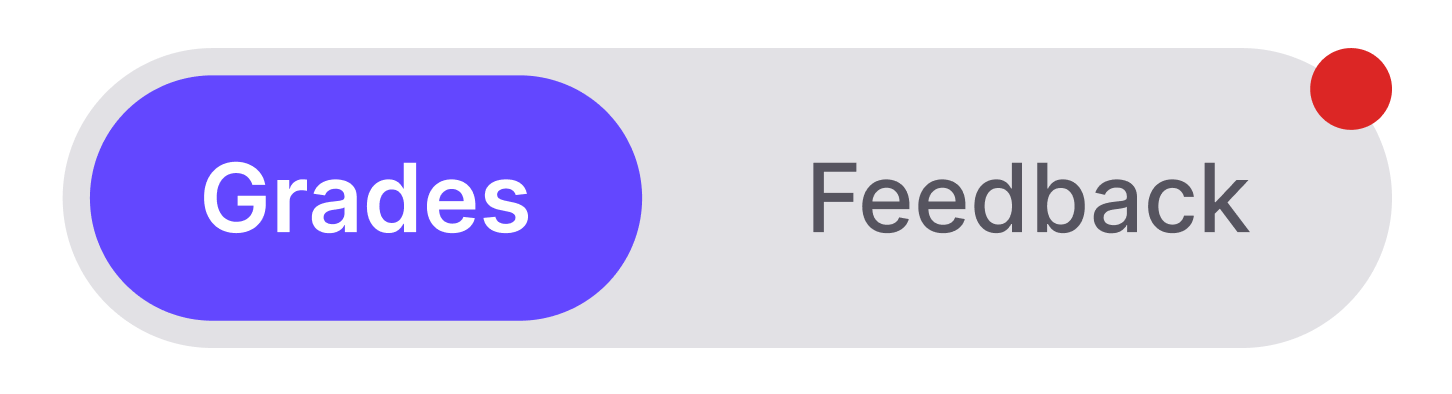
Switch to the feedback tab at the top of the right sidebar. A red dot means there is feedback you haven’t viewed. Selecting a feedback item highlights the annotations it refers to.
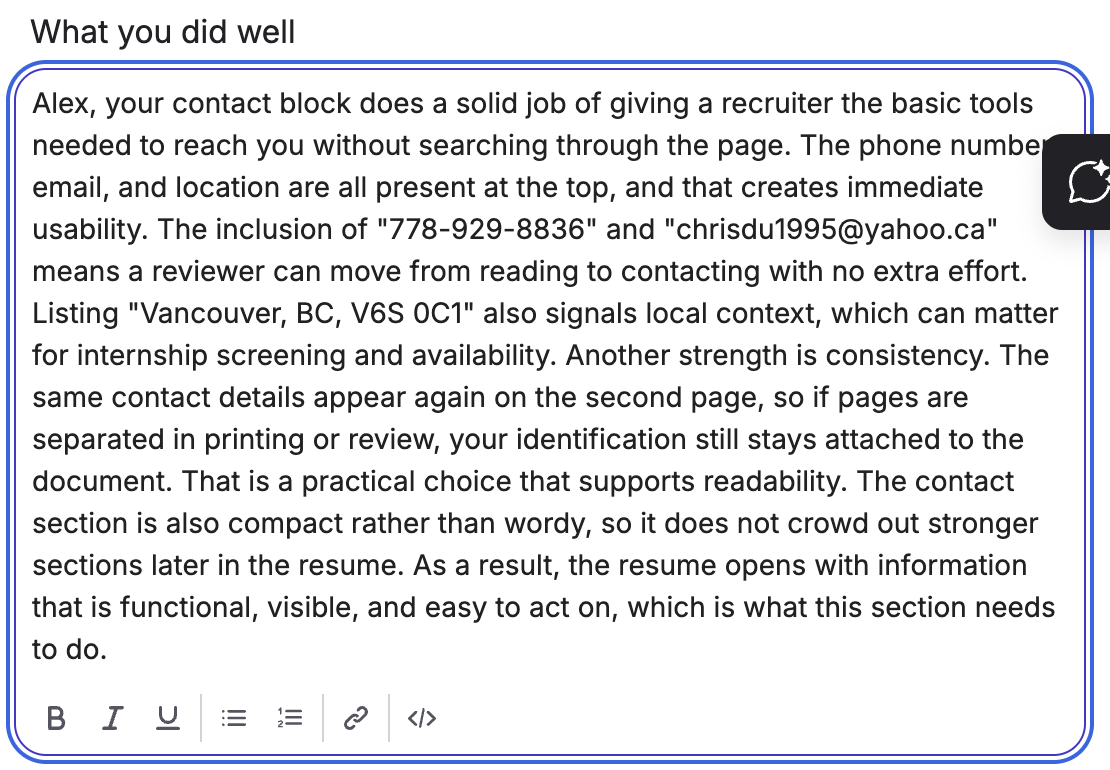
Click into any feedback box to edit it. Changes save automatically when you click away.
{% hint style="success" %} **Hugo’s tip:** The default structure is Rubric-Based Feedback, with one item per criterion. You can change the structure in **Feedback Settings**; see [Advanced: Customizing Feedback](/canvas-support-articles/assignments/customizing-feedback.md). What the feedback says follows the grading rationale, so to change its content, adjust **Grading Settings** first.
{% endhint %}
{% endstep %}
{% step %}
### Confirm grades and feedback
When every criterion is graded and the feedback reviewed, click **Confirm & Continue** to move to the next submission. Repeat until you are done.
{% hint style="warning" %}
Confirming does not automatically release grades and feedback to the student. For that you will need to push the grades back.
{% endhint %}
{% hint style="info" %}
You can leave the grading view at any time. Confirmed grades and feedback are saved, and you can review or edit them later from **Manage Submissions**.
{% endhint %}
{% endstep %}
{% endstepper %}
## Related articles
* [Pushing Grades & Feedback Back to Canvas](/canvas-support-articles/assignments/push-grades-to-canvas.md)
* [Regeneration for More Accurate Feedback](/canvas-support-articles/assignments/regeneration.md)
* [Advanced: Customizing Feedback](/canvas-support-articles/assignments/customizing-feedback.md)

 **Hugo’s tip:** Need to bring submissions in first? See [Importing or Uploading Submissions](/canvas-support-articles/assignments/import-submissions.md).
{% endhint %}
**Hugo’s tip:** Need to bring submissions in first? See [Importing or Uploading Submissions](/canvas-support-articles/assignments/import-submissions.md).
{% endhint %}