> For the complete documentation index, see [llms.txt](https://help.timelygrader.ai/llms.txt). Markdown versions of documentation pages are available by appending `.md` to page URLs; this page is available as [Markdown](https://help.timelygrader.ai/canvas-support-articles/assignments/import-submissions.md).
# Importing or Uploading Submissions for Grading and Feedback
Import submissions from Canvas, or upload them yourself, to generate grading and feedback suggestions.
How you bring in student work depends on how the assignment was set up:
* **Assignments imported from Canvas** are linked to Canvas, so you import submissions from Canvas.
* **Assignments created in TimelyGrader** need submissions uploaded.
{% hint style="info" %}
Quiz attempts are brought in from the **Quizzes** page instead; on Canvas they import automatically. See [Setting up quizzes](/user-guides-get-started-here/quizzes-guide.md). Importing submissions is for instructors: TAs can’t import, and they only see submissions in their assigned sections.
{% endhint %}
## Importing submissions
{% stepper %}
{% step %}
### Open the assignment you like to import submissions
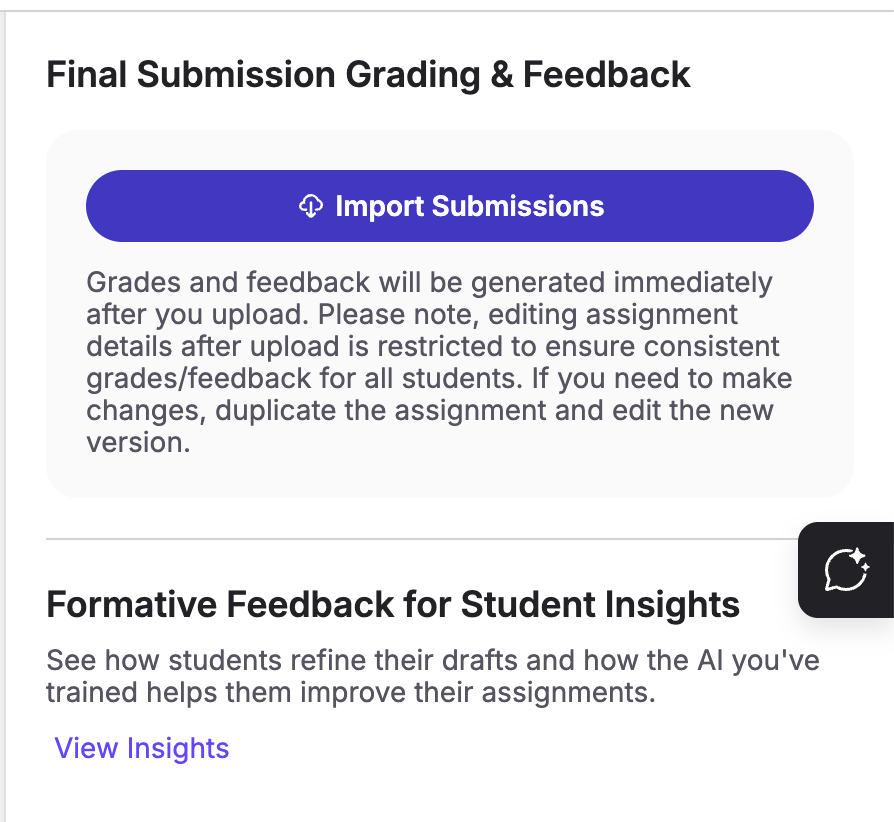
Once you are viewing the assignment page, you will find the 'Import Submissions' button on the right hand side panel.
{% endstep %}
{% step %}
### Confirm the number of submissions
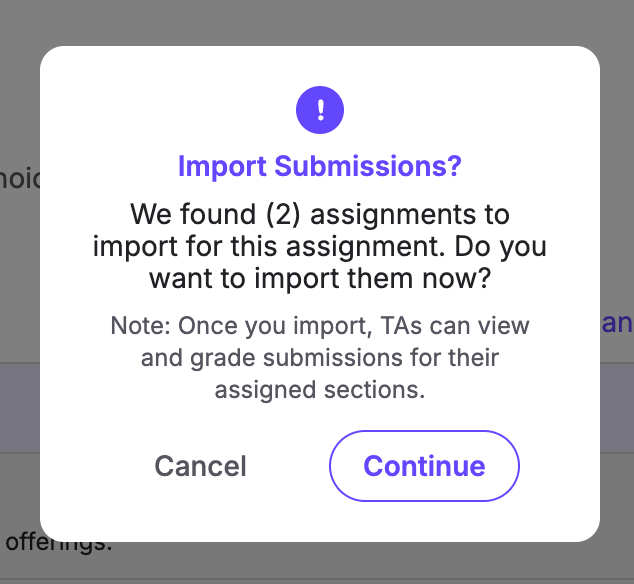
A pop-up shows how many Canvas submissions will be imported. If the count is right, click **Continue**.
{% endstep %}
{% step %}
### Upload the imported submissions
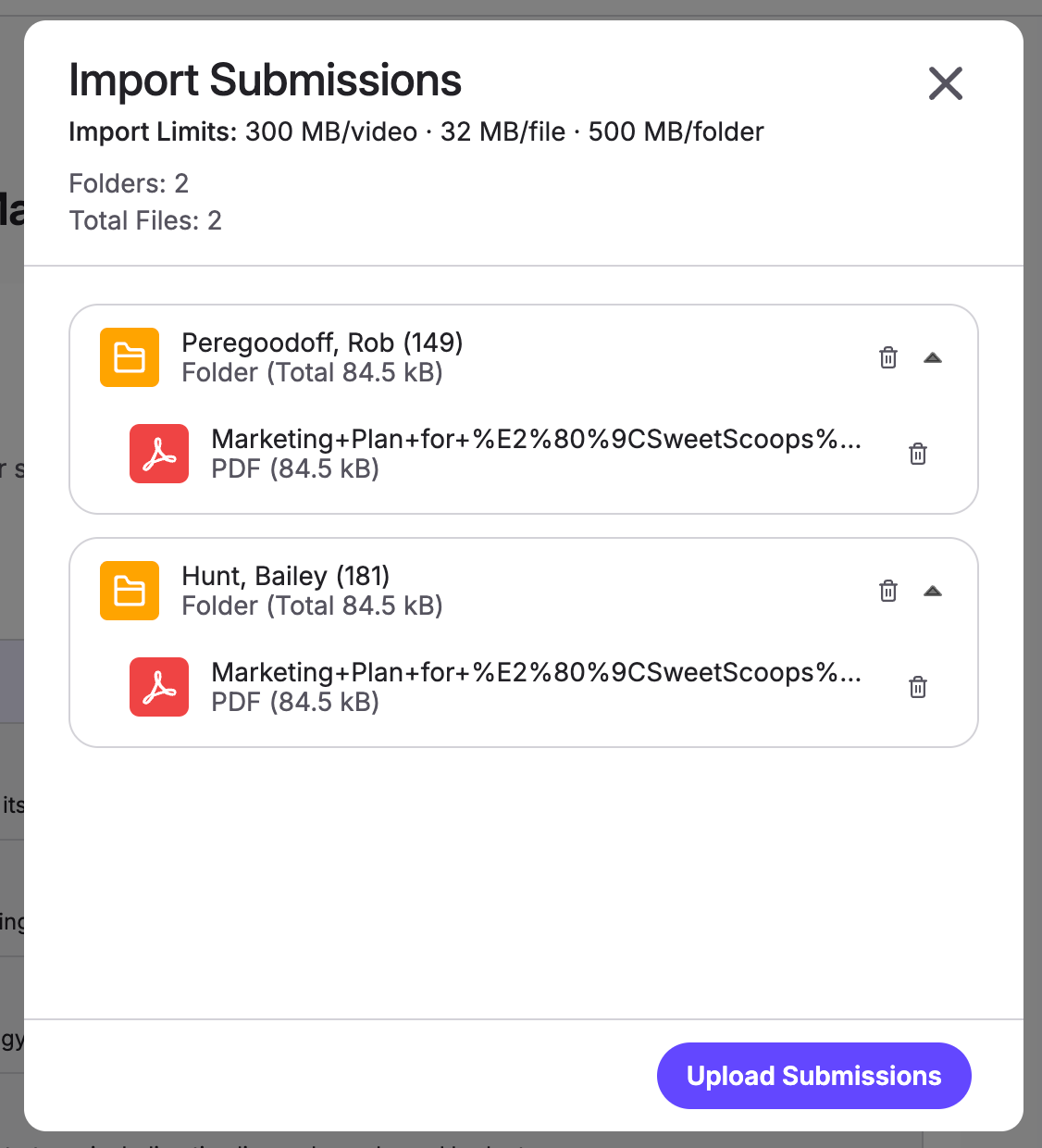
If there are no errors, click **Upload Submissions** to send them to TimelyGrader. Files are grouped in a folder per student, so a student can have more than one file in a submission.
{% endstep %}
{% step %}
### Wait while submissions are processed
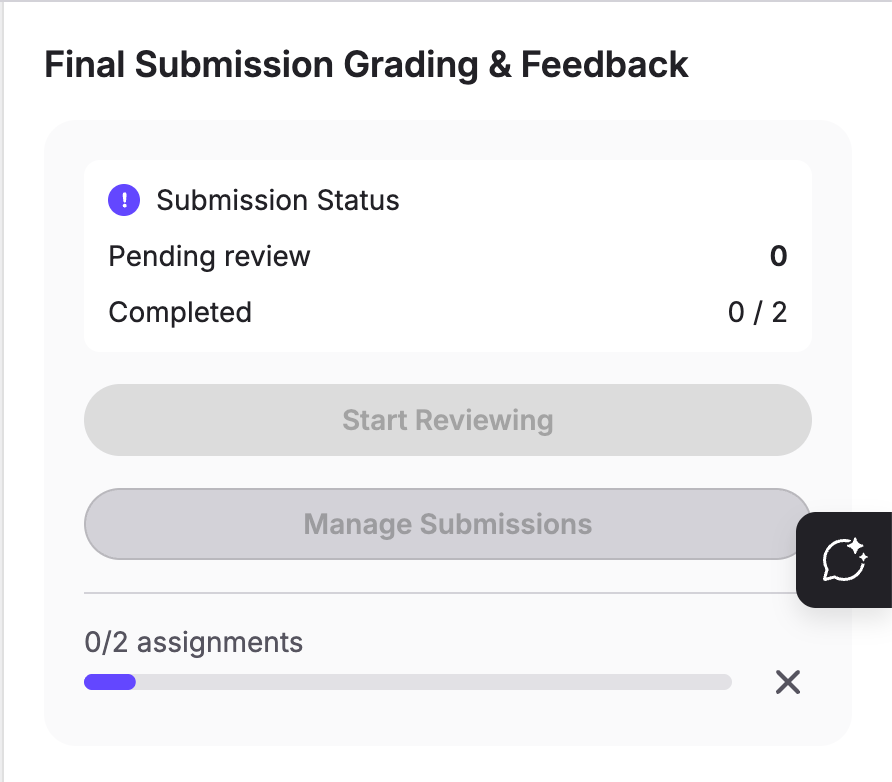
Processing starts immediately and its progress shows in the right sidebar. It can take a few minutes. When it finishes, click **Start Reviewing** to view each submission, see the grading and feedback suggestions, edit them and finalize grades.
{% hint style="success" %} **Hugo’s tip:** You can leave the page or close TimelyGrader while it runs. Processing continues in the background, so it’s a good moment for a coffee.
{% endhint %}
{% endstep %}
{% endstepper %}
## Uploading submissions
{% stepper %}
{% step %}
### Open the assignment
On the Assignments page, select the assignment.
{% endstep %}
{% step %}
### Upload submissions
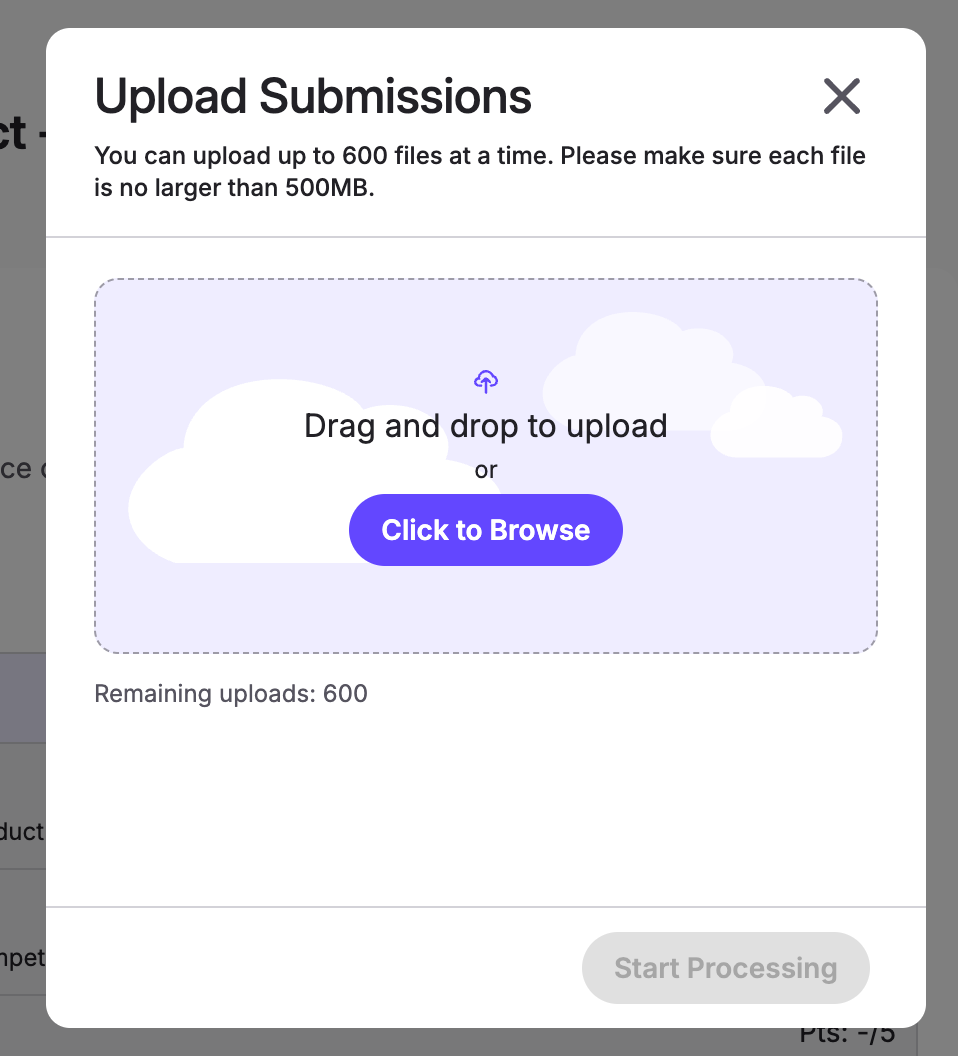
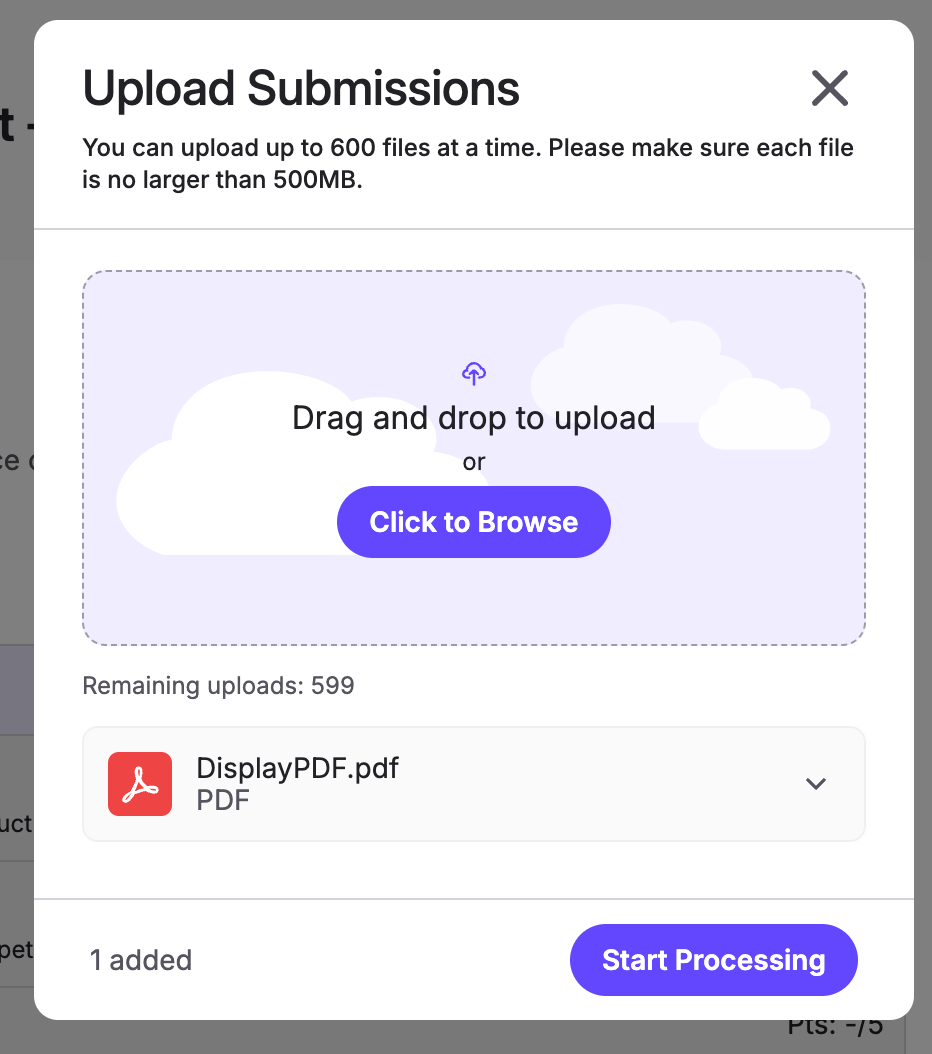
In the right sidebar, under **Final Submission Grading & Feedback**, click **Upload Submissions**. Click **Click to Browse** to choose files, or drag and drop them into the upload area.
{% hint style="info" %}
Accepted file types: .pdf, .doc, .docx, .xls, .xlsx, .ppt, .pptx and .csv. You can upload up to 600 files, each under 30 MB. Add every submission before you start processing.
{% endhint %}
{% endstep %}
{% step %}
### Start processing
Once every submission is added, click **Start Processing** to generate grading and feedback suggestions.
{% endstep %}
{% step %}
### Wait while submissions are processed
Progress shows in the right sidebar, and you can leave and come back while it runs. When it finishes, click **Start Reviewing**.
{% endstep %}
{% endstepper %}
## Resetting submissions
Imported or uploaded the wrong files, or need to change the assignment details? Reset the grades and feedback for the assignment. See [How to Reset Grades and Feedback](/canvas-support-articles/assignments/reset-grades.md).
## Related articles
* [How We Handle New Submissions](/canvas-support-articles/assignments/new-submissions.md)
* [How We Handle Unsupported Files](/canvas-support-articles/assignments/unsupported-files.md)
* [How to Grade Submissions with TimelyGrader](/canvas-support-articles/assignments/grade-submissions.md)

 **Hugo’s tip:** You can leave the page or close TimelyGrader while it runs. Processing continues in the background, so it’s a good moment for a coffee.
{% endhint %}
{% endstep %}
{% endstepper %}
## Uploading submissions
{% stepper %}
{% step %}
### Open the assignment
On the Assignments page, select the assignment.
{% endstep %}
{% step %}
### Upload submissions
In the right sidebar, under **Final Submission Grading & Feedback**, click **Upload Submissions**. Click **Click to Browse** to choose files, or drag and drop them into the upload area.
**Hugo’s tip:** You can leave the page or close TimelyGrader while it runs. Processing continues in the background, so it’s a good moment for a coffee.
{% endhint %}
{% endstep %}
{% endstepper %}
## Uploading submissions
{% stepper %}
{% step %}
### Open the assignment
On the Assignments page, select the assignment.
{% endstep %}
{% step %}
### Upload submissions
In the right sidebar, under **Final Submission Grading & Feedback**, click **Upload Submissions**. Click **Click to Browse** to choose files, or drag and drop them into the upload area.