

1. Importing or Creating an Assignment
Import an assignment from Canvas or create an assignment from scratch.

Importing an assignment from Canvas

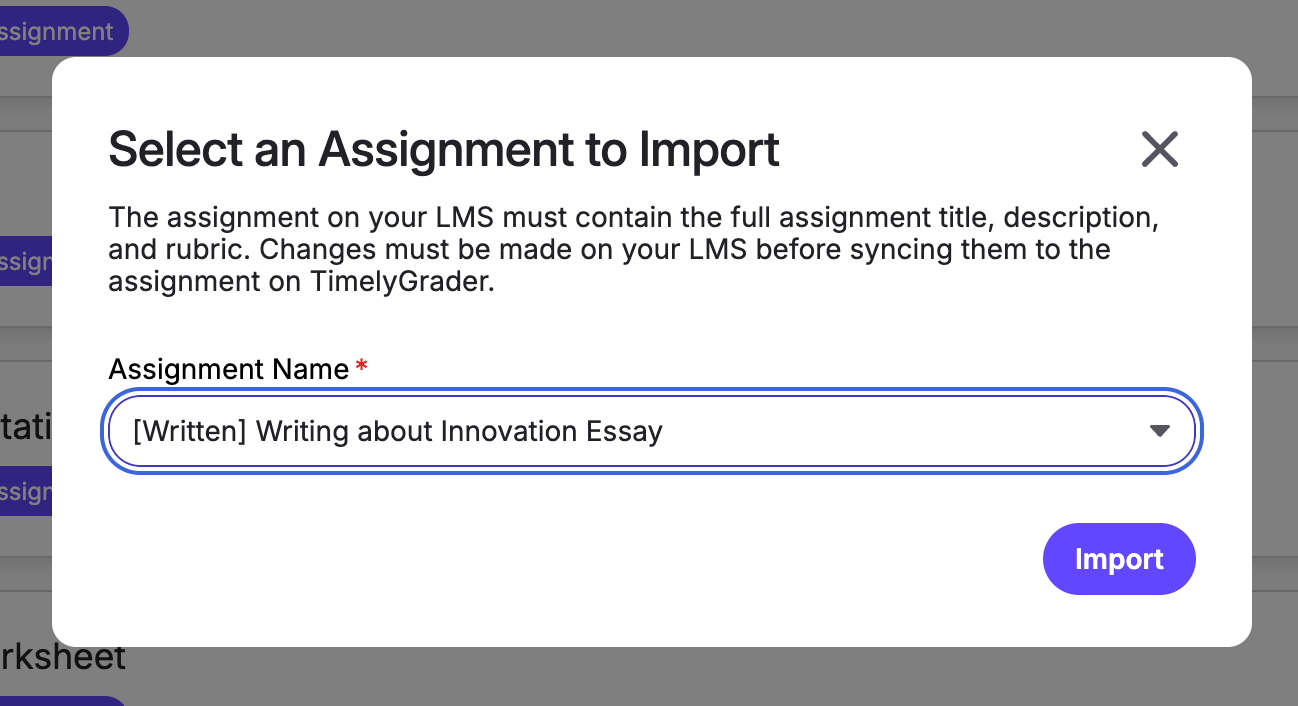
Check the mandatory fields
In Description & Settings, the only two mandatory items are the Assignment Description and the Rubric. Both usually will be imported from Canvas. If you don't have a rubric on the Canvas assignment, we will ask you to add one. You can also tell TimelyGrader what type of submission to expect and change the citation format.

 Hugo’s tip: Already set up a similar assignment? Use Import Assignment Settings to bring its description, rubric and settings across. See Reusing settings from other assignments.
Review the setup sections
Everything else is optional. Setup is split into sections, and each starts from your defaults in Settings → Preferences (if you already set it up):
Description & Settings: description, rubric, expected submission type and citation format.
Grading Settings: turn Grading Suggestions on or off and add general or criterion-specific instructions. See Advanced: Calibrating Grading Accuracy.
Feedback Settings: the structure, tone and language level of feedback. See Advanced: Customizing Feedback.
Formative Feedback Settings: whether students can open the assignment and get feedback on their drafts, and how.
Inline Comment Settings: how inline comments on the student’s text are created.


Creating an assignment from scratch
This assignment is created in TimelyGrader and isn’t linked to Canvas, so submissions are uploaded rather than imported and grades aren’t pushed back.
Add the mandatory items
Add an Assignment Description and a Rubric. You can write the rubric yourself or have the Rubric Generator create one from your description; see Creating Rubrics on TimelyGrader.
After setup
You may want to calibrate grading further. For more accurate suggestions, add a content bank and tune your Grading and Feedback Settings:
Related articles
Last updated
Was this helpful?