> For the complete documentation index, see [llms.txt](https://help.timelygrader.ai/llms.txt). Markdown versions of documentation pages are available by appending `.md` to page URLs; this page is available as [Markdown](https://help.timelygrader.ai/canvas-support-articles/assignments/new-submissions.md).
# How We Handle New Submissions
What happens when a student resubmits to an assignment you’ve already imported.
What happens when a student makes a new submission to an existing assignment? It depends on how far the previous submission got.
## Scenario 1: The previous submission wasn’t imported
TimelyGrader imports the newest submission with all of its files. This often happens when a student uploaded the wrong file or missed one. Since no grade has been pushed back yet, use **Push Missing Entries** to send the grade to Canvas.
{% hint style="info" %}
If you ask a student to submit only the missing file without re-uploading the others, TimelyGrader imports only the files in the newest submission.
{% endhint %}
## Scenario 2: The previous submission was imported but not graded
TimelyGrader replaces the existing submission with the new one, so you only grade the most recent version, and the grade and feedback you push back reflect it. Use **Push Missing Entries**.
## Scenario 3: The previous submission was imported and graded
This is the most involved case, and usually happens when you give students another chance to improve their grade.
For example, Student A’s first submission is imported and graded. Student A then submits again. You bring it in with **Import Additional Submissions**, and TimelyGrader asks you to review and grade it again. The new grade and feedback replace the student’s existing entries in TimelyGrader.
What you do next depends on whether you had already pushed grades back:
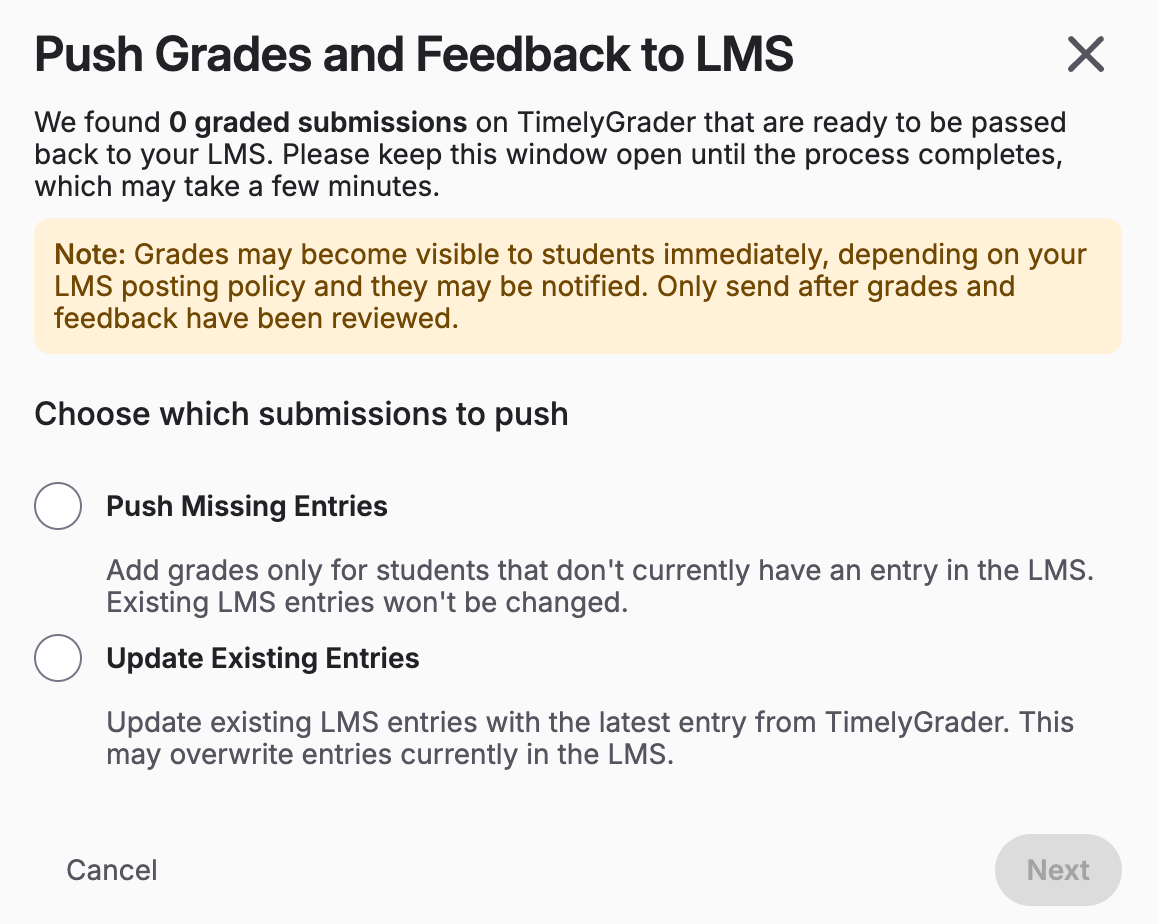
* **Not pushed yet:** push the newest grades and feedback with **Push Missing Entries**. Nothing else is needed.
* **Already pushed:** use **Update Existing Entries** to update that student’s grade in Canvas.
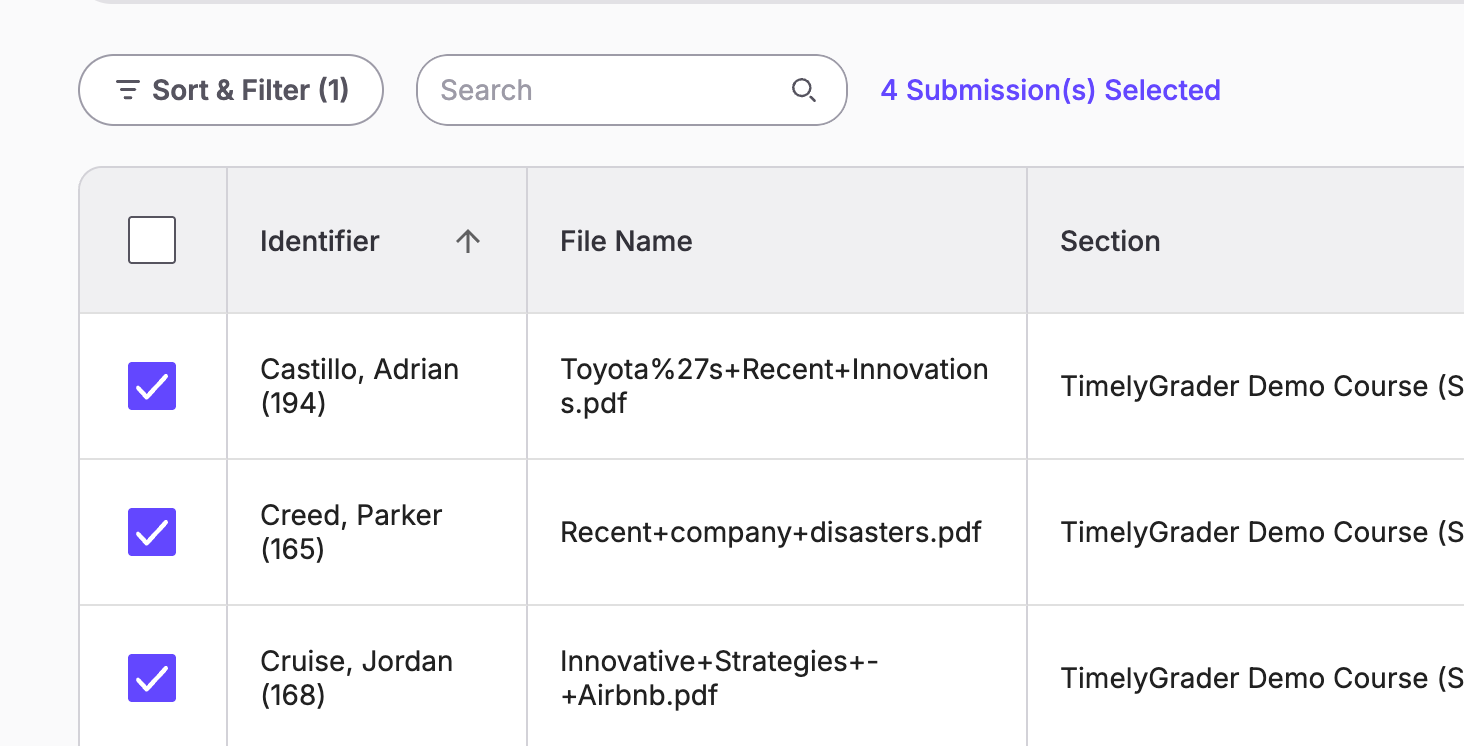
{% hint style="success" %} **Hugo’s tip:** You can select several students and update their entries at once.
{% endhint %}
## Related articles
* [Pushing Grades & Feedback Back to Canvas](/canvas-support-articles/assignments/push-grades-to-canvas.md)
* [How We Handle Unsupported Files](/canvas-support-articles/assignments/unsupported-files.md)
* [Importing or Uploading Submissions for Grading and Feedback](/canvas-support-articles/assignments/import-submissions.md)

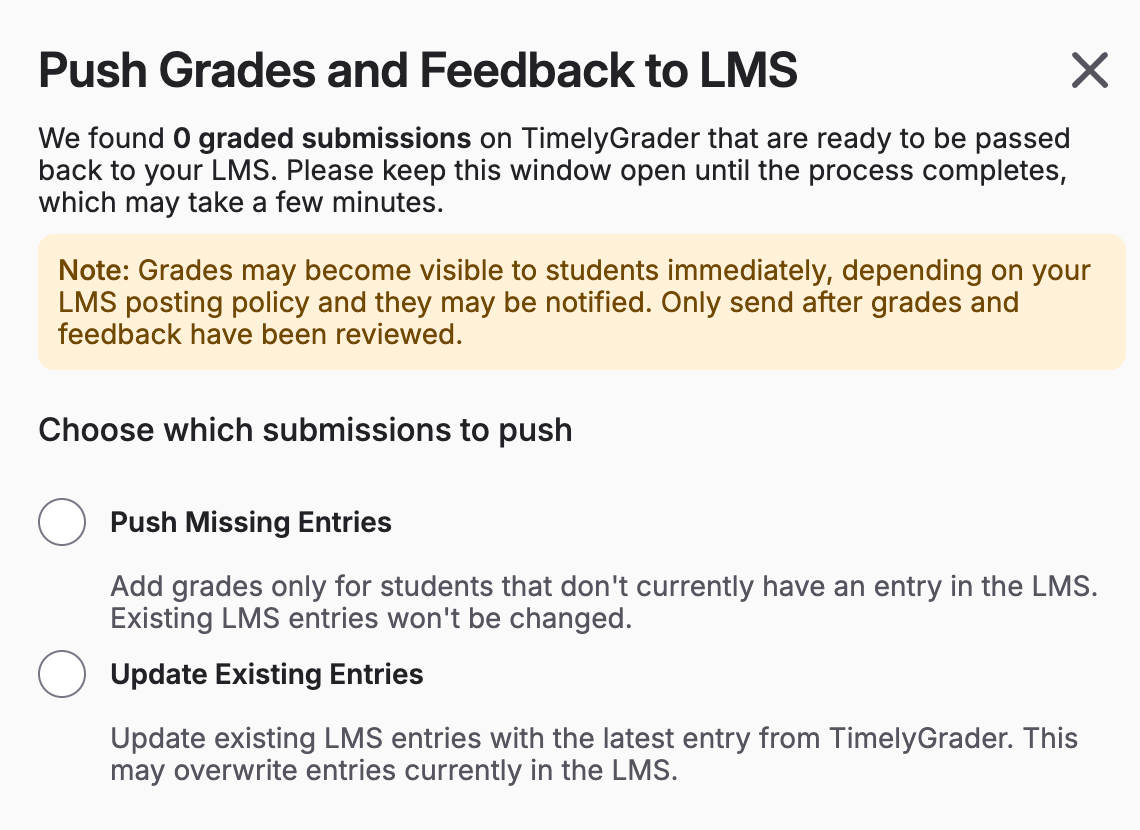
 **Hugo’s tip:** You can select several students and update their entries at once.
{% endhint %}
**Hugo’s tip:** You can select several students and update their entries at once.
{% endhint %}