

4. Pushing Grades & Feedback Back to Canvas
Send grades and feedback back to Canvas SpeedGrader for assignments imported from Canvas.

For assignments imported from Canvas, you can send grades and feedback from TimelyGrader straight back to Canvas.
Steps
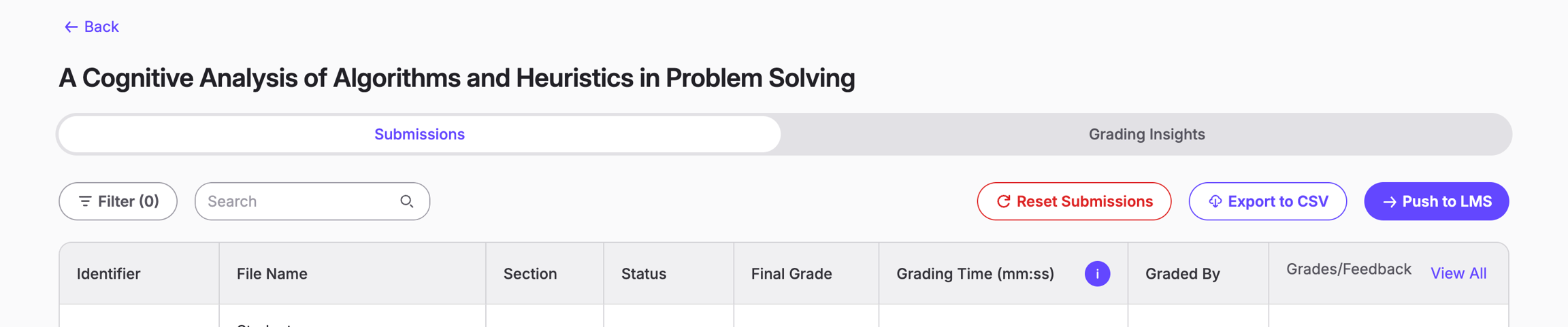
Choose how you want to push back the grades and feedback
You have two options here and should cover all use cases:
Push Missing Entries: only pushes back grades and feedback for students who do not already have a record on Canvas SpeedGrader and Gradebook. This is to prevent overwriting existing grades that you may have manually entered.
Update Existing Entries: this will be used when a student creates an additional submission, which you graded, leading to an outdated record on Canvas. This overwrites on purpose any outdated scores that we detect to bring grade and feedback records up to date.


Leave the page while the push runs
Once the push starts, a message confirms that the LMS grade push has started. You can safely leave the page: the push continues in the background. Come back to the Manage Submissions page anytime to check progress in the Push to LMS banner, which shows how many grades have been pushed.

Related articles
Last updated
Was this helpful?