> For the complete documentation index, see [llms.txt](https://help.timelygrader.ai/llms.txt). Markdown versions of documentation pages are available by appending `.md` to page URLs; this page is available as [Markdown](https://help.timelygrader.ai/canvas-support-articles/assignments/regeneration.md).
# Regeneration for More Accurate Feedback
Tell the AI what to emphasize and regenerate its feedback.
Feedback Regeneration helps you get more accurate, precise and actionable feedback by guiding the AI. Use it when the first-pass feedback doesn’t fully bring out the points you intended.
## How it works
{% stepper %}
{% step %}
### Let the AI give first-pass feedback
After processing, TimelyGrader generates initial feedback based on the rubric and your **Grading Settings** and **Feedback Settings**.
{% endstep %}
{% step %}
### Explain what to change
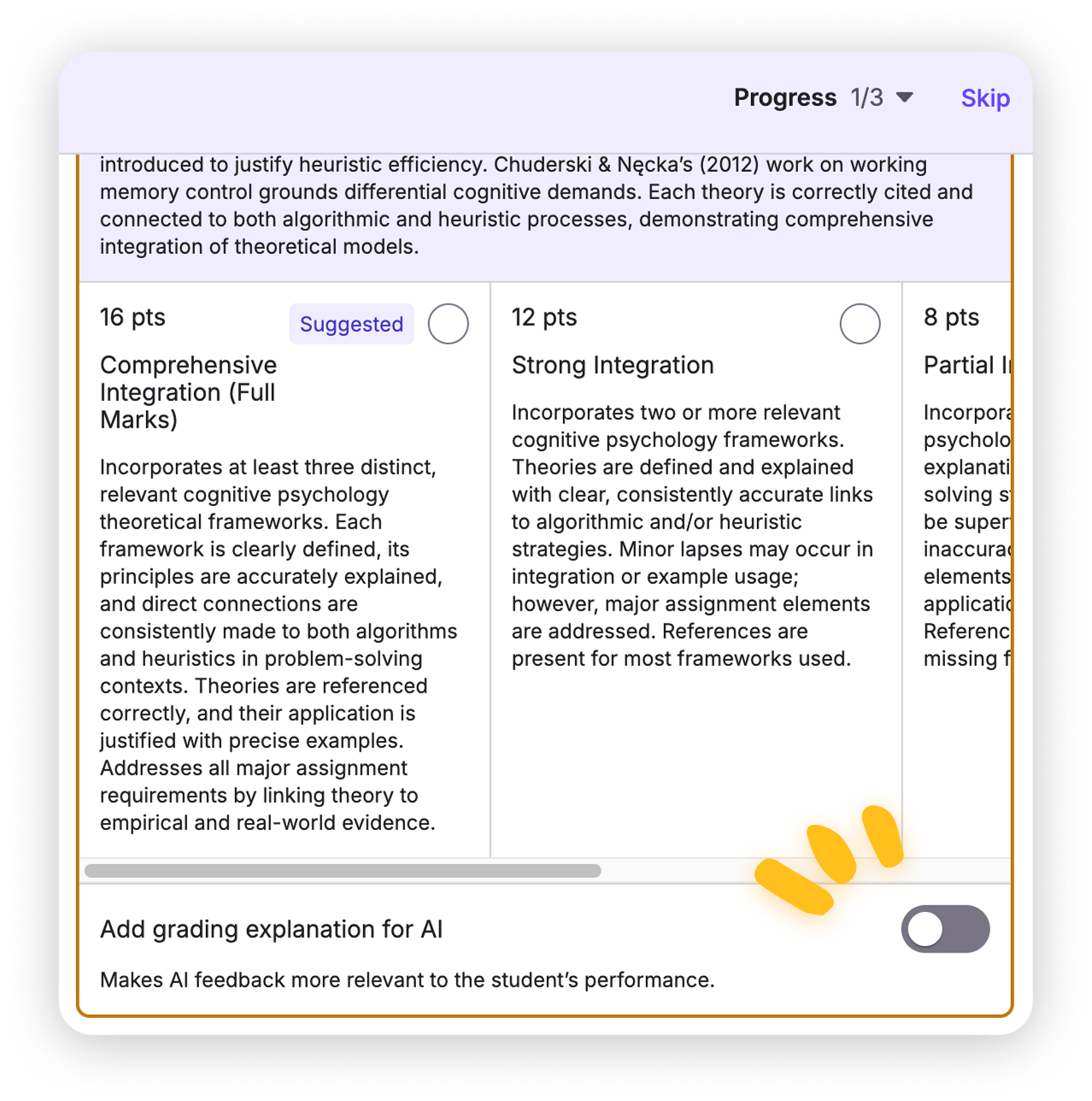
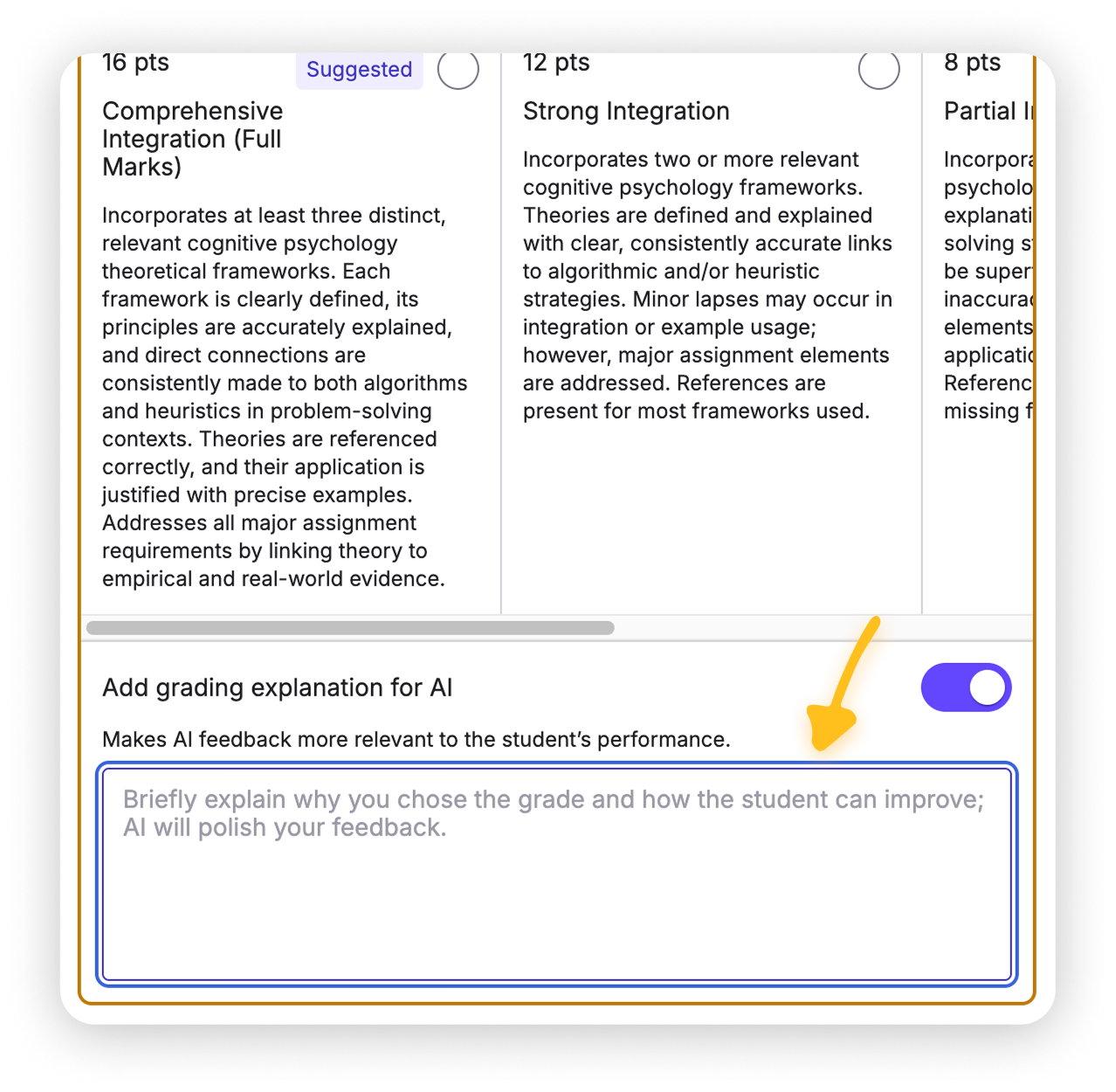
On the **Grades** tab, use the **Add grading explanation for AI** section to explain the level change and say which points to emphasize or clarify.
{% endstep %}
{% step %}
### Click Regeneration
Open the top right corner and choose the magic wand, the icon for **Regeneration**. You will be able to regenerate feedback with even more instructions.
{% hint style="warning" %}
Regeneration replaces the existing feedback completely. Make sure you’re ready to overwrite it.
{% endhint %}
{% endstep %}
{% endstepper %}
## FAQ
Can I regenerate the same feedback more than once?
Yes. Keep iterating, adding instructions in the Add grading explanation for AI section each time, until the feedback matches your intent.
Does the AI understand my grading criteria?
Yes. Regenerated feedback uses the rubric and grading settings you configured.
Does TimelyGrader learn automatically for future assignments?
No. We don’t consider generative AI reliable or valid enough to make critical decisions like student evaluation on its own. The hope is that what you learn from regenerating carries into how you set up future assignments.
## Related articles
* [Refining AI Accuracy in TimelyGrader: A Practical Guide](/canvas-support-articles/assignments/refining-ai-accuracy.md)
* [Advanced: Customizing Feedback](/canvas-support-articles/assignments/customizing-feedback.md)
* [How to Grade Submissions with TimelyGrader](/canvas-support-articles/assignments/grade-submissions.md)