Skip to content
For the complete documentation index, see llms.txt. This page is also available as Markdown.

6. How to Reset Grades and Feedback

Start over on an assignment by deleting its submissions, grades and feedback.

You can always reset and try again. Resetting an assignment:

  • removes all uploaded student submissions, and

  • permanently erases all grades and feedback.

When to reset

  • You uploaded the wrong student submissions.

  • You want to change the assignment details and regrade everyone with the new setup.

Setup changes only apply to work processed after the change; work already processed keeps the results from the old setup. To regrade everyone the same way, reset first, and then reimport. If it is an orphaned assignment, you can re-upload manually.

Only instructors can reset. TAs can’t reset submissions.

How to reset grades and feedback

1

Open the assignment

Open the assignment whose grades and feedback you want to reset.

2

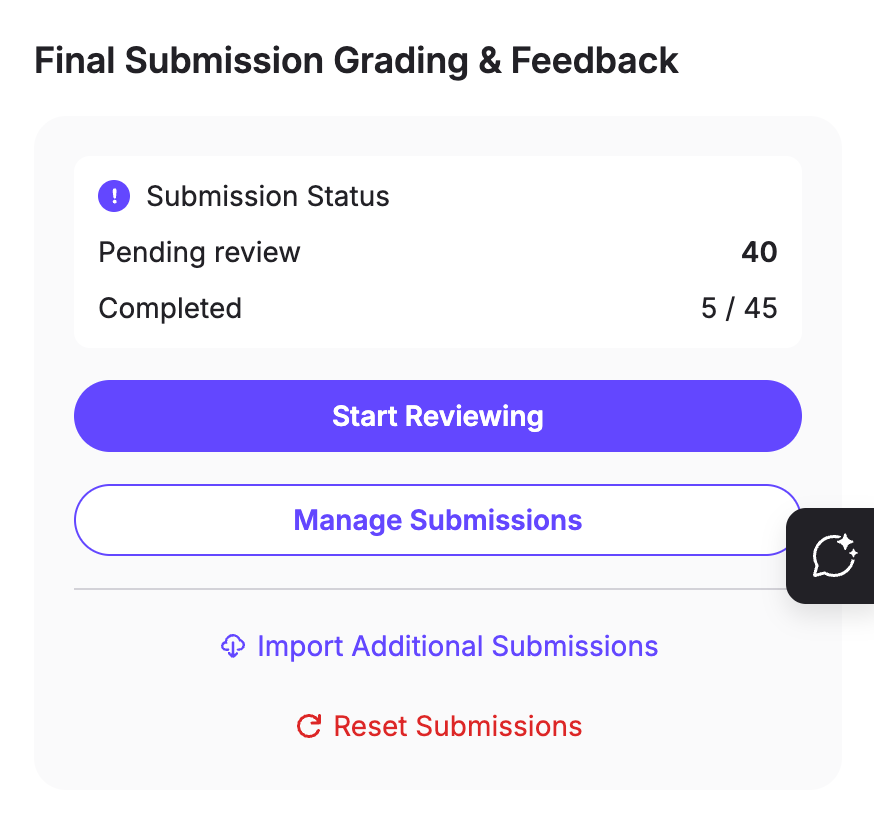
Click Reset Submissions

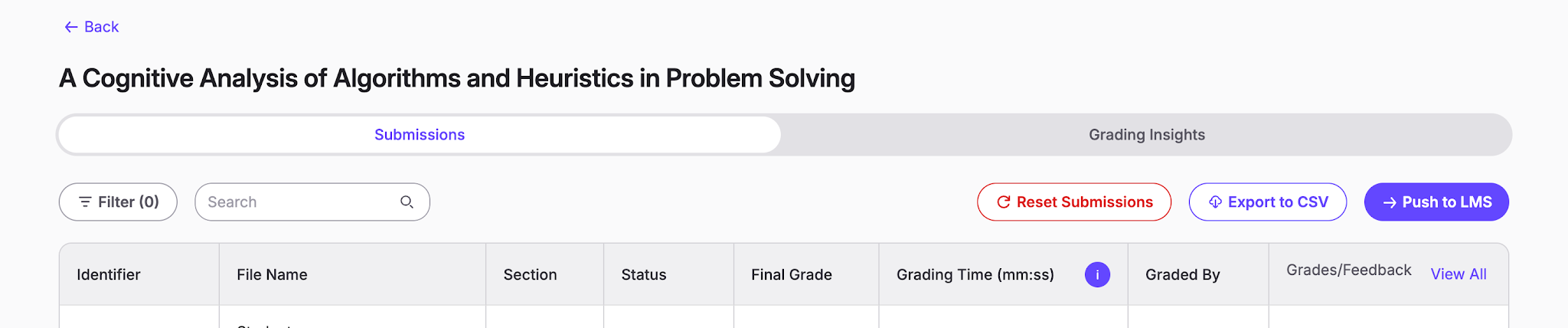
Click Reset Submissions. You can also go to the Manage Submissions page and click Reset Submissions there.

The Reset Submissions button on the assignment
Reset Submissions on the Manage Submissions page
3

Confirm

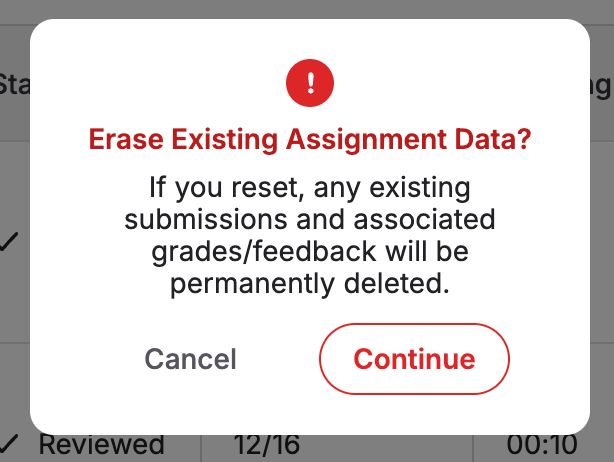
Confirm that you want to delete all submissions, grades and feedback, then click Continue. Everything is deleted, and you can update the assignment setup and bring in submissions again.

Confirming the reset

Last updated

Was this helpful?