> For the complete documentation index, see [llms.txt](https://help.timelygrader.ai/llms.txt). Markdown versions of documentation pages are available by appending `.md` to page URLs; this page is available as [Markdown](https://help.timelygrader.ai/canvas-support-articles/assignments/reset-grades.md).
# How to Reset Grades and Feedback
Start over on an assignment by deleting its submissions, grades and feedback.
You can always reset and try again. Resetting an assignment:
* removes all uploaded student submissions, and
* permanently erases all grades and feedback.
{% hint style="danger" %}
A reset can’t be undone. Make sure you have the right assignment open first.
{% endhint %}
## When to reset
* You uploaded the wrong student submissions.
* You want to change the assignment details and regrade everyone with the new setup.
{% hint style="info" %}
Setup changes only apply to work processed after the change; work already processed keeps the results from the old setup. To regrade everyone the same way, reset first, and then **reimport**. If it is an orphaned assignment, you can re-upload manually.
{% endhint %}
Only instructors can reset. TAs can’t reset submissions.
## How to reset grades and feedback
{% stepper %}
{% step %}
### Open the assignment
Open the assignment whose grades and feedback you want to reset.
{% endstep %}
{% step %}
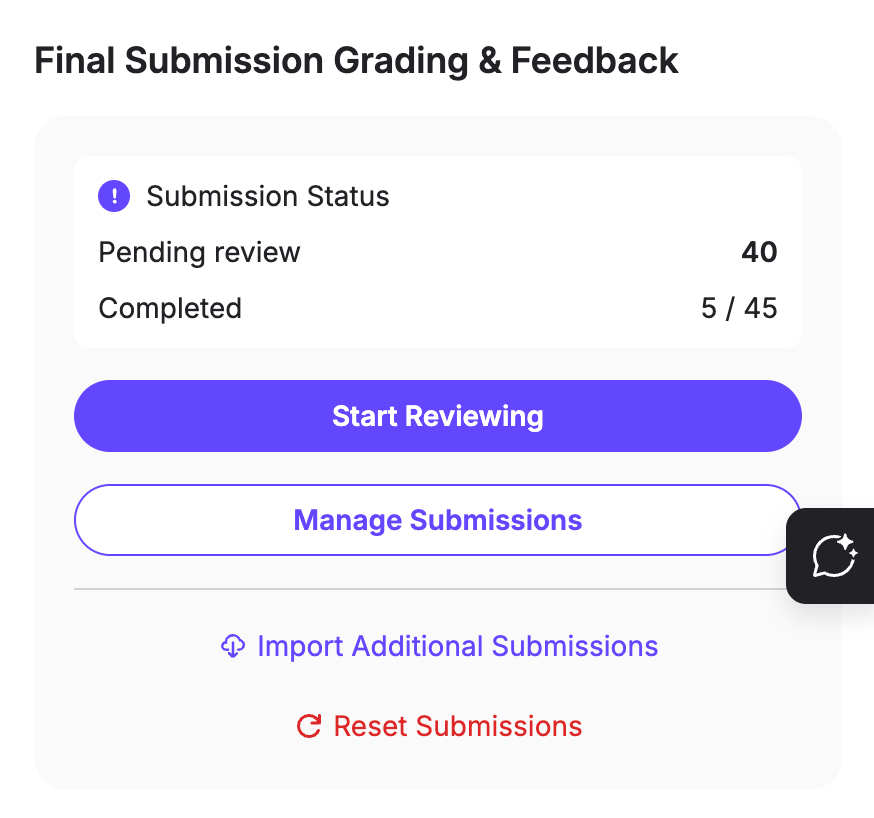
### Click Reset Submissions
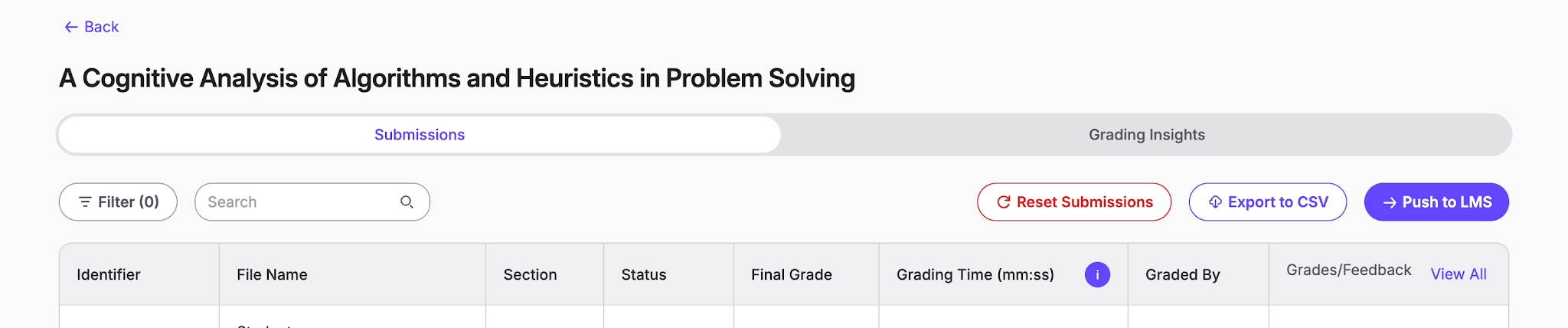
Click **Reset Submissions**. You can also go to the **Manage Submissions** page and click **Reset Submissions** there.
{% endstep %}
{% step %}
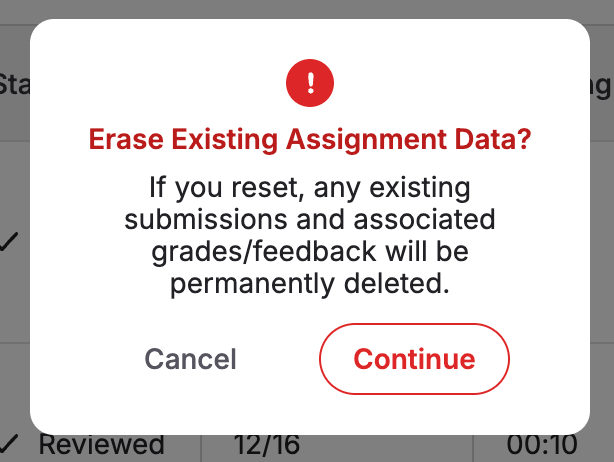
### Confirm
Confirm that you want to delete all submissions, grades and feedback, then click **Continue**. Everything is deleted, and you can update the assignment setup and bring in submissions again.
{% endstep %}
{% endstepper %}
## Related articles
* [Importing or Uploading Submissions for Grading and Feedback](/canvas-support-articles/assignments/import-submissions.md)
* [Refining AI Accuracy in TimelyGrader: A Practical Guide](/canvas-support-articles/assignments/refining-ai-accuracy.md)
* [How We Handle New Submissions](/canvas-support-articles/assignments/new-submissions.md)