> For the complete documentation index, see [llms.txt](https://help.timelygrader.ai/llms.txt). Markdown versions of documentation pages are available by appending `.md` to page URLs; this page is available as [Markdown](https://help.timelygrader.ai/canvas-support-articles/assignments/sync-roster.md).
# How to Sync Your Roster Manually
Bring your Canvas roster into TimelyGrader so every instructor and student is linked to their assignments.
Keeping the roster current makes sure every instructor and student is linked to the right assignments. Syncing pulls the latest member list directly from Canvas.
Sync your roster when:
* you need to invite new instructors, TAs or students,
* students have recently enrolled in the course, or
* you want to make sure the TimelyGrader roster is up to date.
{% hint style="info" %}
TimelyGrader tries to sync the roster the first time you launch a course. It doesn’t sync again on later launches, so after that you sync manually.
{% endhint %}
## Steps
{% stepper %}
{% step %}
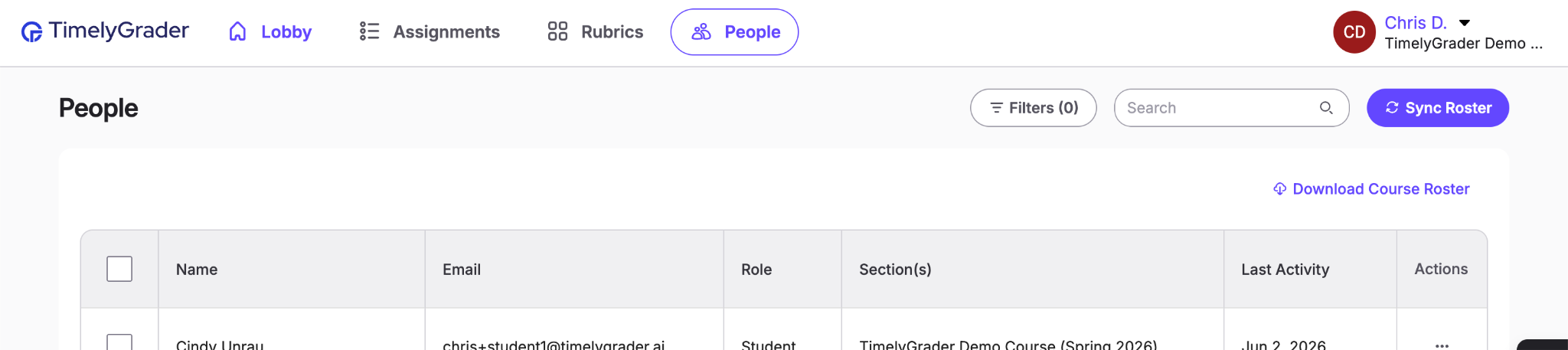
### Open People
Go to the **People** page and click **Sync Roster**.
{% endstep %}
{% step %}
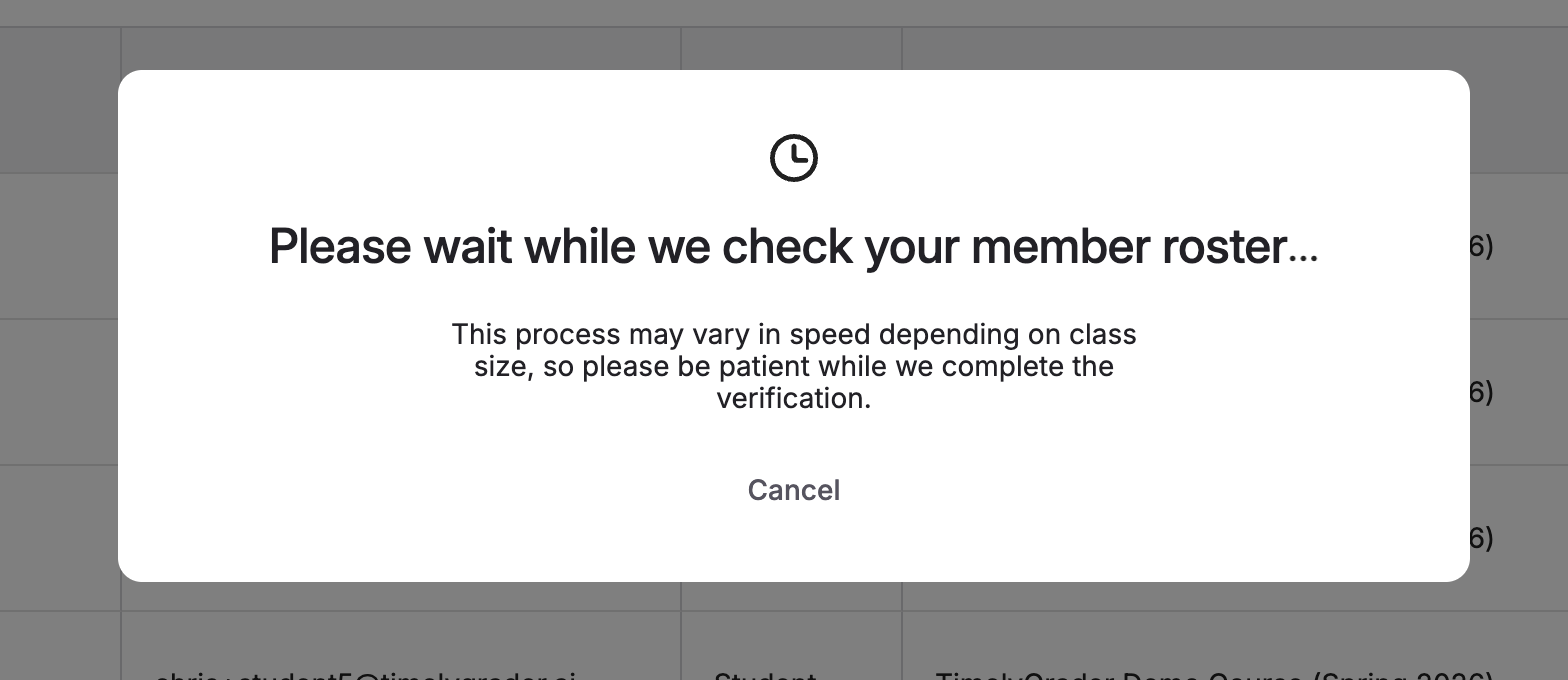
### Wait while the roster is checked
TimelyGrader checks the member list in Canvas.
{% endstep %}
{% step %}
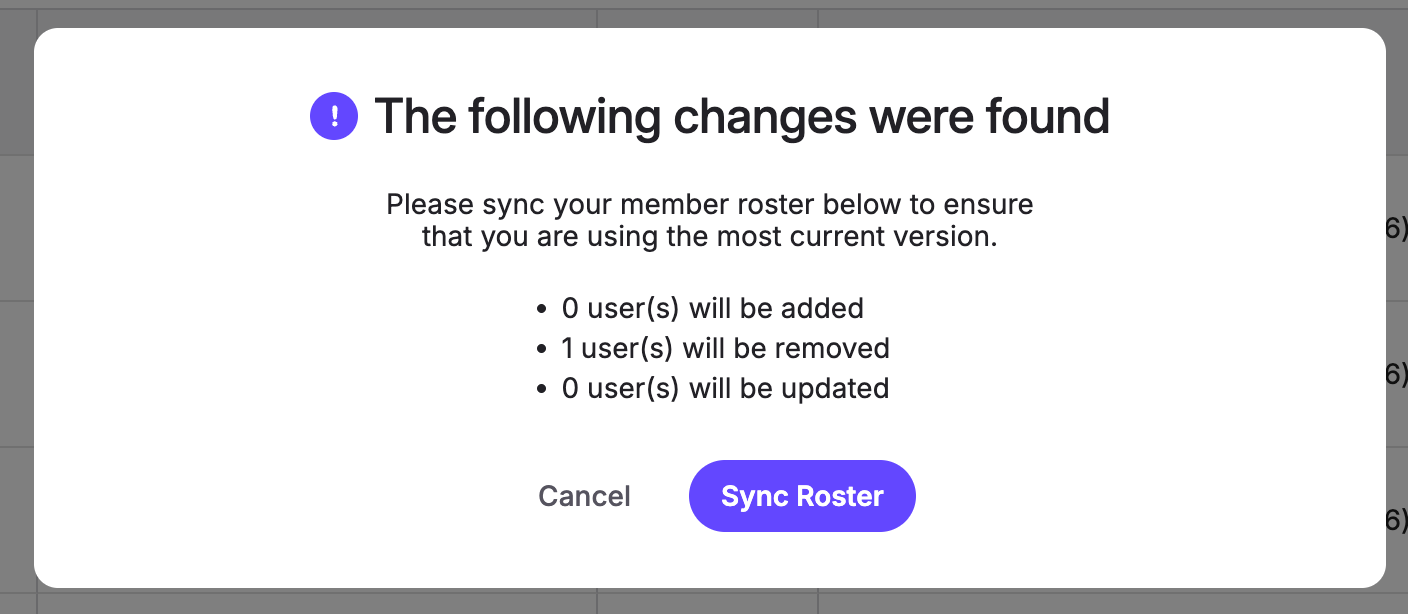
### Review the changes
Check the proposed changes to your TimelyGrader roster.
{% endstep %}
{% step %}
### Apply them
Click **Sync Roster** to apply the changes!
{% endstep %}
{% endstepper %}
## Reading the roster and assigning TAs
Click a column header to sort the roster, or use the filters to narrow it down.
You can also assign TA roles manually. TAs work only within their assigned sections:
* **TAs can** review the assignment description, settings and rubric, and review student submissions in their sections.
* **TAs can’t** import assignments, delete anything, push grades back, edit assignment settings (rubric, feature settings and so on), or see submissions outside their sections.
## Related articles
* [What Students See on TimelyGrader](/canvas-support-articles/assignments/what-students-see.md)
* [How We Handle New Submissions](/canvas-support-articles/assignments/new-submissions.md)
* [Importing or Creating an Assignment](/canvas-support-articles/assignments/importing-or-creating-an-assignment.md)