> For the complete documentation index, see [llms.txt](https://help.timelygrader.ai/llms.txt). Markdown versions of documentation pages are available by appending `.md` to page URLs; this page is available as [Markdown](https://help.timelygrader.ai/canvas-support-articles/assignments/unsupported-files.md).
# How We Handle Unsupported Files
Supported file types and sizes, what happens with unsupported files, and how Canvas settings prevent them.
What happens when a student uploads a file TimelyGrader can’t process?
## Supported file types
Students can submit several files, so a range of types is possible. TimelyGrader currently supports **.pdf, .docx, .doc, .xls, .xlsx, .csv, .ppt, .pptx, .mp4 and .mov**.
## Supported file sizes
A supported file type can still be too large:
* Written documents (PDF, Word, Excel): each file under **32 MB**.
* Video files: each file under **300 MB**.
* Each student’s total submission: no more than **500 MB**.
## When a student uploads an unsupported file
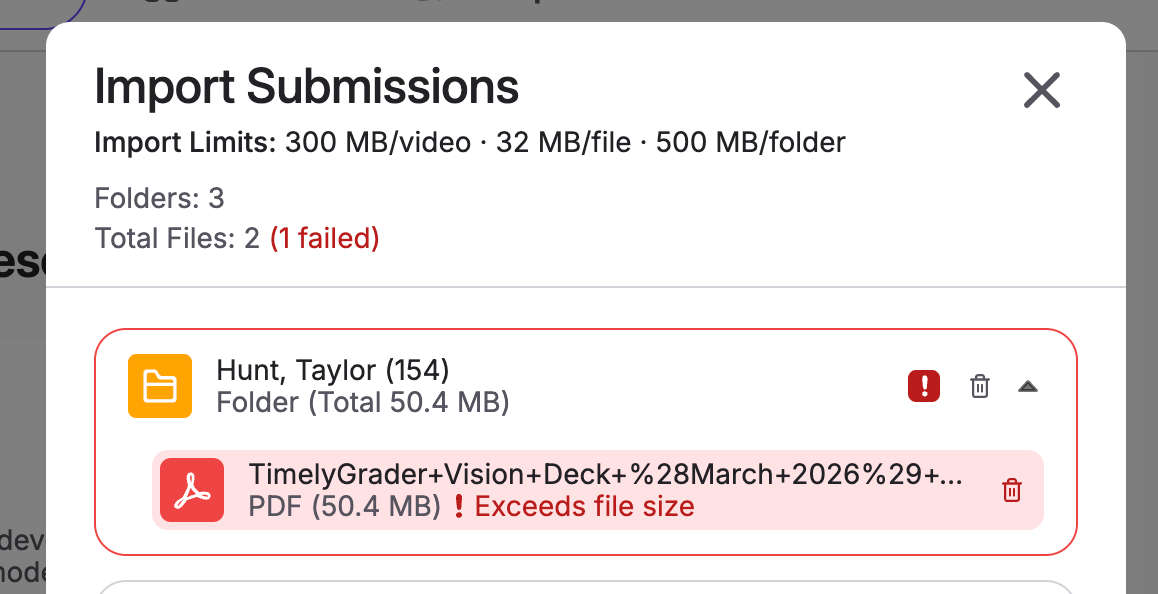
Unsupported files, such as a .pages file or a 50 MB PDF, still appear in TimelyGrader so you can see them, and TimelyGrader flags whether the problem is the file type or its size.
{% hint style="warning" %}
Delete problem files before you continue the import. Otherwise you will get errors later, such as student work being analyzed without all of its files. Hence this step is mandatory to clear the import of any errors.
{% endhint %}
Ask the student to resubmit with a supported file type and size, then import again.
## Prevent it with your Canvas assignment settings
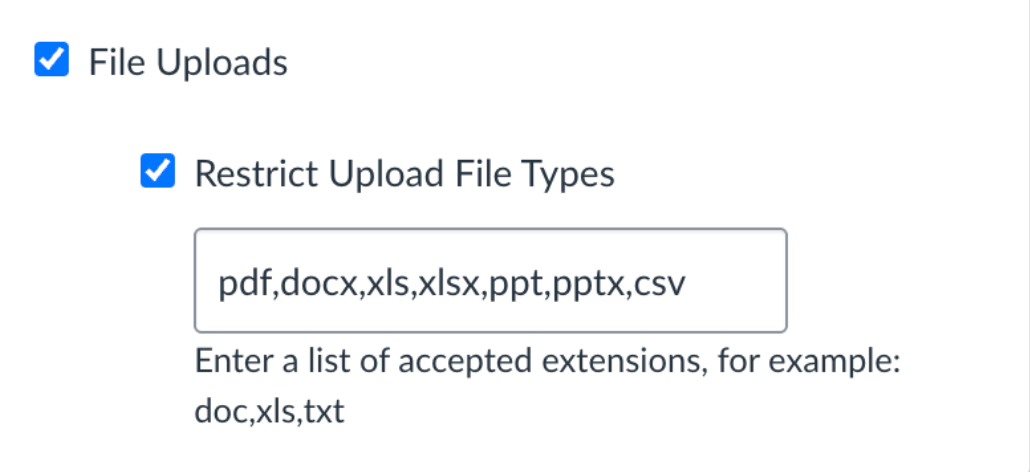
On your Canvas assignments, select **File Uploads** and **Restrict Upload File Types** so students can only upload files TimelyGrader can process. You can paste this list of extensions:
```
pdf,docx,xls,xlsx,ppt,pptx,csv,mov,mp4
```
{% hint style="info" %}
Restricting file types doesn’t stop files going over the size limits. Mention the limits in your assignment description too.
{% endhint %}
## Related articles
* [How We Handle New Submissions](/canvas-support-articles/assignments/new-submissions.md)
* [Importing or Uploading Submissions for Grading and Feedback](/canvas-support-articles/assignments/import-submissions.md)
* [How to Reset Grades and Feedback](/canvas-support-articles/assignments/reset-grades.md)