For the complete documentation index, see llms.txt. This page is also available as Markdown.

8. Advanced: Enabling the Student Side and What They See

How students access assignments, get feedback on drafts, and what you can see of it.

Knowing what students see helps you support them, anticipate their questions, and design assignments where every submission is a coaching opportunity. Feedback reaches students while they are still working, so assessment supports learning during the work rather than after it: students see expert reasoning, act on timely coaching, and revise across drafts.

Where students find their work

Students only see the courses they’re enrolled in, and only their own work. In each course, Coursework lists everything assigned to them (assignments, quizzes, oral quizzes and oral defences), with points and status. Assignments saved as drafts never appear; only published ones do.

Once the roster is synced, students can open an assignment in TimelyGrader and get feedback on their drafts when both are true:

  • the assignment is published, and

  • Formative Feedback is turned on in its Formative Feedback Settings.

An assignment with Formative Feedback turned on

How students get feedback on drafts

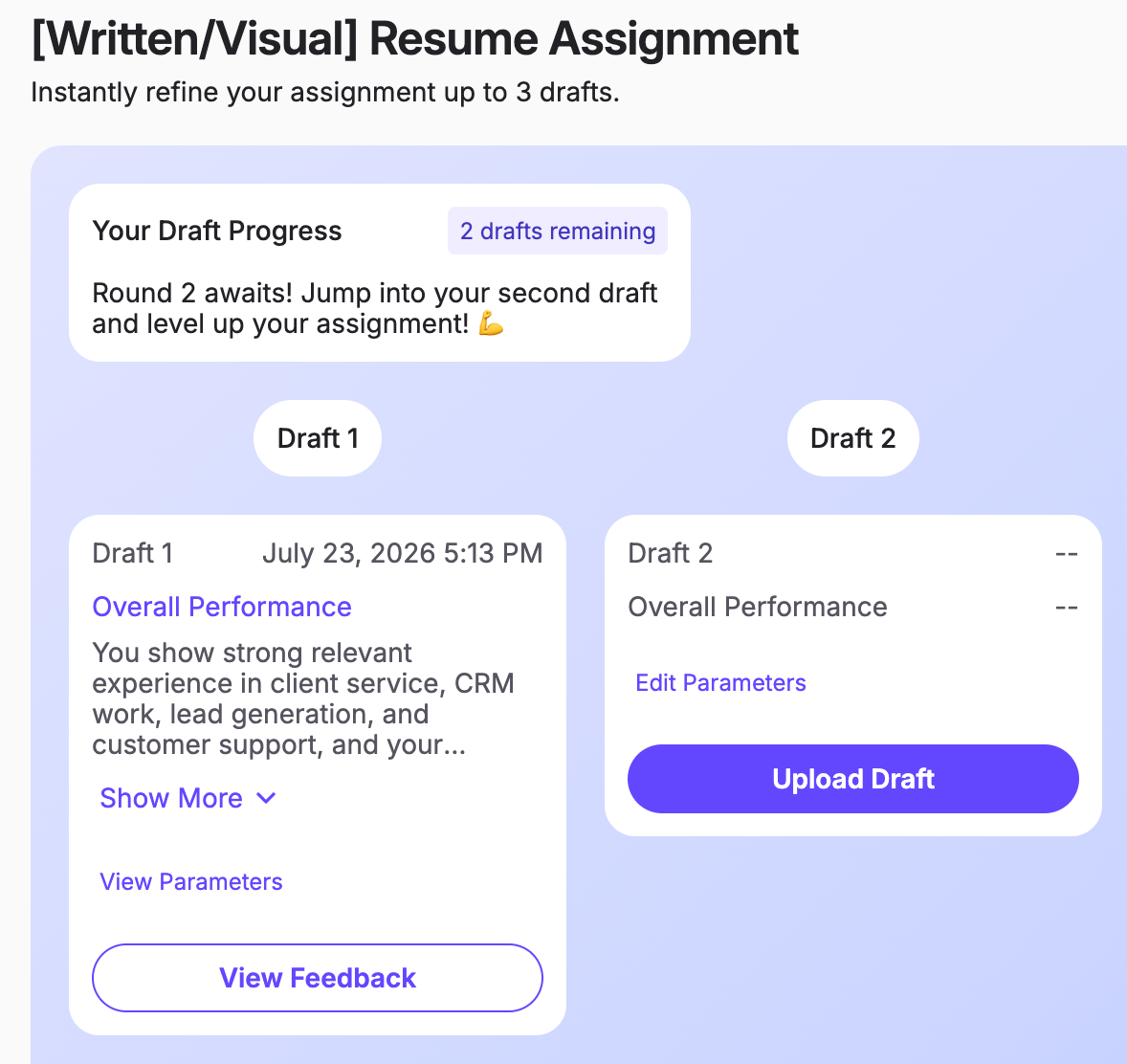
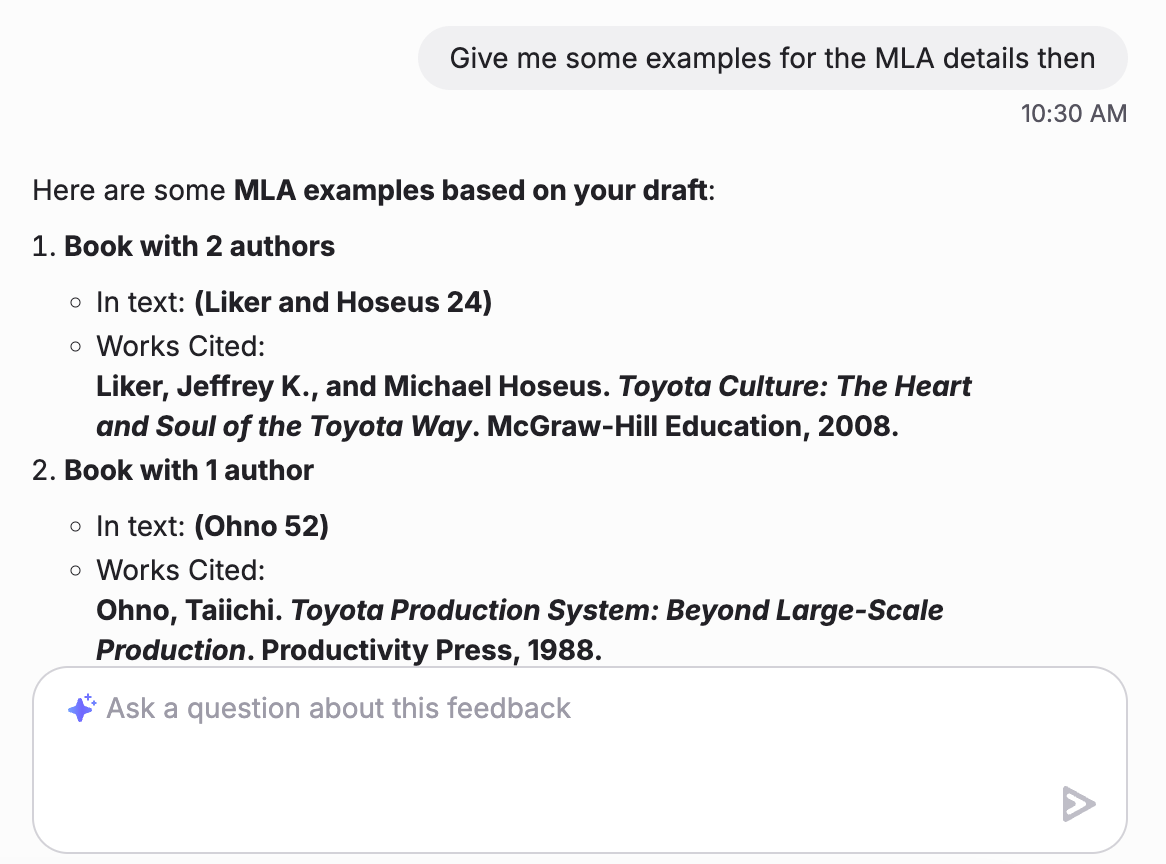
With Formative Feedback on, students can generate up to three rounds of feedback on drafts before submitting a final version. They can also ask Hugo, an assistant that understands their assignment, their submission and the feedback they have received.

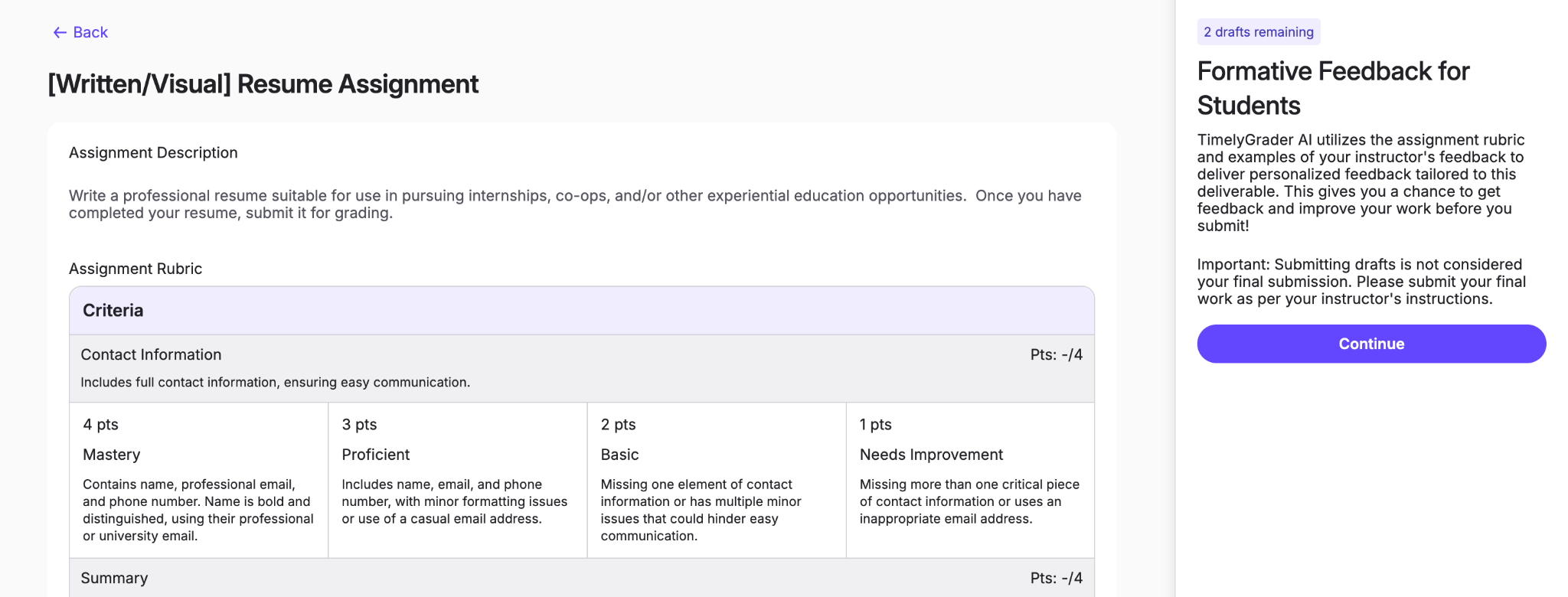
The student view of an assignment
1

Open the assignment

The student opens the assignment from Coursework and sees its title, description and rubric.

Assignment title, description and rubric for students
2

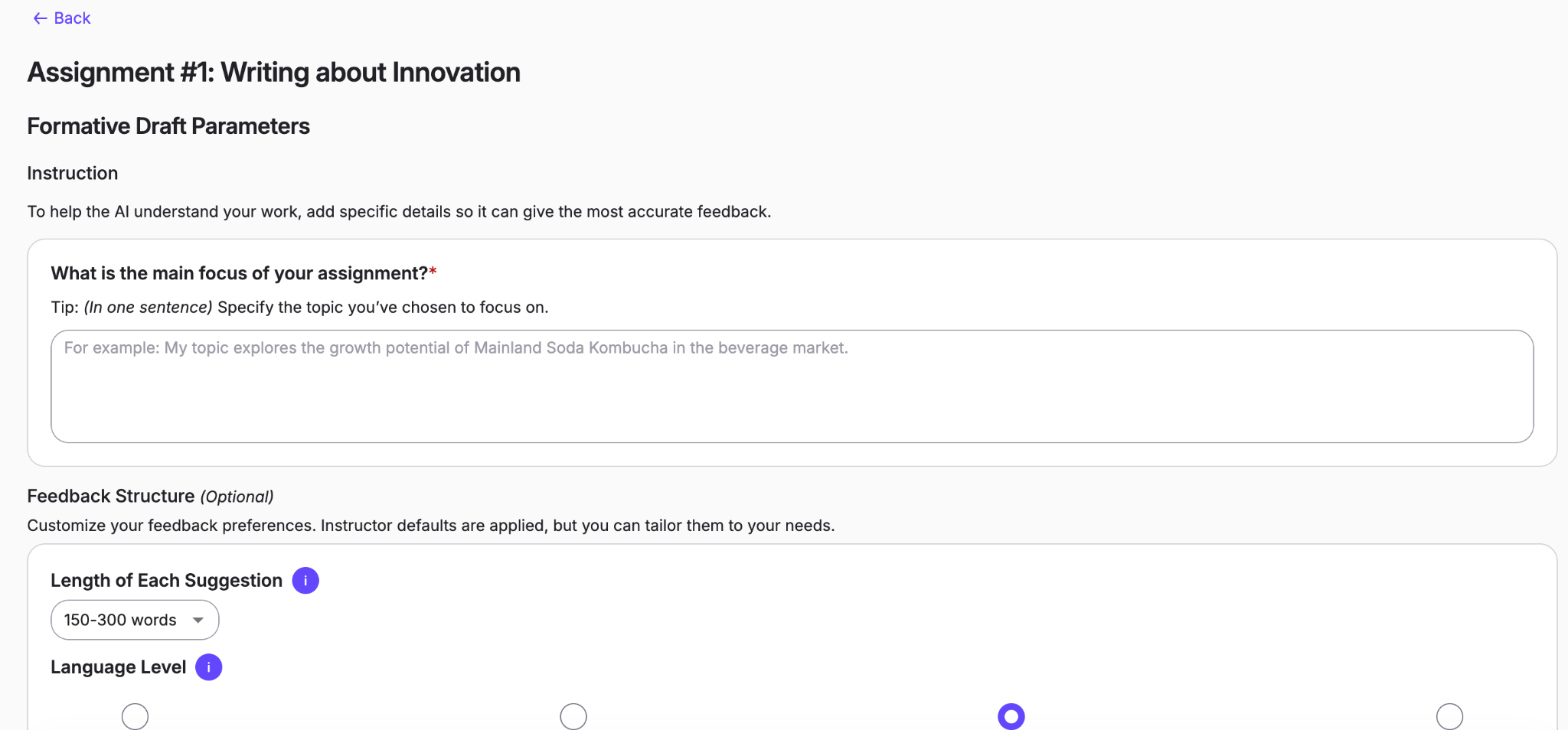
Describe the topic

The student gives a short description of their topic so feedback stays personal and relevant. They can also adjust default feedback settings, such as length, to suit how they learn.

Topic description and feedback settings
3

Upload a draft

For each draft, the student clicks Upload Draft.

The Upload Draft button
4

View feedback

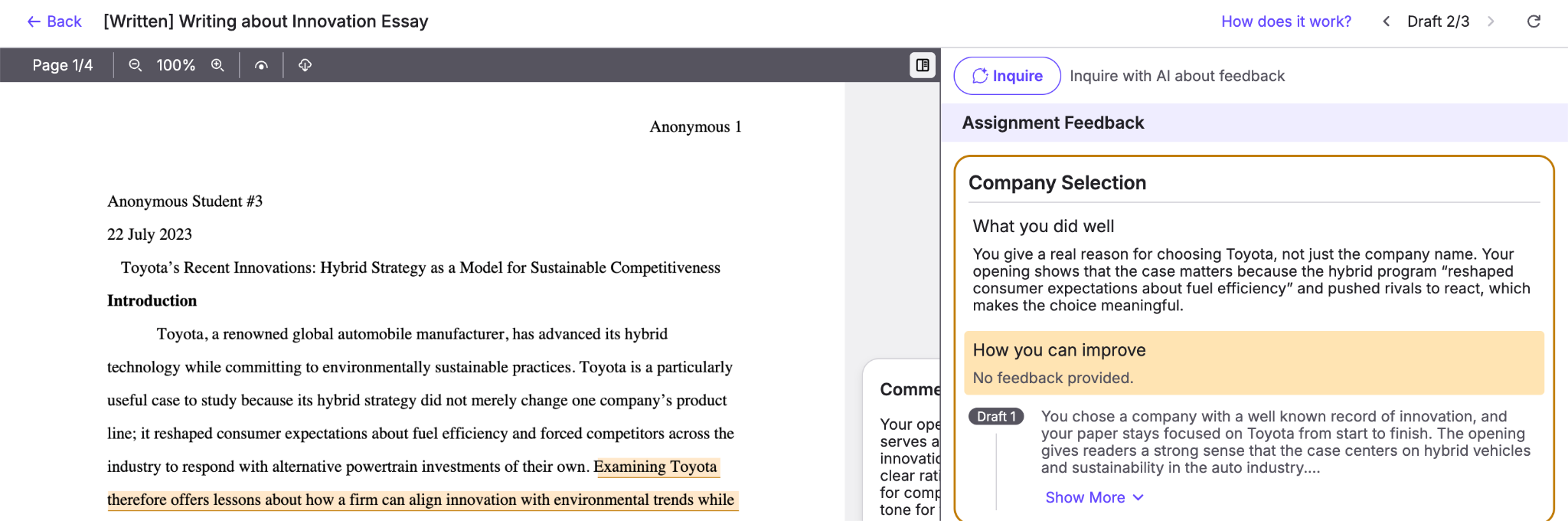
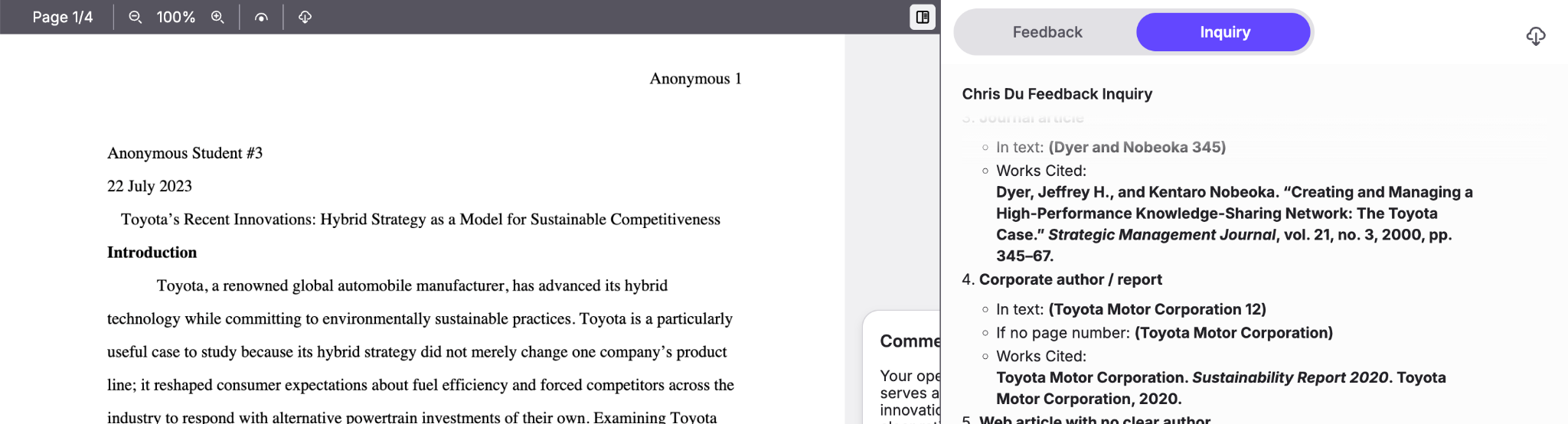
When processing finishes, the student clicks View Feedback. Feedback is generated from the settings you chose in assignment setup and laid out like your grading view: the work on the left, feedback in the right sidebar.

Draft feedback in the student view
5

Ask follow-up questions

The student can ask/inquire Hugo about any feedback with the Hugo button.

The Inquire button

Viewing student drafts as an instructor
1

Open the assignment

Open the assignment from the Assignments page.

2

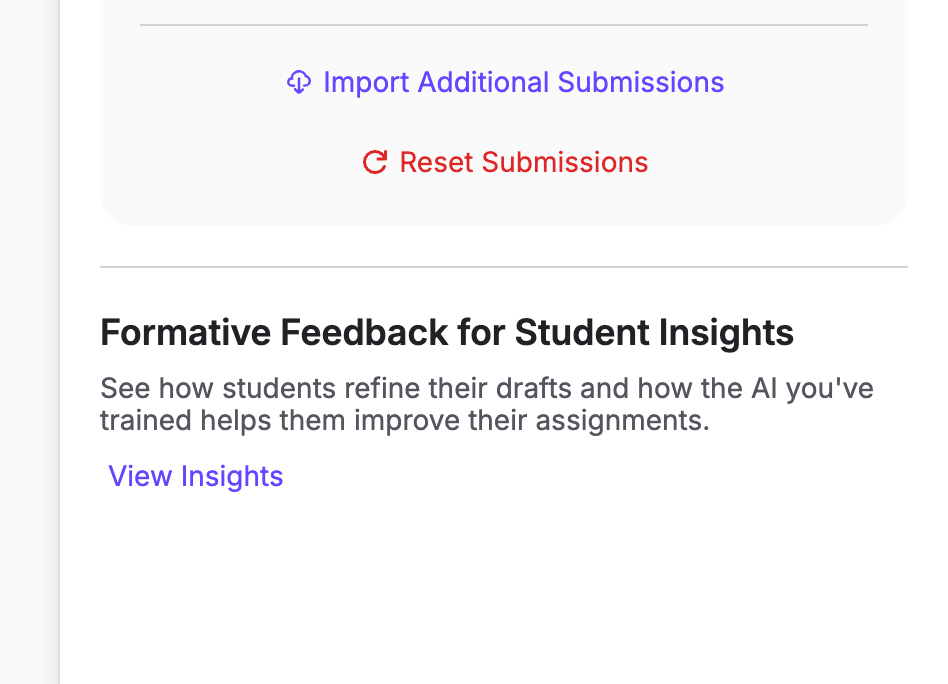
View insights

Click View Insights under Formative Feedback for Student Insights.

The View Insights button
3

Select a student

Choose the student whose drafts you want to see.

Selecting a student
4

Review their drafts

You can see every draft the student submitted, all the feedback they received and its history, and their chat history with the AI.

A student’s drafts, feedback and chat history

Last updated

Was this helpful?