> For the complete documentation index, see [llms.txt](https://help.timelygrader.ai/llms.txt). Markdown versions of documentation pages are available by appending `.md` to page URLs; this page is available as [Markdown](https://help.timelygrader.ai/canvas-support-articles/assignments/what-students-see.md).
# What Students See on TimelyGrader
How students access assignments, get feedback on drafts, and what you can see of it.
Knowing what students see helps you support them, anticipate their questions, and design assignments where every submission is a coaching opportunity. Feedback reaches students while they are still working, so assessment supports learning during the work rather than after it: students see expert reasoning, act on timely coaching, and revise across drafts.
## Where students find their work
Students only see the courses they’re enrolled in, and only their own work. In each course, **Coursework** lists everything assigned to them (assignments, quizzes, oral quizzes and oral defences), with points and status. Assignments saved as drafts never appear; only published ones do.
Once the roster is synced, students can open an assignment in TimelyGrader and get feedback on their drafts when both are true:
* the assignment is published, and
* **Formative Feedback** is turned on in its **Formative Feedback Settings**.
## How students get feedback on drafts
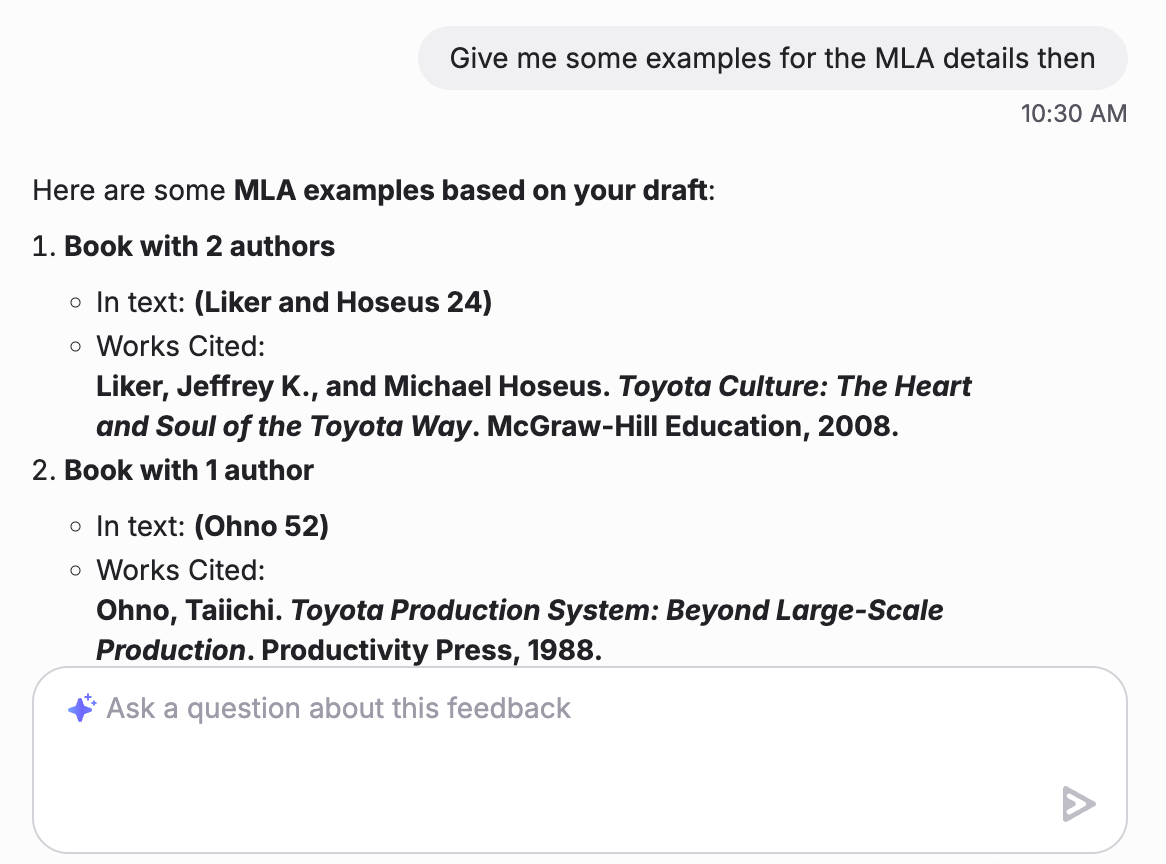
With Formative Feedback on, students can generate up to three rounds of feedback on drafts before submitting a final version. They can also ask Hugo, an assistant that understands their assignment, their submission and the feedback they have received.
{% stepper %}
{% step %}
### Open the assignment
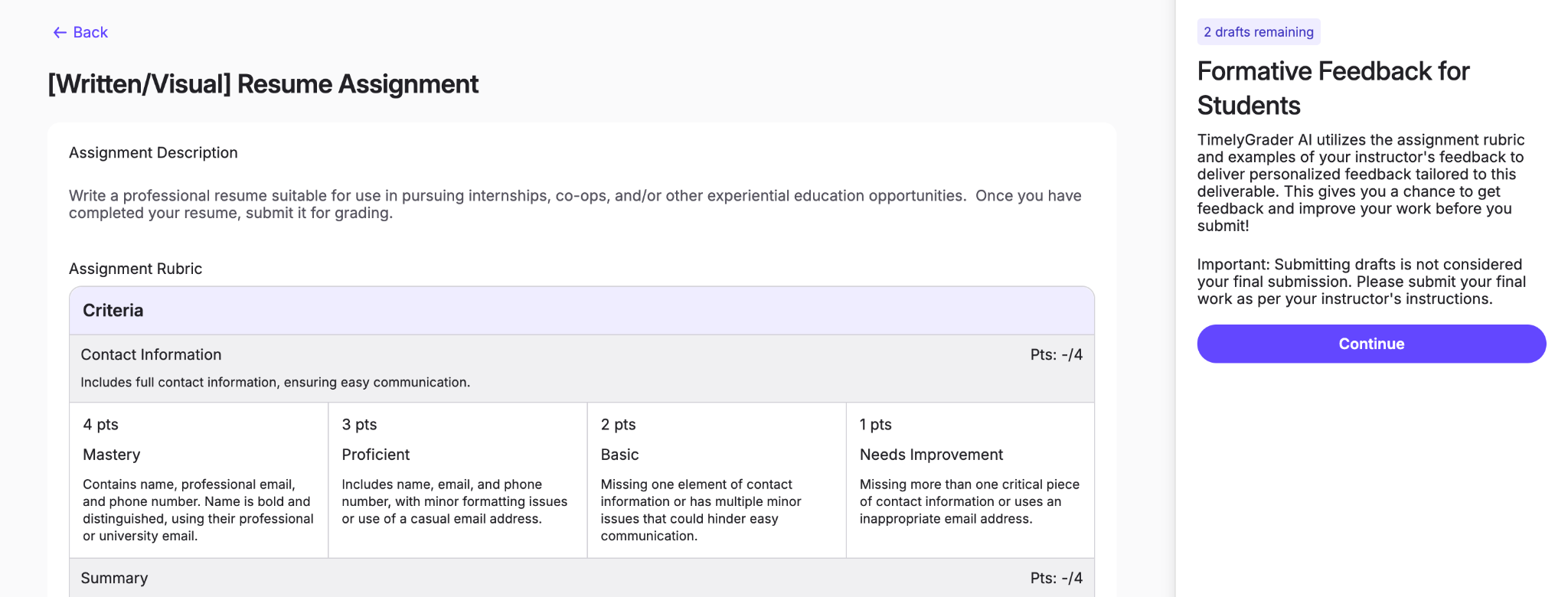
The student opens the assignment from **Coursework** and sees its title, description and rubric.
{% endstep %}
{% step %}
### Describe the topic
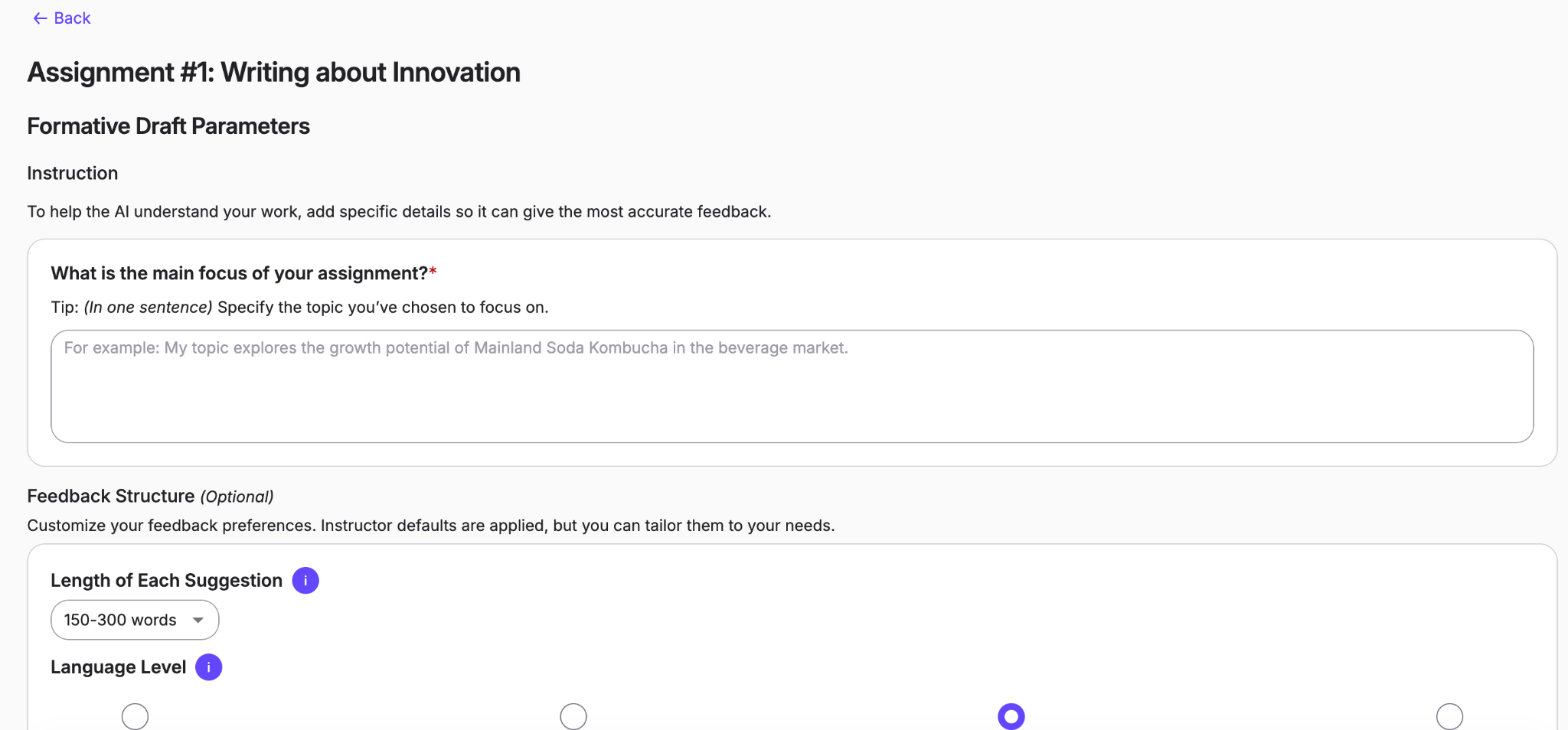
The student gives a short description of their topic so feedback stays personal and relevant. They can also adjust default feedback settings, such as length, to suit how they learn.
{% endstep %}
{% step %}
### Upload a draft
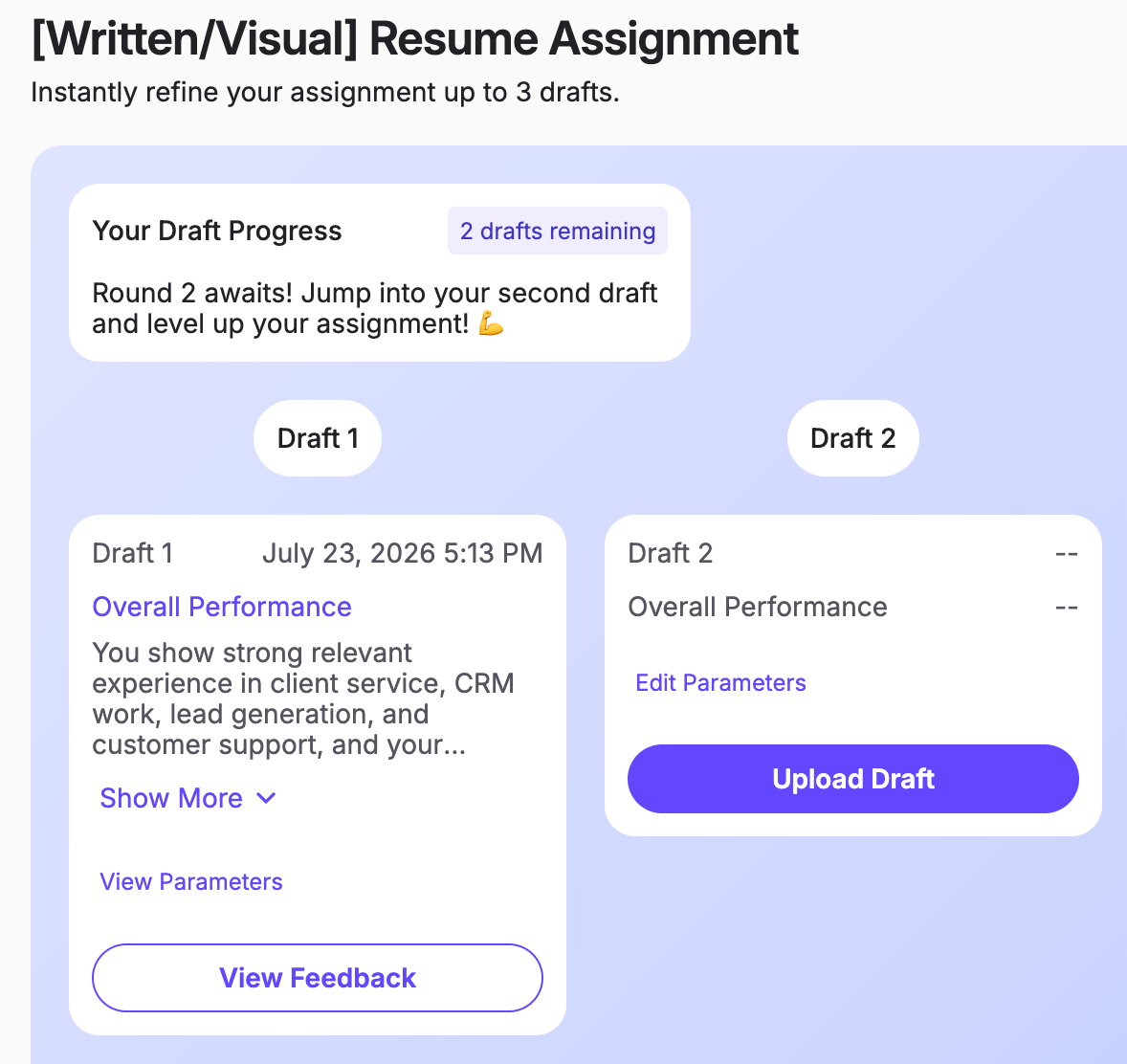
For each draft, the student clicks **Upload Draft**.
{% endstep %}
{% step %}
### View feedback
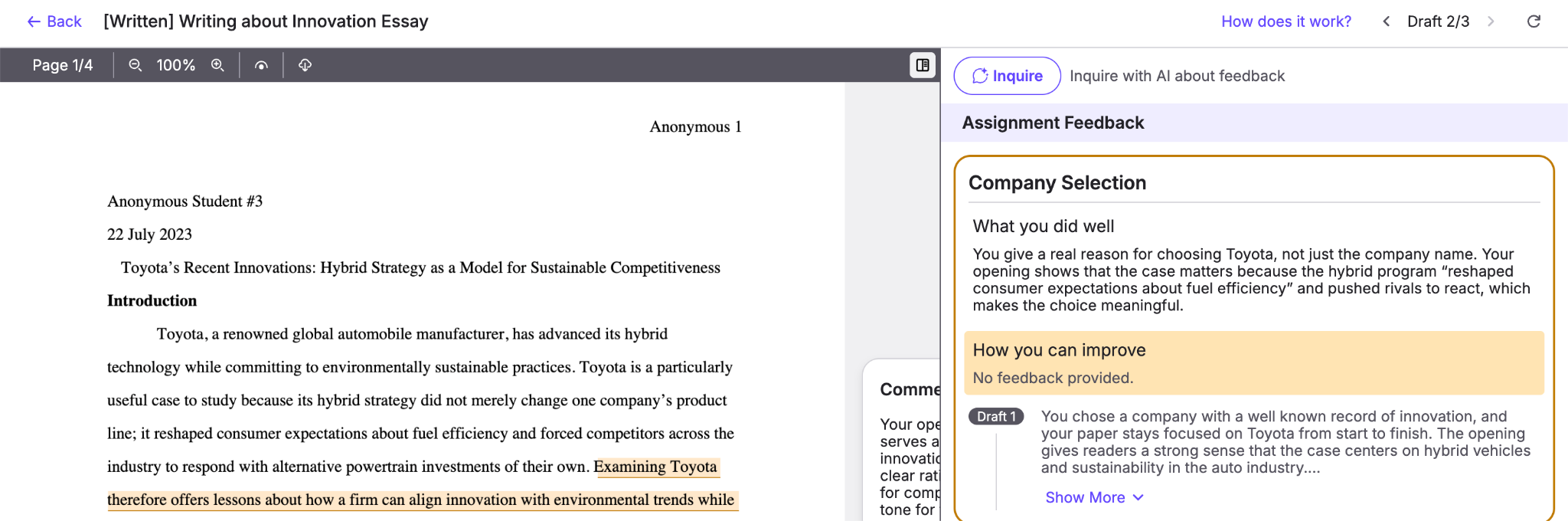
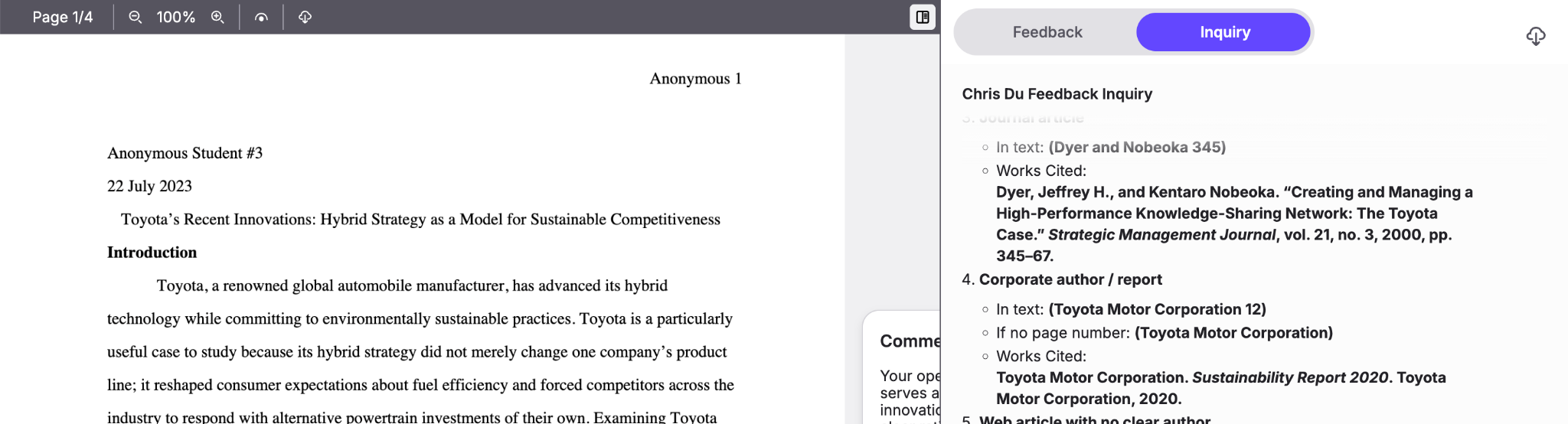
When processing finishes, the student clicks **View Feedback**. Feedback is generated from the settings you chose in assignment setup and laid out like your grading view: the work on the left, feedback in the right sidebar.
{% endstep %}
{% step %}
### Ask follow-up questions
The student can ask/inqure Hugo about any feedback with the **Hugo** button.
{% endstep %}
{% endstepper %}
## Viewing student drafts as an instructor
{% stepper %}
{% step %}
### Open the assignment
Open the assignment from the Assignments page.
{% endstep %}
{% step %}
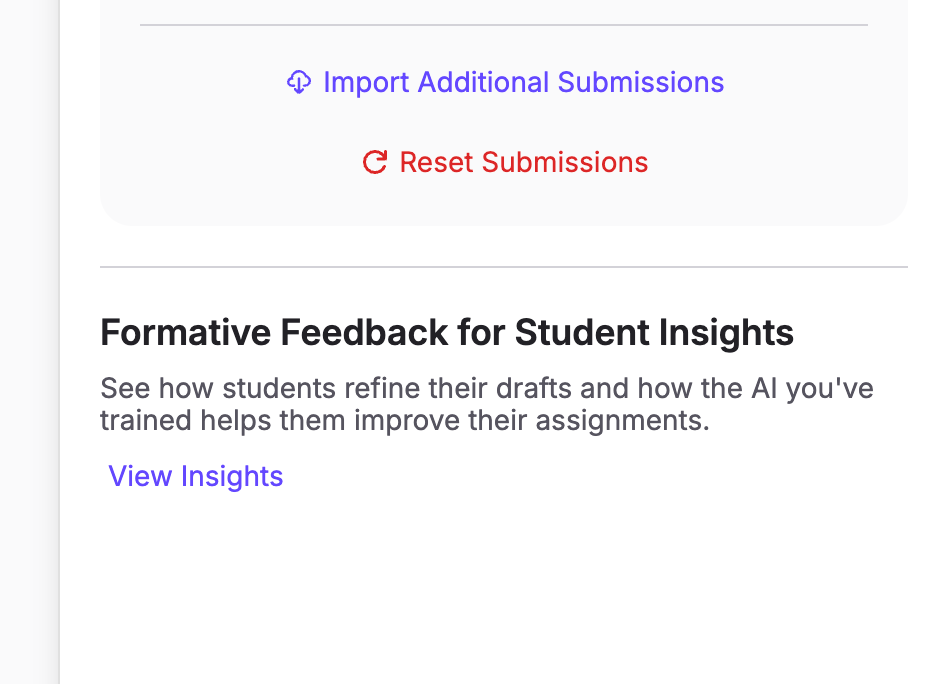
### View insights
Click **View Insights** under **Formative Feedback for Student Insights**.
{% endstep %}
{% step %}
### Select a student
Choose the student whose drafts you want to see.
{% endstep %}
{% step %}
### Review their drafts
You can see every draft the student submitted, all the feedback they received and its history, and their chat history with the AI.
{% endstep %}
{% endstepper %}
## Related articles
* [Importing or Creating an Assignment](/canvas-support-articles/assignments/importing-or-creating-an-assignment.md)
* [How to Sync Your Roster](/canvas-support-articles/assignments/sync-roster.md)
* [Advanced: Customizing Feedback](/canvas-support-articles/assignments/customizing-feedback.md)