> For the complete documentation index, see [llms.txt](https://help.timelygrader.ai/llms.txt). Markdown versions of documentation pages are available by appending `.md` to page URLs; this page is available as [Markdown](https://help.timelygrader.ai/canvas-support-articles/quizzes/import-quiz.md).
# Importing a Quiz
Bring a quiz across from Canvas, choose how it’s graded, and map criteria to its written questions.
Quizzes aren’t created in TimelyGrader; they’re imported from Canvas. Only the essay/written (subjective) questions come to TimelyGrader for rubric grading. Multiple choice and other auto-graded questions stay with Canvas, which has already scored them. TimelyGrader shows them for reference, so the total on screen matches your gradebook.
Importing takes three steps: **Quiz Overview**, **Grading & Feedback Settings** and **Questions**.
{% hint style="warning" %}
TimelyGrader can only import quizzes built with **Canvas New Quizzes**.
{% endhint %}
{% hint style="info" %}
Nothing is created until you click **Save** on the last step. You can leave the import at any point without leaving a half-made quiz behind, and **Back** returns to the previous step without losing your choices.
{% endhint %}
## Choosing the quiz
{% stepper %}
{% step %}
### Open Quizzes
In the sidebar, click **Quizzes**, then click **Import** in the top right corner.
{% endstep %}
{% step %}
### Select the quiz
In **Select a Quiz to Import**, choose the quiz from the **Quiz Name** list and click **Import**. **Import** stays disabled until you choose a quiz, and closing the dialog creates nothing.
{% endstep %}
{% endstepper %}
## Step 1: Quiz Overview
{% stepper %}
{% step %}
### Check the question split
The first step lists every question with its point value. The summary line shows how many questions there are, how many are graded on TimelyGrader and how many are graded on Canvas, with the **Total Score** beneath.
* **Subjective Questions** are the written-response (essay response) questions TimelyGrader will grade.
* **Auto-Graded Questions** are already scored by Canvas. They’re shown for reference; TimelyGrader doesn’t regrade them.
The split follows the question types in Canvas and can’t be changed here. Click **Next**.
{% endstep %}
{% endstepper %}
## Step 2: Grading & Feedback Settings
{% stepper %}
{% step %}
### Check the quiz rubric
The **Quiz Rubric** comes across with the quiz and can’t be edited during the import. To change it now, make the changes in Canvas and import the quiz again. Once the quiz is imported you can also edit the rubric for this quiz in TimelyGrader; see [Editing a Quiz’s Rubric and Questions](/canvas-support-articles/quizzes/edit-quiz.md).
{% hint style="success" %} **Hugo’s tip:** Click **Expand all criteria** to see every rating and its points before you commit.
{% endhint %}
{% endstep %}
{% step %}
### Choose the Rubric Type
* **Holistic Rubric:** one rubric applies across all questions in this quiz. It suits a quiz where every question probes the same skill, or a quiz built around one essay question.
* **Question-By-Question Rubric:** each question uses its own criterion from the rubric, with its own evidence. It grades more consistently when the questions test different things.
{% endstep %}
{% step %}
### If Question-By-Question Rubric is selected, you will also need to choose the Quiz Type
* **Interdependent Questions:** later questions build on earlier answers, so TimelyGrader reads the full attempt before grading any one question.
* **Standalone Questions:** each question is graded independently, using only that question’s own response.
{% endstep %}
{% step %}
### Map criteria to questions
With a question-by-question rubric, each criterion needs a question to grade. **Map criteria by order automatically** is on by default: it matches each question to a criterion based on their order in the quiz and the rubric, and each criterion shows its question with **Mapped by order**.
If the order doesn’t line up, untick it. Each criterion then shows **Grades question** with a button for every written question; click the one it grades. A criterion grades one question, but a question can have several criteria. A criterion without a question reads **Not assigned yet**.
A holistic rubric skips mapping entirely. Click **Next**.
{% hint style="warning" %}
If a criterion and a question don’t line up, the mismatch must be resolved before student submissions can be imported.
{% endhint %}
{% endstep %}
{% endstepper %}
## Step 3: Questions
{% stepper %}
{% step %}
### Check each question’s criteria
The last step lists the **Subjective Questions**; use the **Q1**, **Q2** buttons to jump between them. With a question-by-question rubric, each question has a **Criterion** list showing the criteria that grade it. Open the list to add or remove one, or click the bin next to a criterion to remove it. Changing the mapping by hand turns off mapping by order.
A question without a criterion reads **None assigned yet — this question cannot be graded until one is.**
{% endstep %}
{% step %}
### Add grading notes
Each question has a **Grading Notes** field for what the AI should look for in an answer to that question. Write what a strong answer contains, in the terms you’d use marking by hand. Notes are optional; a question without notes is graded from the rubric alone.
{% hint style="success" %} **Hugo’s tip:** If the rubric doesn’t spell out how points are earned, put the point scale in the grading notes, along with clear criteria for how students earn or lose points.
{% endhint %}
{% endstep %}
{% endstepper %}
## Saving the quiz
{% stepper %}
{% step %}
### Click Save
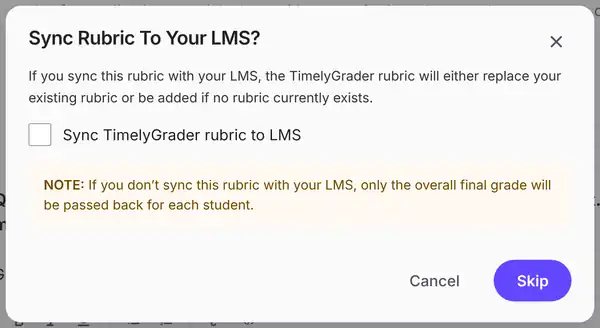
Click **Save** in the top right corner. The **Sync Rubric To Your LMS?** dialog opens.
{% endstep %}
{% step %}
### Decide whether to sync the rubric
Tick **Sync TimelyGrader rubric to LMS** to send the rubric to Canvas. It replaces the quiz’s existing rubric in Canvas, or is added if there isn’t one. The button then reads **Sync**; with the box unticked it reads **Skip**.
{% hint style="warning" %}
If you don’t sync the rubric, only the overall final grade is passed back to Canvas for each student and feedback will go back to the overall comments box.
{% endhint %}
{% endstep %}
{% step %}
### Finish
A confirmation appears: **Rubric Synced Successfully** if you synced, or **Your quiz was saved successfully** if you skipped. Click **Ok** to return to the Quizzes page.
{% hint style="info" %}
The new quiz is a draft, so students can’t see it until you publish it. See [Managing Quizzes](/canvas-support-articles/quizzes/publishing-a-quiz.md).
{% endhint %}
{% endstep %}
{% endstepper %}
## FAQ
I can’t find my quiz in the Quiz Name list.
TimelyGrader can only import quizzes built with Canvas New Quizzes.
A question I expected isn’t under Subjective Questions.
Only written responses come to TimelyGrader. Auto-graded question types stay with Canvas, which has already scored them, and appear under Auto-Graded Questions.
Can I choose which questions TimelyGrader grades?
No. The split follows the question types in Canvas.
Does importing change the quiz in Canvas?
Importing reads the quiz. The only thing it can write to Canvas is the rubric, and only if you tick Sync TimelyGrader rubric to LMS when you save.
What happens if TimelyGrader can’t reach Canvas during the import?
Nothing is created. The step keeps what you’ve entered and you can try again.
## Related articles
* [Editing a Quiz’s Rubric and Questions](/canvas-support-articles/quizzes/edit-quiz.md)
* [Managing Quizzes](/canvas-support-articles/quizzes/publishing-a-quiz.md)
* [Importing Quiz Attempts](/canvas-support-articles/quizzes/importing-quiz-attempts.md)



 **Hugo’s tip:** Click **Expand all criteria** to see every rating and its points before you commit.
{% endhint %}
{% endstep %}
{% step %}
### Choose the Rubric Type
* **Holistic Rubric:** one rubric applies across all questions in this quiz. It suits a quiz where every question probes the same skill, or a quiz built around one essay question.
* **Question-By-Question Rubric:** each question uses its own criterion from the rubric, with its own evidence. It grades more consistently when the questions test different things.
{% endstep %}
{% step %}
### If Question-By-Question Rubric is selected, you will also need to choose the Quiz Type
* **Interdependent Questions:** later questions build on earlier answers, so TimelyGrader reads the full attempt before grading any one question.
* **Standalone Questions:** each question is graded independently, using only that question’s own response.
{% endstep %}
{% step %}
**Hugo’s tip:** Click **Expand all criteria** to see every rating and its points before you commit.
{% endhint %}
{% endstep %}
{% step %}
### Choose the Rubric Type
* **Holistic Rubric:** one rubric applies across all questions in this quiz. It suits a quiz where every question probes the same skill, or a quiz built around one essay question.
* **Question-By-Question Rubric:** each question uses its own criterion from the rubric, with its own evidence. It grades more consistently when the questions test different things.
{% endstep %}
{% step %}
### If Question-By-Question Rubric is selected, you will also need to choose the Quiz Type
* **Interdependent Questions:** later questions build on earlier answers, so TimelyGrader reads the full attempt before grading any one question.
* **Standalone Questions:** each question is graded independently, using only that question’s own response.
{% endstep %}
{% step %}