

3. Using our Rubric Generator in Assignment Setup
Generate a point-based rubric from your assignment details and sync it to Canvas.

Turn your assignment details into a structured, point-based rubric with defined rating levels, customize the criteria and scores, and sync it to Canvas for quicker, more consistent grading.
Steps
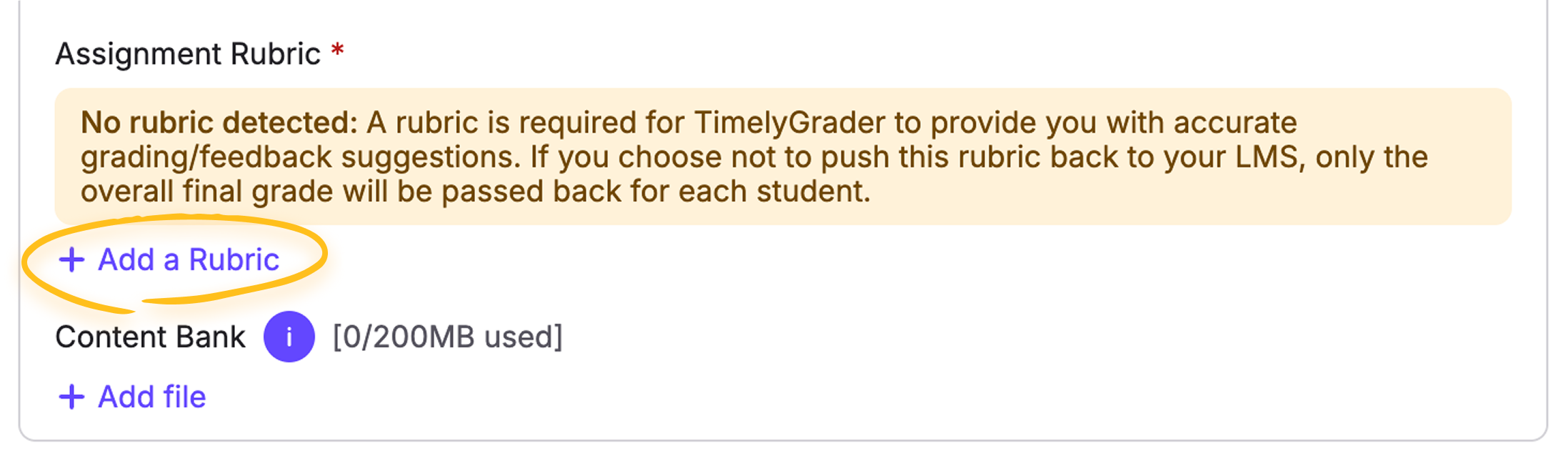

Choose criteria and scores
Decide how many criteria to evaluate and, optionally, name them (for example Clarity, Use of Evidence, Formatting). Set a maximum score for each, and choose the number of rating levels, such as Needs Improvement, Meets Expectations and Exceeds Expectations.
Not sure of the criteria? Leave them blank and the AI will suggest a sensible set for the assignment type. To set your own, select Specify my own criteria and enter names and descriptions.
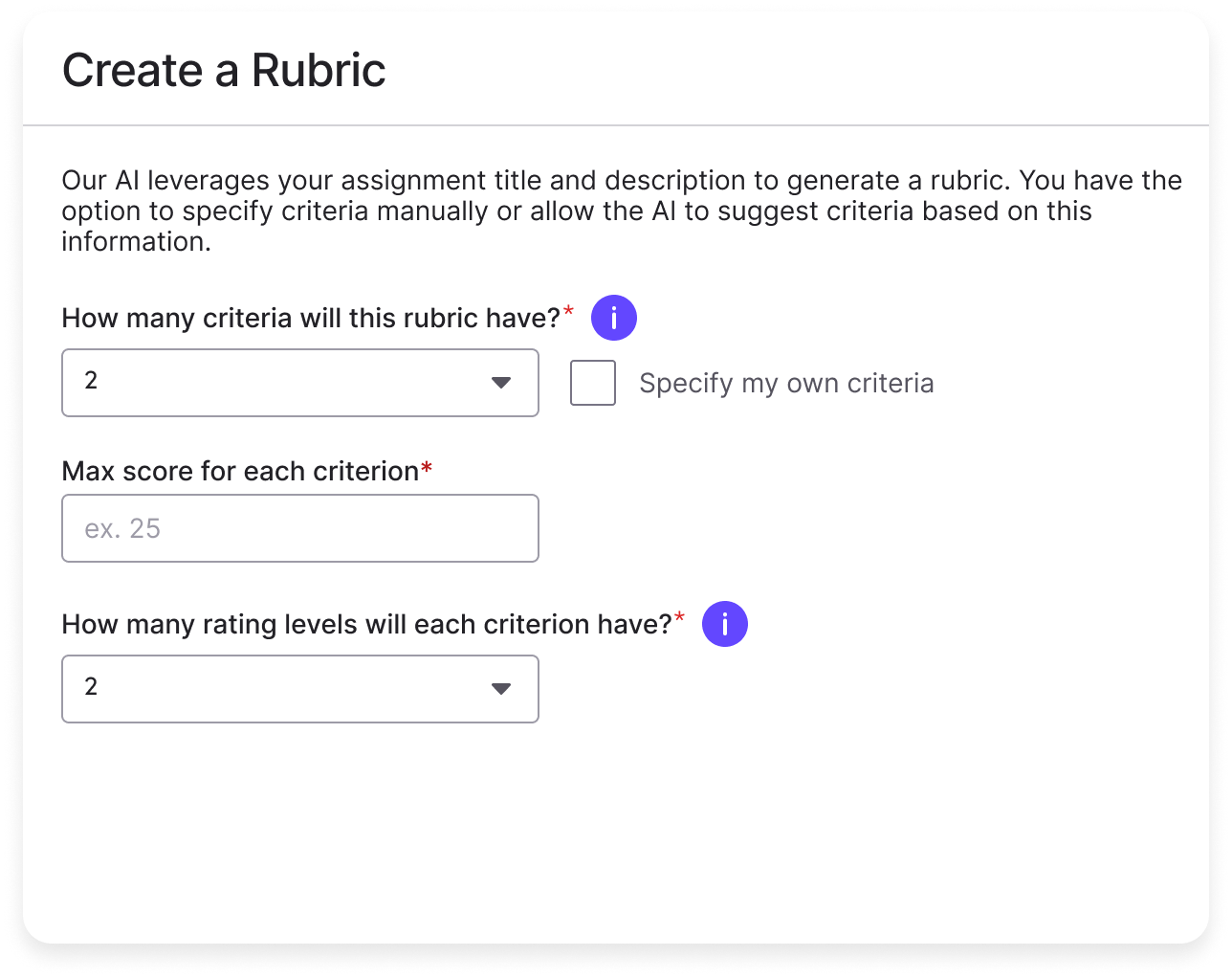
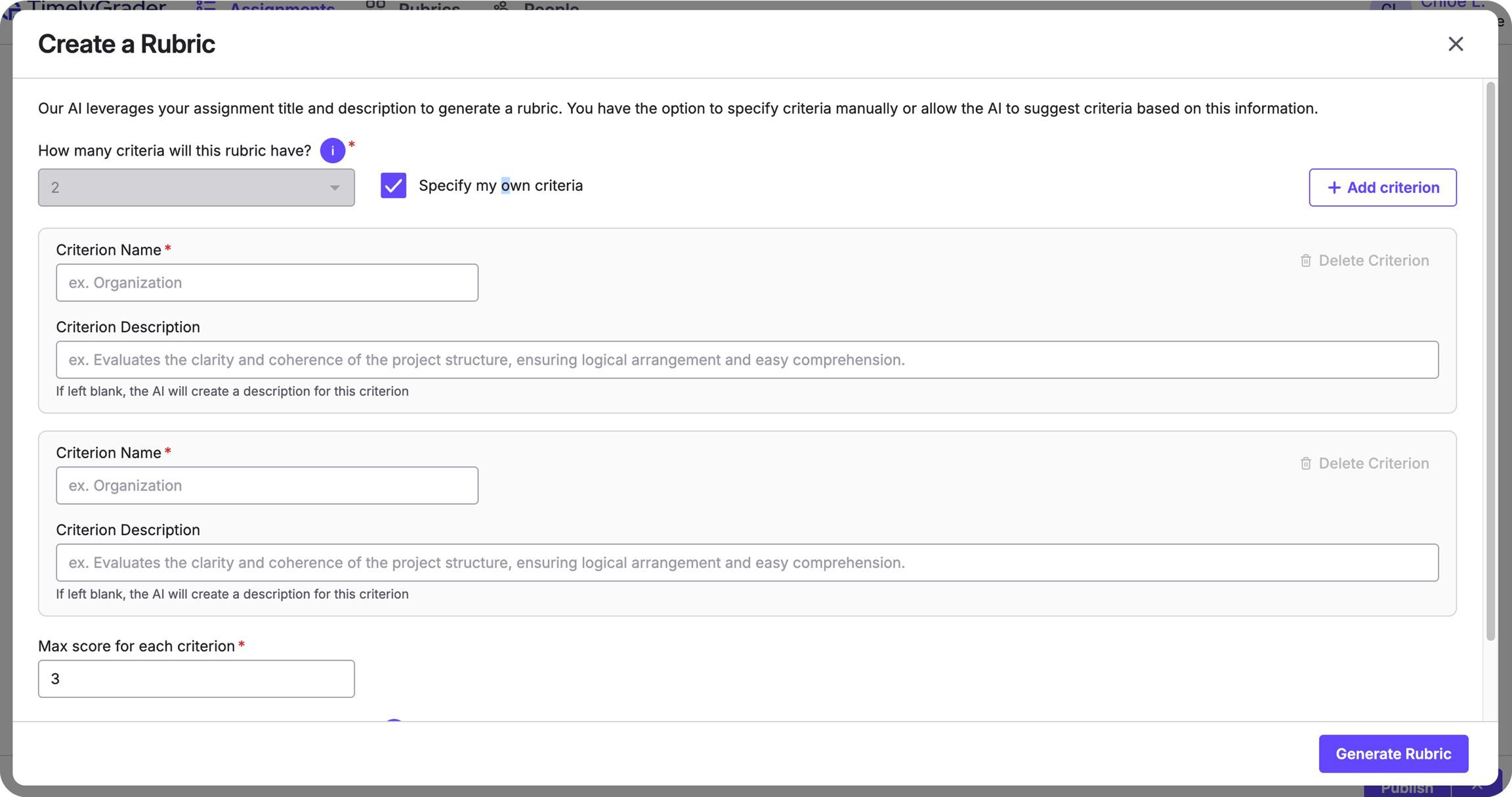
Review, edit and confirm
Check the draft for accuracy, tone and fit, and edit criterion names, point weights or descriptors directly. To change the structure or voice, adjust your inputs and regenerate. When you’re happy, click Create Rubric at the bottom right.
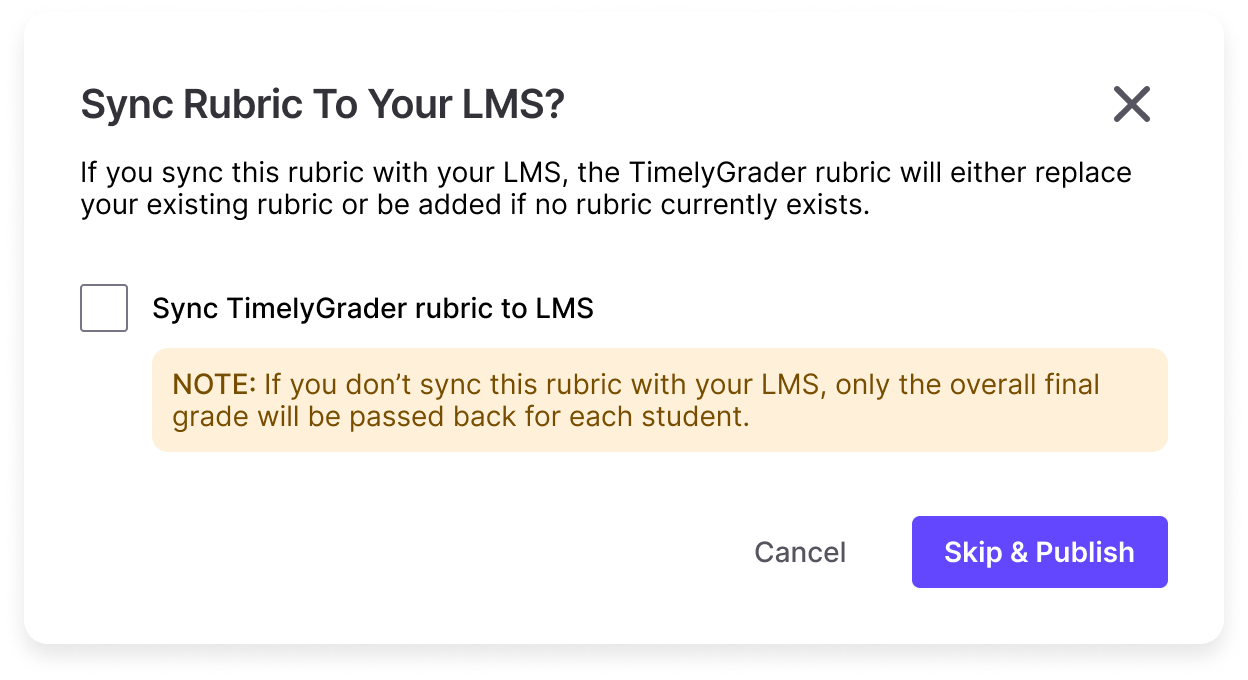
Then click Publish and choose Sync TimelyGrader rubric to LMS in the dialog to push the rubric to Canvas. Students and TAs then see the same criteria you do.
Best practices
Be specific. Clear criterion names and descriptions produce better descriptors.
Use 3 to 5 rating levels as a starting point, and keep the same number across criteria unless there’s a strong reason not to.
Describe every level, not just the top one, in observable terms.
Balance points. Keep totals simple (100 points, say) and make the weights meaningful.
Pilot it. Check the suggestions on a few submissions at different performance levels before grading the whole class.
More in Building rubrics that are clear, consistent, and free of error.
FAQ
Related articles
Last updated
Was this helpful?