> For the complete documentation index, see [llms.txt](https://help.timelygrader.ai/llms.txt). Markdown versions of documentation pages are available by appending `.md` to page URLs; this page is available as [Markdown](https://help.timelygrader.ai/canvas-support-articles/tutorials-oral-assessments-canvas/oral-defense-release.md).
# Generating and releasing Oral Defense questions
After publishing, import the student work, let AI write each student’s questions, check them, and release them.
Publishing an Oral Defense doesn’t let students start straight away. Each student’s questions are written from their own submission, so there are three more steps: import the student work, let the questions generate, and release them.
The **Oral Grading & Feedback** panel on the activity page tracks where you are: **Import student work**, **Generate questions**, **Release questions** and **Review answers**. The status under the activity name follows along, for example “Published · Questions not released”.
{% hint style="info" %}
Until you release questions, students who open the defense see “Your questions aren’t ready yet”. They get a notification when the questions are released.
{% endhint %}
## Releasing questions
{% stepper %}
{% step %}
### Import the student work
The **Import student work** card shows how many submissions are ready to import and how many students have no LMS submission. Click **Import Student Work** to bring in each student’s files from the source assignment.
{% endstep %}
{% step %}
### Let the questions generate
The **Generating questions** card shows progress as each student’s questions are written. It runs in the background, so you can leave the page. Students can’t start yet. They see a message that their questions are being prepared.
{% endstep %}
{% step %}
### Review the questions (optional)
When the card reads **Questions ready to release**, click **Review Questions**. Pick a student from the list (use **Search students** to find one) to see their files and questions. Each question shows its Bloom’s level and the part of the work it’s based on. You can edit or delete a question, or click **Add question**. Changes save automatically and apply only to that student, and students you’ve edited are tagged **Edited**. Click **Done** when you’ve finished.
{% endstep %}
{% step %}
### Try it (optional)
Click **Try as Student** to answer one student’s questions the way they will. See [Trying an oral activity as a student](/canvas-support-articles/tutorials-oral-assessments-canvas/try-as-student.md).
{% endstep %}
{% step %}
### Release the questions
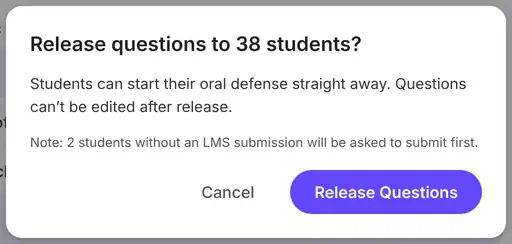
Click **Release Questions**. The confirmation says how many students will get questions, how many have questions you edited, and how many will be asked to submit first because they have no LMS submission. Click **Release Questions** to confirm. Students can start their oral defense straight away.
{% hint style="danger" %}
Questions can’t be edited after release. Review any student’s questions you want to change before you confirm.
{% endhint %}
{% endstep %}
{% endstepper %}
## After release
* **View Questions** shows each student’s questions read-only. They stay fixed for each student, including on retries.
* You can still change settings with **Edit** until the first student submits. After that, **Edit** is locked and the page says how many students have submitted. To edit again, reset all attempts.
* Students without an LMS submission are asked to submit in your LMS before they can begin.
* As students submit, the panel shows **Submission Status**. Once every student has submitted it shows **Ready for review**, with counts to review, graded and sent to your LMS. Click **Start Reviewing** (or **Continue Reviewing**) to grade. See [Grading an oral attempt](/canvas-support-articles/tutorials-oral-assessments-canvas/oral-review.md).
## Resetting attempts
{% stepper %}
{% step %}
### Open Reset Attempts
Once students have submitted, click **Reset Attempts** below the buttons in the **Oral Grading & Feedback** panel.
{% endstep %}
{% step %}
### Choose who to reset
Choose **Selected students** and tick the students whose attempts you want to delete (use **Search students who submitted** to find them), or choose **All students**.
{% endstep %}
{% step %}
### Confirm
Click **Reset 1 Attempt**, **Reset 2 Attempts** and so on, or **Reset All Attempts**. The students can then start again, with the same questions.
{% hint style="danger" %}
Resetting deletes the chosen attempts and any grades in progress. Students keep the same questions.
{% endhint %}
{% hint style="info" %}
Resetting all students unlocks the settings again until someone submits.
{% endhint %}
{% endstep %}
{% endstepper %}
## FAQ
What happens to students who haven’t submitted to the source assignment?
They’re counted as **Without an LMS submission**. When they open the defense, they’re asked to submit their work in your LMS first.
Does editing one student’s questions change anyone else’s?
No. Edits apply only to that student.
Can I change a student’s questions after release?
No. Released questions are fixed. Resetting a student’s attempts lets them start again, but with the same questions.
Why can’t I click Edit?
Settings are locked once a student has submitted. Reset all attempts to unlock them, but note that it deletes those attempts and any grades in progress.
## Related articles
* [Setting up an Oral Defense: source, questions and rubric](/canvas-support-articles/tutorials-oral-assessments-canvas/oral-defense-setup.md)
* [Trying an oral activity as a student](/canvas-support-articles/tutorials-oral-assessments-canvas/try-as-student.md)
* [Grading an oral attempt](/canvas-support-articles/tutorials-oral-assessments-canvas/oral-review.md)