

10. Advanced: Calibrating Grading Accuracy
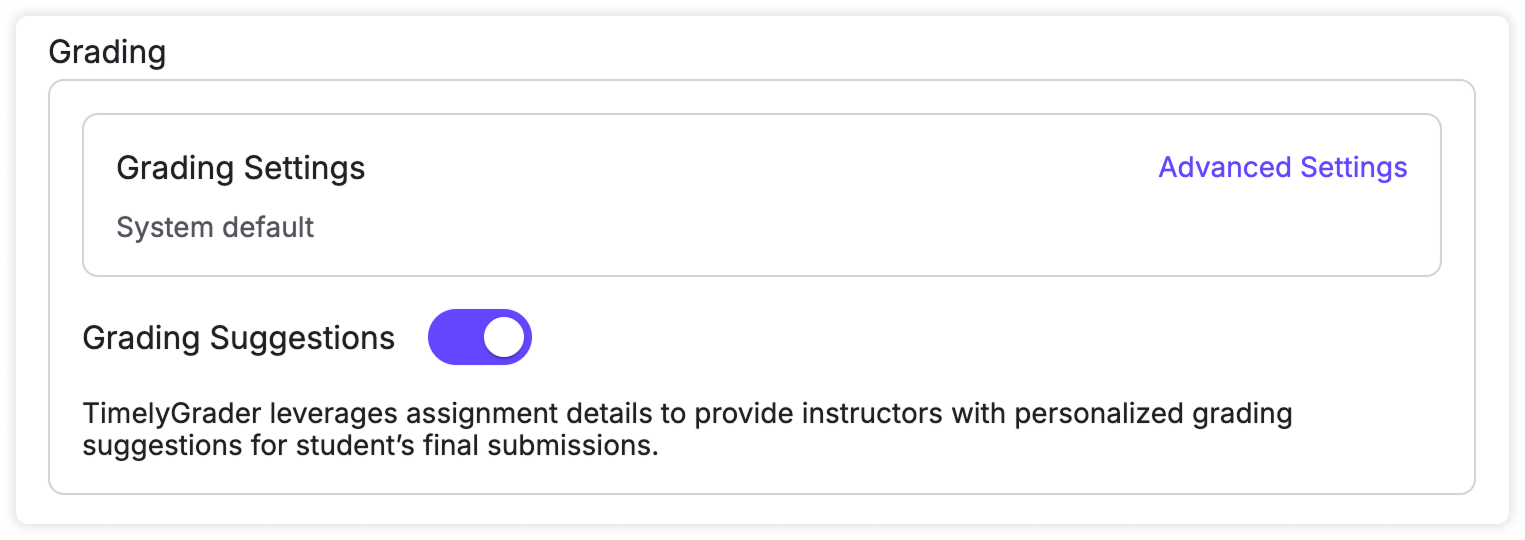
Use Grading Settings to control how TimelyGrader reads your rubric: general instructions, look-fors, violations and omissions.

Grading Settings influence how TimelyGrader interprets your rubric. They decide what suggestions to make and what evidence supports each suggestion, but you still decide the actual grade.
Steps
Add general grading instructions
General instructions apply to the whole rubric. For example: “When identifying a weakness, explain what the student could do to improve.” or “Give credit for a valid alternative approach.” If you want suggestions to be stricter or more generous, say exactly what that means. Put guidance that applies to only one criterion under that criterion instead.

Add criterion-specific instructions
Each criterion can take three kinds of instruction:
Look-fors: one observable statement each, such as “Names the alternative they rejected and explains why.” Look-fors clarify the rubric; they mustn’t add new requirements.
Violations and omissions: a violation is something present that conflicts with an expectation (“Interprets a correlation as proof of causation”); an omission is something required that’s missing (“Does not address the required counterargument”). Don’t treat an acceptable variation as an omission.
Custom instructions: context, exceptions and distinctions, such as “Distinguish between an incorrect method and an arithmetic mistake.”

 Hugo’s tip: Suggested from your rubric wording offers look-fors drawn from your rating descriptions.
Reviewing criterion instructions while grading
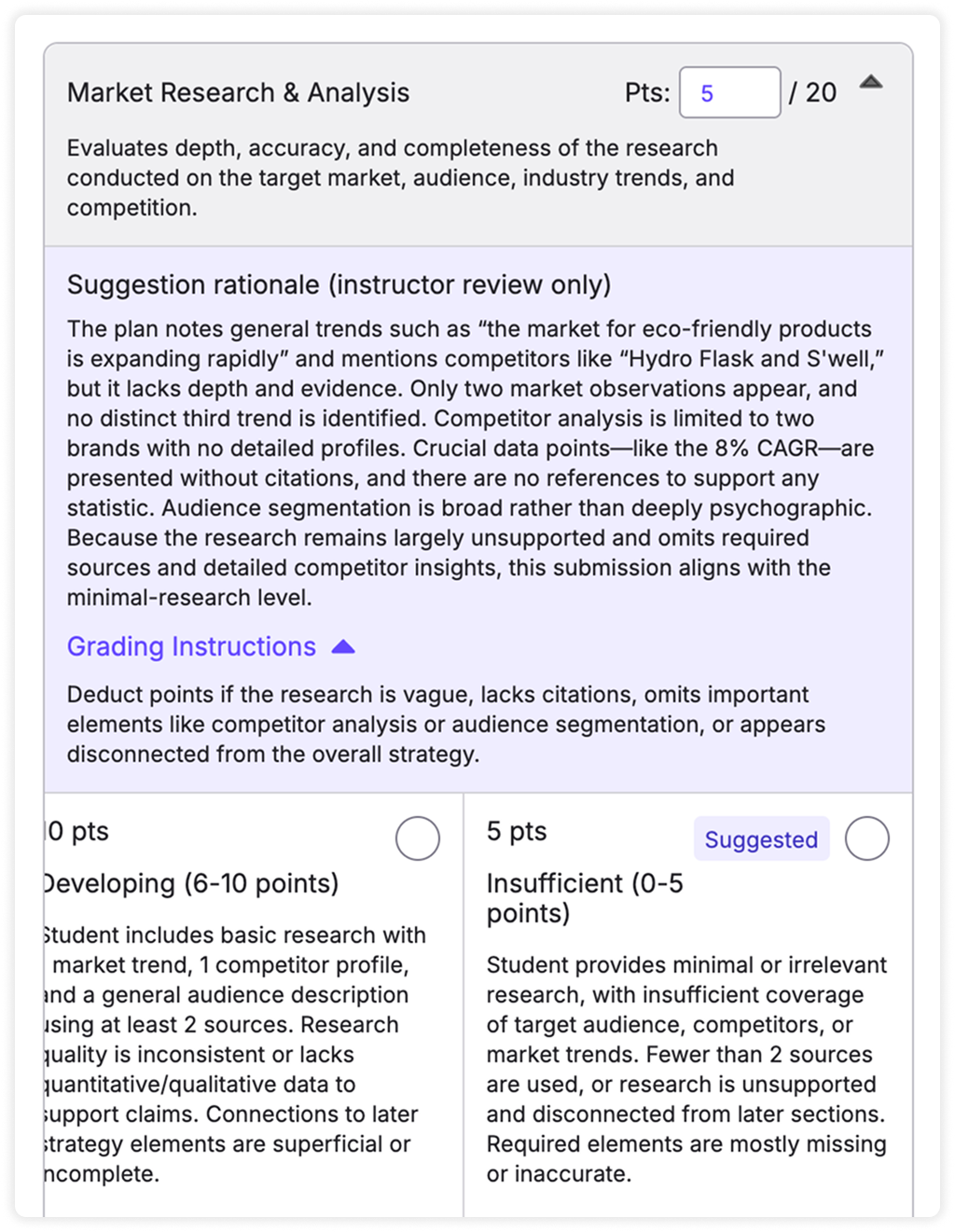
While grading, open the Grading Instructions dropdown on the rubric to see the instructions for each criterion.
If suggestions still miss
A requirement is missed: state it explicitly as a look-for or an omission.
The AI comments on things that don’t matter: set the scope in the general instructions.
Suggestions are inconsistent: check for instructions that conflict, and change one thing at a time.
Suggestions are too harsh or too lenient across the board: that usually comes from the rubric, not these settings. Tighten the rating descriptions.
After any change, check the new suggestions on a few submissions at different performance levels. Criterion instructions can also be brought in from another assignment with Import Assignment Settings; see Reusing settings from other assignments. More in Calibrating grading suggestions.
Related articles
Was this helpful?