> For the complete documentation index, see [llms.txt](https://help.timelygrader.ai/llms.txt). Markdown versions of documentation pages are available by appending `.md` to page URLs; this page is available as [Markdown](https://help.timelygrader.ai/d2l-support-articles/assignments/importing-or-creating-an-assignment.md).
# Importing or Creating an Assignment
Import an assignment from D2L or create an assignment from scratch.
{% hint style="info" %}
TimelyGrader assignments are tied to the **Assignments** (Dropboxes) in D2L. Quizzes are imported separately, from the **Quizzes** page in the sidebar; see [Setting up quizzes](/user-guides-get-started-here/quizzes-guide.md).
{% endhint %}
## Importing an assignment from D2L
{% stepper %}
{% step %}
### Click Import
On the Assignments page, click the **Import** button in the top right corner.
{% endstep %}
{% step %}
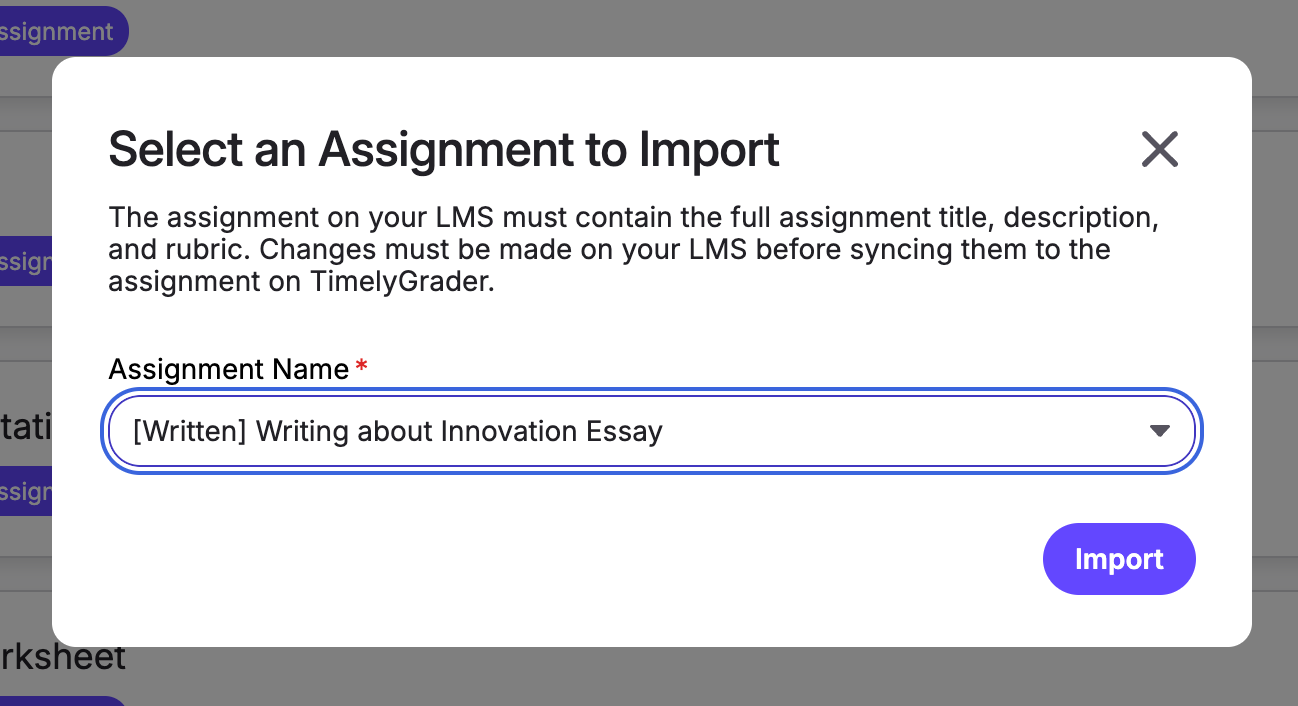
### Select an assignment
Choose the D2L assignment you want to import, then click **Import**. Its name, description and rubric (if any) come across with the import.
{% endstep %}
{% step %}
### Check the mandatory fields
In **Description & Settings**, the only two mandatory items are the **Assignment Description** and the **Rubric**. Both usually will be imported from D2L. If you don't have a rubric on the D2L assignment, we will ask you to add one. You can also tell TimelyGrader what type of submission to expect and change the citation format.
{% hint style="info" %}
If no rubric came over from D2L, create one in TimelyGrader manually, or use our **Rubric Generator**.
D2L doesn’t support rubric passback, so recreate the rubric in D2L and resync the assignment. If you don’t, the pass back will only return each student’s overall grade, without criterion-specific grades.
{% endhint %}
{% hint style="success" %} **Hugo’s tip:** Already set up a similar assignment? Use **Import Assignment Settings** to bring its description, rubric and settings across. See [Reusing settings from other assignments](/user-guides-get-started-here/reuse-assignment-settings.md).
{% endhint %}
{% endstep %}
{% step %}
### Review the setup sections
Everything else is optional. Setup is split into sections, and each starts from your defaults in **Settings → Preferences** (if you already set it up):
* **Description & Settings:** description, rubric, expected submission type and citation format.
* **Grading Settings:** turn Grading Suggestions on or off and add general or criterion-specific instructions. See [Advanced: Calibrating Grading Accuracy](/d2l-support-articles/assignments/customizing-grading.md).
* **Feedback Settings:** the structure, tone and language level of feedback. See [Advanced: Customizing Feedback](/d2l-support-articles/assignments/customizing-feedback.md).
* **Formative Feedback Settings:** whether students can open the assignment and get feedback on their drafts, and how.
* **Inline Comment Settings:** how inline comments on the student’s text are created.
{% hint style="info" %}
Your institution may have turned off Grading Suggestions. If so, you can’t turn them back on yourself; contact your administrator.
{% endhint %}
{% endstep %}
{% step %}
### Save or publish
If the setup isn’t final, don't hit **Publish**. Any edits you make will be auto saved. Any un-published assignments will stay as **Drafts**. Once you are ready to publish, hit the button and you are good to go!
{% hint style="info" %}
You can save a draft without completing every required field. To allow students to see assignments, they must be published. This will be relevant if you enabled Formative Feedback for Students.
{% endhint %}
{% endstep %}
{% endstepper %}
## Creating an assignment from scratch
This assignment is created in TimelyGrader and isn’t linked to D2L, so submissions are uploaded rather than imported and grades aren’t pushed back.
{% stepper %}
{% step %}
### Create a new assignment
On the Assignments page, click **Create** in the top right corner.
{% endstep %}
{% step %}
### Add the mandatory items
Add an **Assignment Description** and a **Rubric**. You can write the rubric yourself or have the Rubric Generator create one from your description; see [Creating Rubrics on TimelyGrader](/d2l-support-articles/assignments/creating-rubrics.md).
{% endstep %}
{% step %}
### Review the setup sections
Grading, Feedback, Formative Feedback and Inline Comment Settings start from your defaults in **Settings → Preferences**.
{% endstep %}
{% step %}
### Save or publish
If the setup isn’t final, don't hit **Publish**. Any edits you make will be auto saved. Any un-published assignments will stay as **Drafts**. Once you are ready to publish, hit the button and you are good to go!
{% endstep %}
{% endstepper %}
## After setup
To calibrate grading further for more accurate suggestions, add a content bank and tune your Grading and Feedback Settings:
* [Advanced: Creating a Content Bank](/d2l-support-articles/assignments/content-bank.md)
* [Advanced: Calibrating Grading Accuracy](/d2l-support-articles/assignments/customizing-grading.md)
* [Advanced: Customizing Feedback](/d2l-support-articles/assignments/customizing-feedback.md)
## Related articles
* [How We Handle New Submissions](/d2l-support-articles/assignments/new-submissions.md)
* [How We Handle Unsupported Files](/d2l-support-articles/assignments/unsupported-files.md)
* [Creating Rubrics on TimelyGrader](/d2l-support-articles/assignments/creating-rubrics.md)



 **Hugo’s tip:** Already set up a similar assignment? Use **Import Assignment Settings** to bring its description, rubric and settings across. See [Reusing settings from other assignments](/user-guides-get-started-here/reuse-assignment-settings.md).
{% endhint %}
{% endstep %}
{% step %}
### Review the setup sections
Everything else is optional. Setup is split into sections, and each starts from your defaults in **Settings → Preferences** (if you already set it up):
* **Description & Settings:** description, rubric, expected submission type and citation format.
* **Grading Settings:** turn Grading Suggestions on or off and add general or criterion-specific instructions. See [Advanced: Calibrating Grading Accuracy](/d2l-support-articles/assignments/customizing-grading.md).
* **Feedback Settings:** the structure, tone and language level of feedback. See [Advanced: Customizing Feedback](/d2l-support-articles/assignments/customizing-feedback.md).
* **Formative Feedback Settings:** whether students can open the assignment and get feedback on their drafts, and how.
* **Inline Comment Settings:** how inline comments on the student’s text are created.
**Hugo’s tip:** Already set up a similar assignment? Use **Import Assignment Settings** to bring its description, rubric and settings across. See [Reusing settings from other assignments](/user-guides-get-started-here/reuse-assignment-settings.md).
{% endhint %}
{% endstep %}
{% step %}
### Review the setup sections
Everything else is optional. Setup is split into sections, and each starts from your defaults in **Settings → Preferences** (if you already set it up):
* **Description & Settings:** description, rubric, expected submission type and citation format.
* **Grading Settings:** turn Grading Suggestions on or off and add general or criterion-specific instructions. See [Advanced: Calibrating Grading Accuracy](/d2l-support-articles/assignments/customizing-grading.md).
* **Feedback Settings:** the structure, tone and language level of feedback. See [Advanced: Customizing Feedback](/d2l-support-articles/assignments/customizing-feedback.md).
* **Formative Feedback Settings:** whether students can open the assignment and get feedback on their drafts, and how.
* **Inline Comment Settings:** how inline comments on the student’s text are created.

