

7. How to Sync Your Roster Manually
Bring your D2L roster into TimelyGrader so every instructor and student is linked to their assignments.

Keeping the roster current makes sure every instructor and student is linked to the right assignments. Syncing pulls the latest member list directly from D2L.
Sync your roster when:
you need to invite new instructors, TAs or students,
students have recently enrolled in the course, or
you want to make sure the TimelyGrader roster is up to date.
Steps
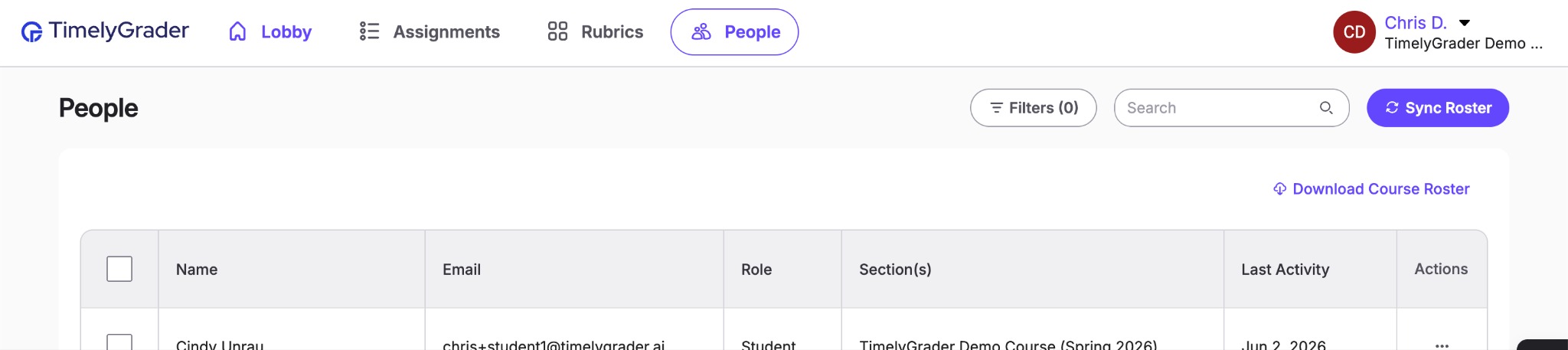
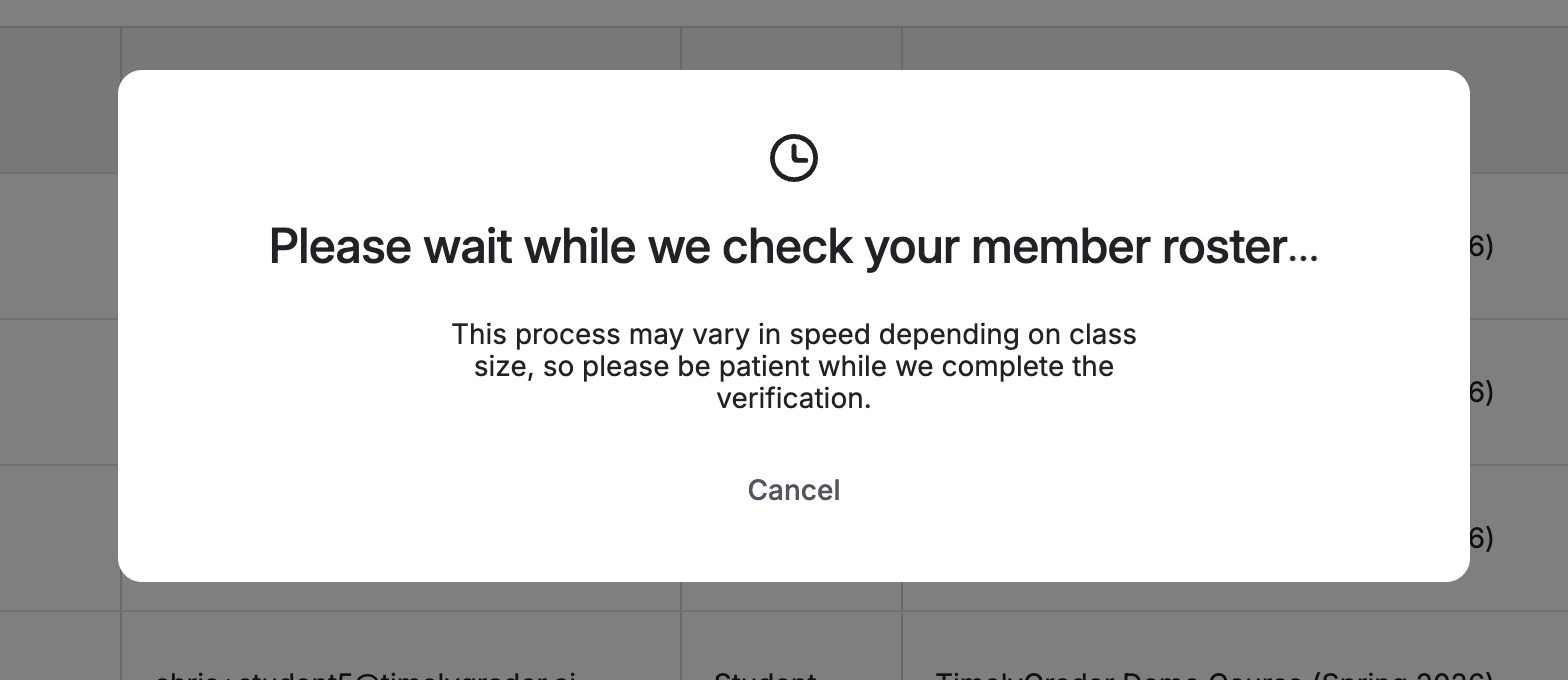
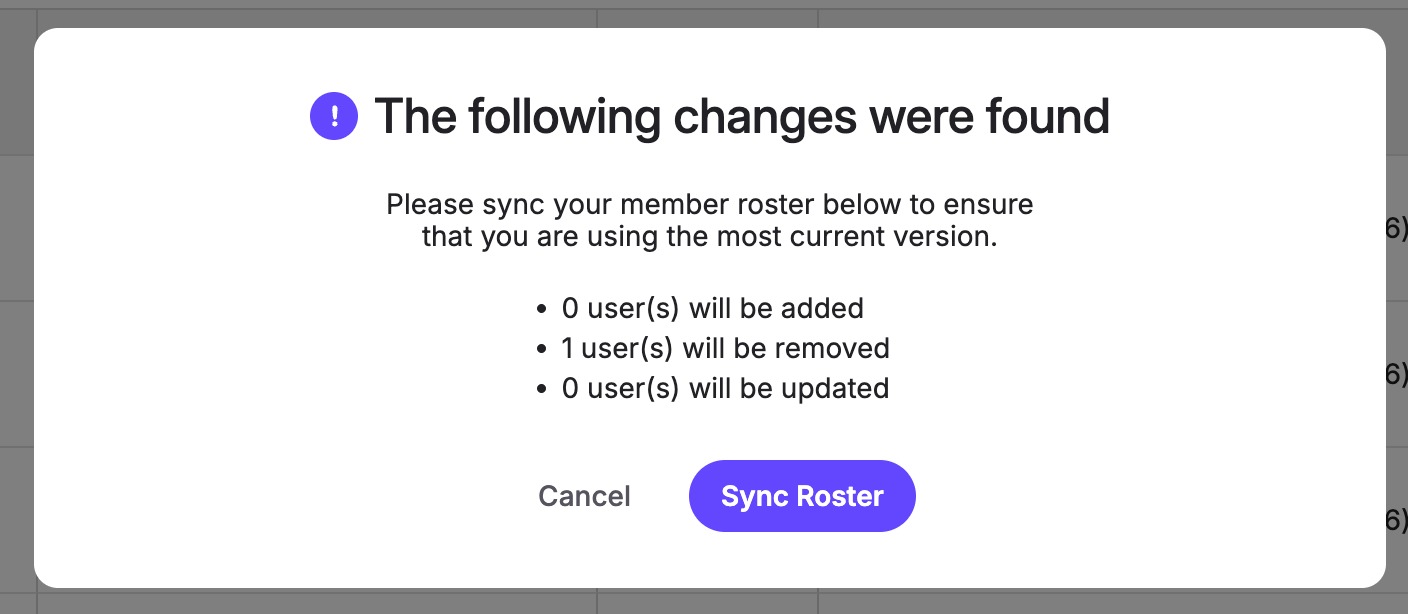
Reading the roster and assigning TAs
Click a column header to sort the roster, or use the filters to narrow it down.
You can also assign TA roles manually. TAs work only within their assigned sections:
TAs can review the assignment description, settings and rubric, and review student submissions in their sections.
TAs can’t import assignments, delete anything, push grades back, edit assignment settings (rubric, feature settings and so on), or see submissions outside their sections.
Related articles
Was this helpful?