> For the complete documentation index, see [llms.txt](https://help.timelygrader.ai/llms.txt). Markdown versions of documentation pages are available by appending `.md` to page URLs; this page is available as [Markdown](https://help.timelygrader.ai/d2l-support-articles/quizzes-d2l/importing-quiz-attempts.md).
# Uploading Quiz Attempts
Export a quiz’s Attempt Details report from Brightspace as a CSV and upload it to bring students’ attempts into TimelyGrader.
The quiz and its questions come across when you import it, but Brightspace doesn’t let TimelyGrader import students’ attempts. Instead, you export an **Attempt Details** report from Brightspace as a CSV and upload it to the quiz in TimelyGrader. The file brings in each student’s answers, and TimelyGrader matches every row to a student and question for you.
The upload has four steps: **Before you import**, **Export**, **Upload** and **Check**. You set up the report in Brightspace once per quiz; after that, you only export and upload.
{% hint style="warning" %}
With a question-by-question rubric, any mismatch between a criterion and a question must be resolved before attempts can be imported. See [Editing a Quiz’s Rubric and Questions](/d2l-support-articles/quizzes-d2l/quiz-rubric-and-questions.md).
{% endhint %}
## Starting the upload
{% stepper %}
{% step %}
### Open the quiz
On the Quizzes page, click the quiz. Until you upload, its status line reads **No submissions uploaded**.
{% endstep %}
{% step %}
### Click Upload Submissions
In the right sidebar, under **Final Submission Grading & Feedback**, click **Upload Submissions**. The **Upload Submissions from Brightspace** dialog opens on **Before you import**. **Cancel** closes it without changing anything.
{% endstep %}
{% endstepper %}
## Step 1: Set up the report in Brightspace
Create this report once per quiz, then export it whenever you want to bring in attempts. In Brightspace:
{% stepper %}
{% step %}
### Open Setup Reports
Open your Brightspace course and go to **Quizzes**. Click the dropdown arrow next to the quiz and select **Setup Reports**, then click **Add Report**.
{% endstep %}
{% step %}
### Name the report
Enter a name, such as **TG Attempt Details**.
{% endstep %}
{% step %}
### Choose Attempt Details
Under **Report Type**, select **Attempt Details**. This includes student identifiers and their answer to each question, by attempt.
{% endstep %}
{% step %}
### Include the Org Defined ID
Turn on **Include Org Defined ID**. This gives TimelyGrader a second way to match students. Attempt duration is optional.
{% endstep %}
{% step %}
### Release the report to yourself
Set the release time to **Immediately**. Under **Release Report To**, select **Instructor**, or the role you use in this course.
{% endstep %}
{% step %}
### Save
Click **Save**, then **Save and Close** if it shows. Back in TimelyGrader, click **I’ve set it up**.
{% hint style="info" %}
You only do this once per quiz. Next time, start from Export.
{% endhint %}
{% endstep %}
{% endstepper %}
## Step 2: Export the CSV
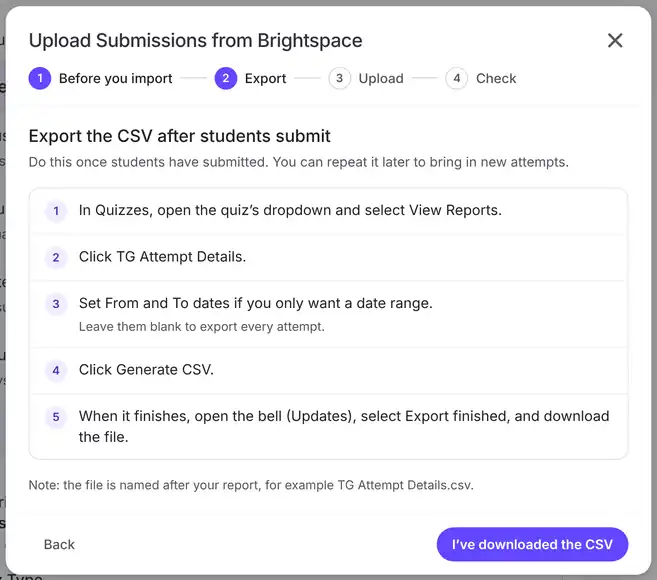
Do this once students have submitted. You can repeat it later to bring in new attempts. In Brightspace:
{% stepper %}
{% step %}
### Open the report
In **Quizzes**, open the quiz’s dropdown and select **View Reports**, then click **TG Attempt Details**.
{% endstep %}
{% step %}
### Choose the date range
Set **From** and **To** dates if you only want a date range. Leave them blank to export every attempt.
{% endstep %}
{% step %}
### Generate and download the CSV
Click **Generate CSV**. When it finishes, open the bell (**Updates**), select **Export finished**, and download the file. Back in TimelyGrader, click **I’ve downloaded the CSV**.
{% hint style="info" %}
The file is named after your report, for example **TG Attempt Details.csv**.
{% endhint %}
{% endstep %}
{% endstepper %}
## Step 3: Upload the CSV
{% stepper %}
{% step %}
### Choose the file
Click **Choose the CSV file** and select the file you downloaded from Brightspace. Only a **.csv** file is accepted. To pick a different file, click the file name again.
{% endstep %}
{% step %}
### Click Upload
Click **Upload**. It stays disabled until you’ve chosen a file. Students are matched by **Org Defined ID**, then by name.
{% endstep %}
{% endstepper %}
## Step 4: Check before importing
{% stepper %}
{% step %}
### Wait for the check
TimelyGrader reads the file and matches students and questions, showing its progress.
{% endstep %}
{% step %}
### Review the summary
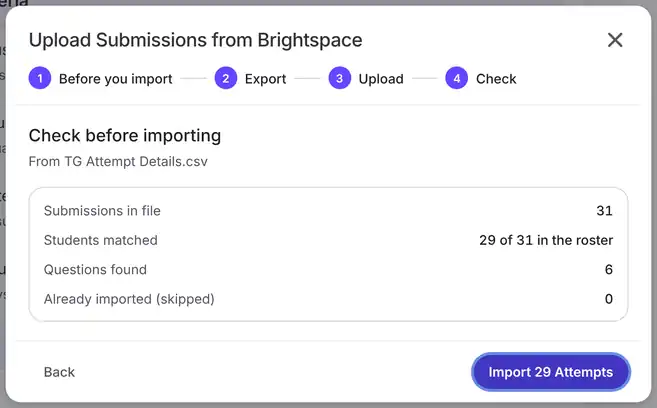
**Check before importing** shows:
* **Submissions in file**
* **Students matched**, out of the students in the roster
* **Questions found**
* **Already imported (skipped)**
If every row matched, it says **Every row matched a student.** Otherwise it lists the rows that couldn’t be matched, with the reason for each.
{% hint style="info" %}
Rows that couldn’t be matched are skipped. Fix them in Brightspace and upload again; nothing already imported is changed.
{% endhint %}
{% endstep %}
{% step %}
### Import the attempts
Click **Import \[number] Attempts**. The dialog closes and the sidebar shows **Preparing submissions…** while the attempts are processed. When they’re ready, the sidebar shows the last upload (file name and number of attempts added), and **Attempt Status** shows how many attempts are **Pending review** and how many are **Completed**.
{% endstep %}
{% step %}
### Start grading
Click **Start Reviewing** to open the first attempt awaiting review. See [Grading a Quiz Attempt](/d2l-support-articles/quizzes-d2l/grading-a-quiz-attempt.md).
{% hint style="success" %} **Hugo’s tip:** Once every attempt has a decision, the button reads **Review grades**.
{% endhint %}
{% endstep %}
{% endstepper %}
## FAQ
It says “This file isn’t a CSV.”
Download the report again from Brightspace and upload the .csv file.
Some rows couldn’t be matched.
A row is skipped when it has no Org Defined ID and no student with that name is in the course roster. Brightspace preview attempts (for example, “Test Student”) are skipped too, because they aren’t real students. Fix the rows in Brightspace and upload again; nothing already imported changes.
Fewer students matched than I expected.
Check that Include Org Defined ID is turned on in the report setup. It gives TimelyGrader a second way to match students besides their name.
A student submitted after I uploaded.
Export the CSV again and use Upload Additional Submissions. See [Uploading Additional Quiz Attempts](/d2l-support-articles/quizzes-d2l/additional-quiz-attempts.md).
An auto-graded score looks wrong.
Fix it in D2L. TimelyGrader only shows those scores, so the total on screen matches your gradebook.
## Related articles
* [Uploading Additional Quiz Attempts](/d2l-support-articles/quizzes-d2l/additional-quiz-attempts.md)
* [Grading a Quiz Attempt](/d2l-support-articles/quizzes-d2l/grading-a-quiz-attempt.md)
* [Editing a Quiz’s Rubric and Questions](/d2l-support-articles/quizzes-d2l/quiz-rubric-and-questions.md)

 **Hugo’s tip:** Once every attempt has a decision, the button reads **Review grades**.
{% endhint %}
{% endstep %}
{% endstepper %}
## FAQ
**Hugo’s tip:** Once every attempt has a decision, the button reads **Review grades**.
{% endhint %}
{% endstep %}
{% endstepper %}
## FAQ