> For the complete documentation index, see [llms.txt](https://help.timelygrader.ai/llms.txt). Markdown versions of documentation pages are available by appending `.md` to page URLs; this page is available as [Markdown](https://help.timelygrader.ai/es/articulos-de-soporte-de-autoservicio/3.-crear-cursos-en-timelygrader.md).
# 3. Crear cursos en TimelyGrader
Configura un nuevo curso en TimelyGrader para empezar a gestionar tareas y entregas.
Crear un curso es el primer paso para organizar tus tareas y entregas de estudiantes.
## Pasos
{% stepper %}
{% step %}
### Ve al panel del curso
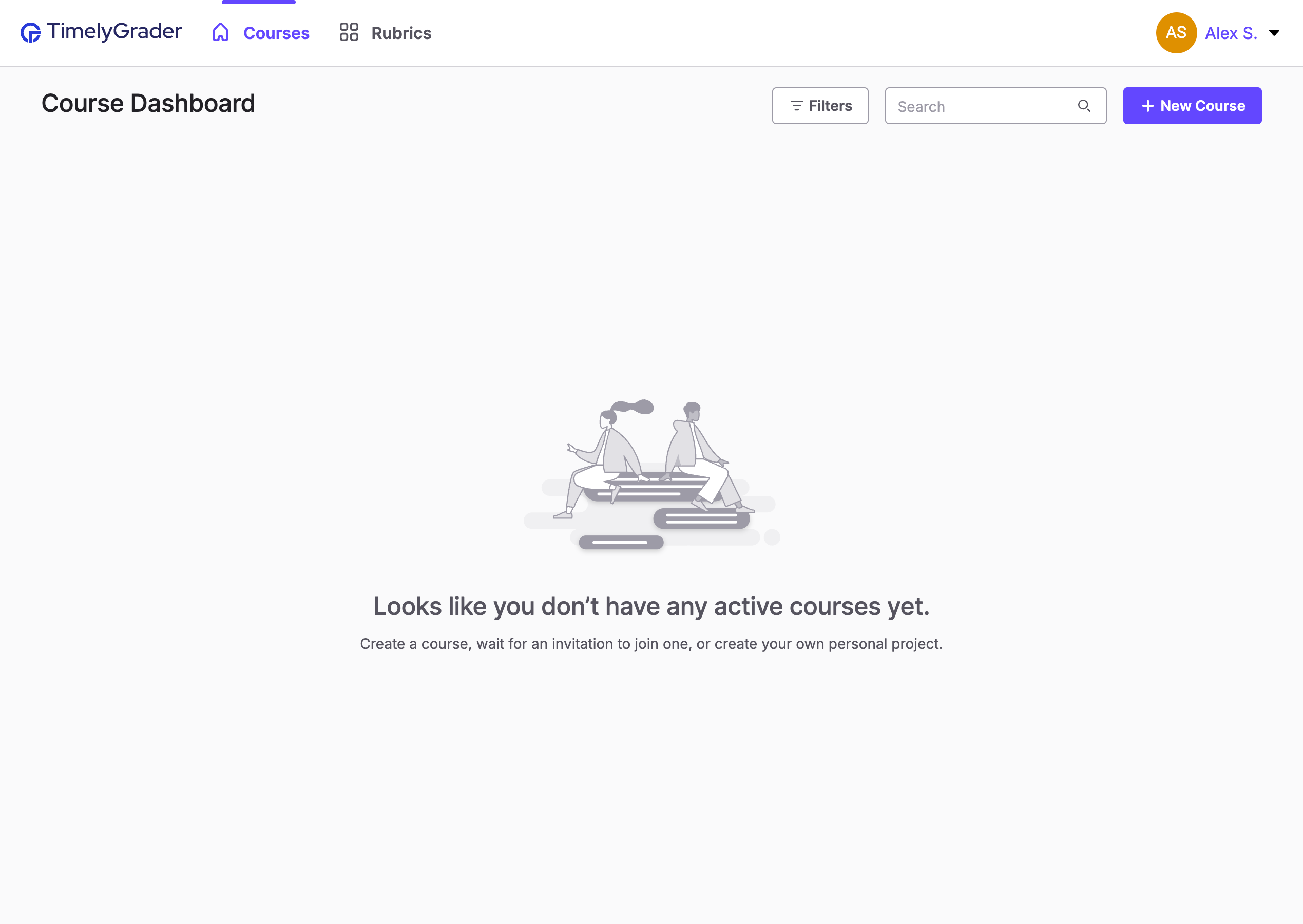
Después de registrarte o iniciar sesión, haz clic en **+ Nuevo curso** en el panel del curso.
{% endstep %}
{% step %}
### Añade un nombre para el curso
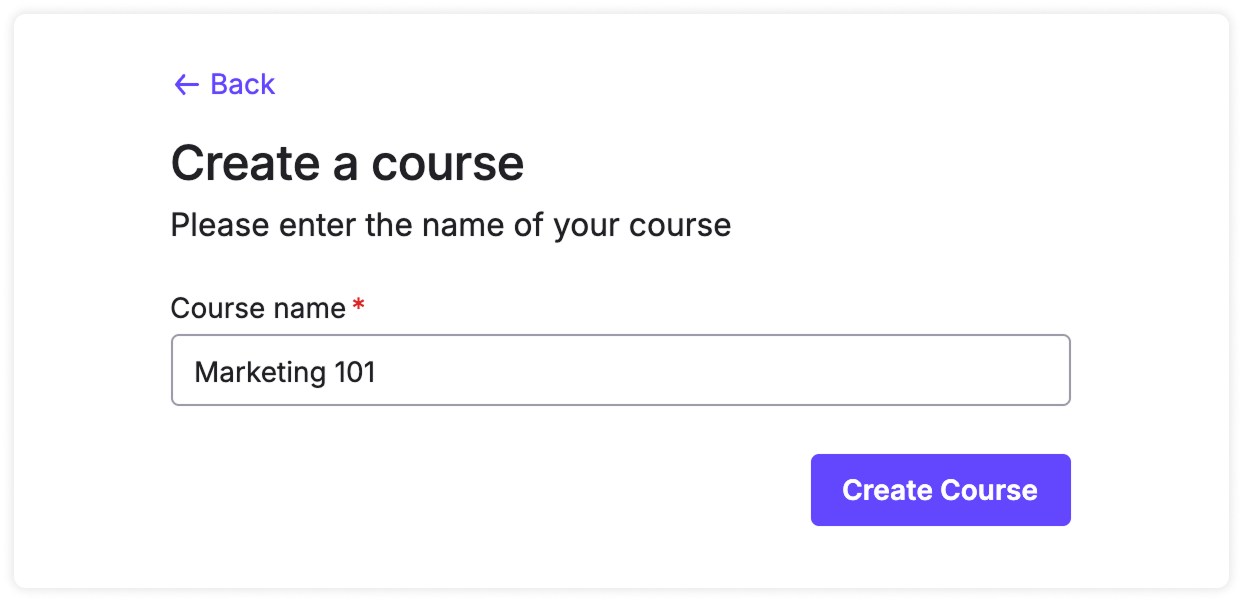
Introduce un nombre para tu curso y haz clic en **Crear curso**.
{% endstep %}
{% step %}
### Ingresa al curso
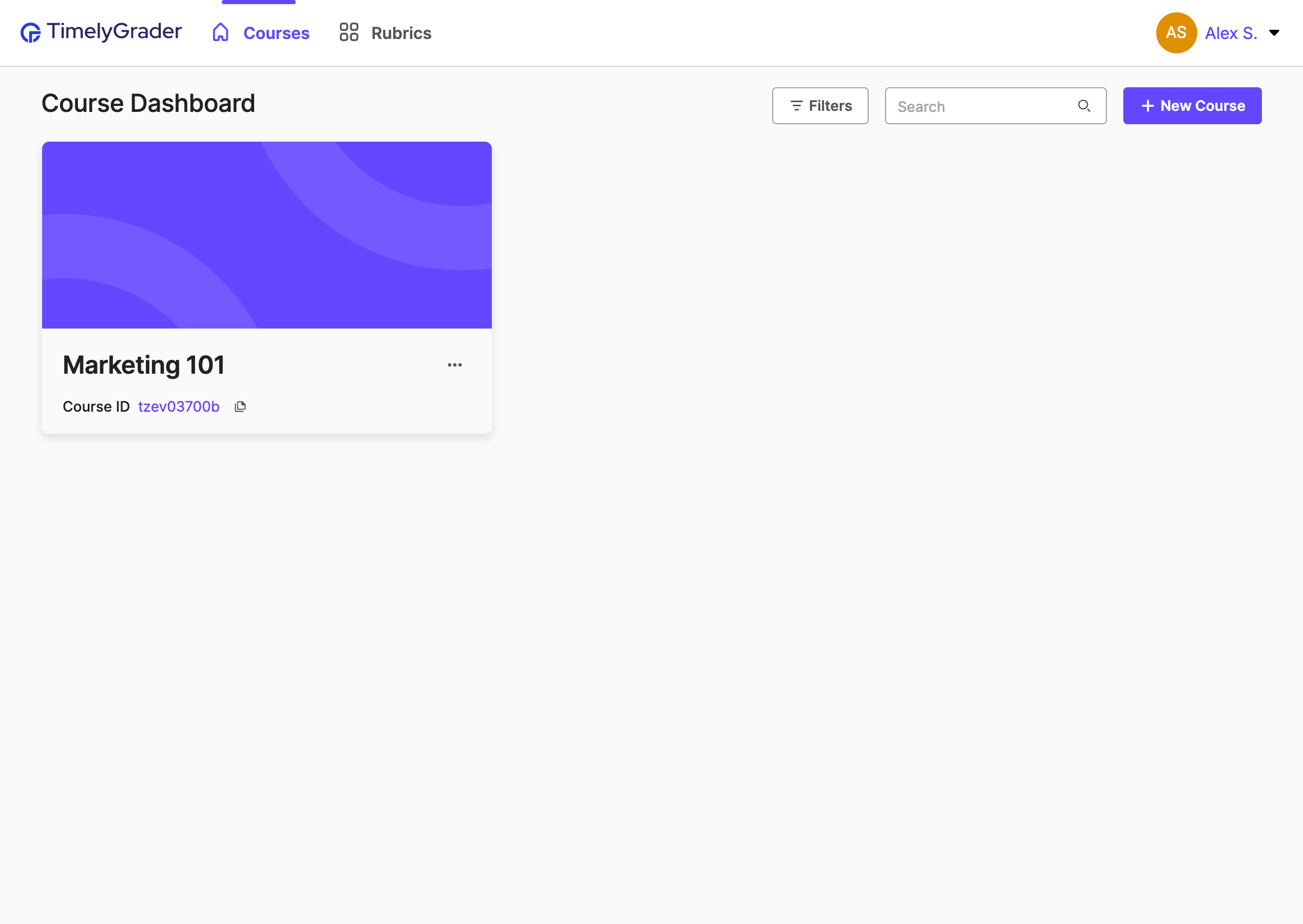
Haz clic en la tarjeta del curso para abrir tu curso.
Dentro del curso, puedes crear tareas, invitar a otros instructores y administrar la configuración del curso.
{% endstep %}
{% endstepper %}
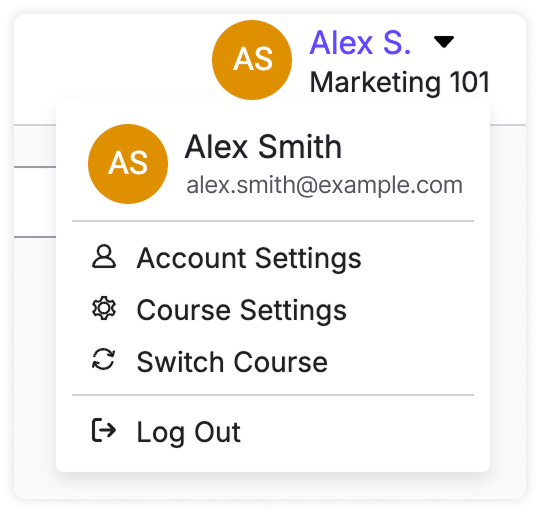
{% hint style="success" %} **Consejo de Hugo:** Para volver al panel del curso, haz clic en **Cambiar curso** en el menú desplegable del perfil en la esquina superior derecha.
{% endhint %}
## Artículos relacionados
* [Invitar a otros instructores a su curso](https://help.timelygrader.ai/es/articulos-de-soporte-de-autoservicio/4.-invitar-a-otros-instructores-a-tu-curso.md)
* [Crear una tarea](https://help.timelygrader.ai/es/articulos-de-soporte-de-autoservicio/5.-crear-una-tarea.md)
* [¿No ves tus tareas o cursos?](https://help.timelygrader.ai/es/preguntas-tecnicas-y-de-seguridad/no-ves-tus-tareas-o-cursos.md)

 **Consejo de Hugo:** Para volver al panel del curso, haz clic en **Cambiar curso** en el menú desplegable del perfil en la esquina superior derecha.
{% endhint %}