Skip to content
For the complete documentation index, see llms.txt. This page is also available as Markdown.

Reading your feedback

How draft feedback is laid out, where it comes from, and what to do when a comment isn’t clear.

When TimelyGrader has finished processing your draft, click View Feedback to open it.
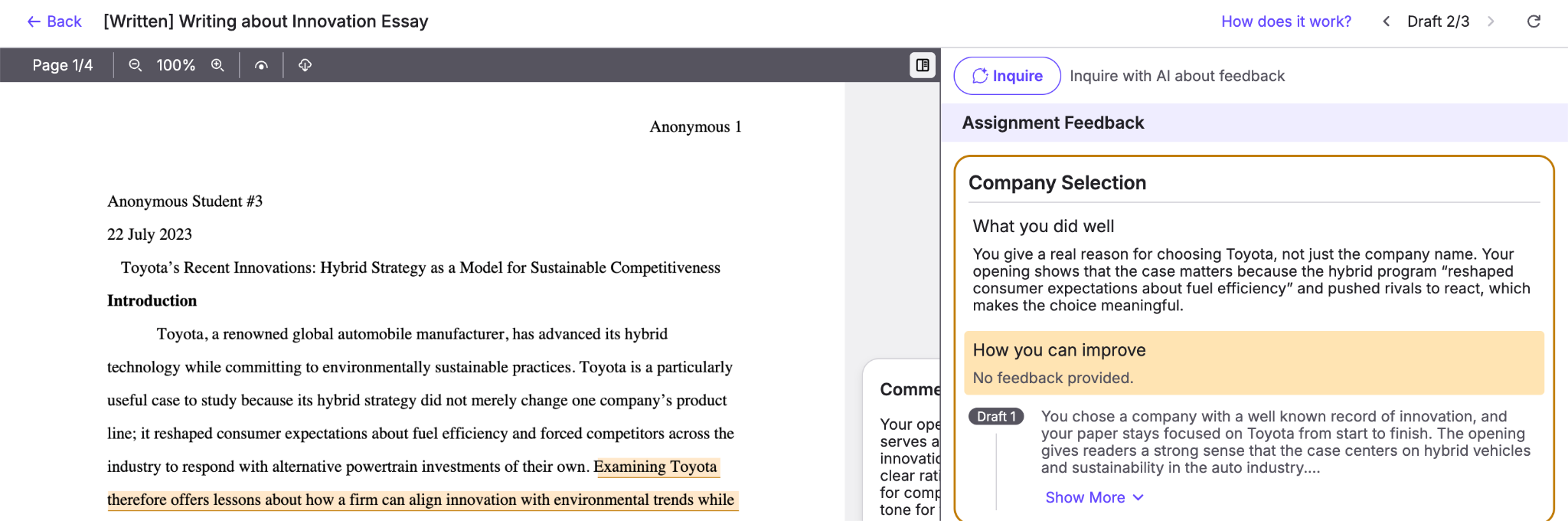
Draft feedback in the student view, with the work on the left and feedback on the right

What you see

1

Your work and the feedback, side by side

Your draft is on the left and the feedback is in the right sidebar, the same layout your instructor uses when grading.

2

Feedback set up by your instructor

The feedback follows the settings your instructor chose for the assignment, along with any feedback settings you adjusted before uploading, such as length.

3

A way to ask about it

If a comment isn’t clear, ask Hugo about it. See Asking Hugo about your feedback.

FAQ

Is draft feedback my grade?

No. Draft feedback is there to help you revise. Your instructor grades your final submission.

Did an AI grade me?

No. Your instructor decides every grade. TimelyGrader helps them give you feedback.

Can my instructor see this feedback?

Yes. Your instructor can see your drafts, all the feedback you received, and your chat history with Hugo.

Was this helpful?