

3. How to Grade Submissions with TimelyGrader
Review and confirm grades and feedback in the grading view.
Once submissions finish processing, review TimelyGrader's suggested grades and feedback, then make the final decisions yourself.
Steps
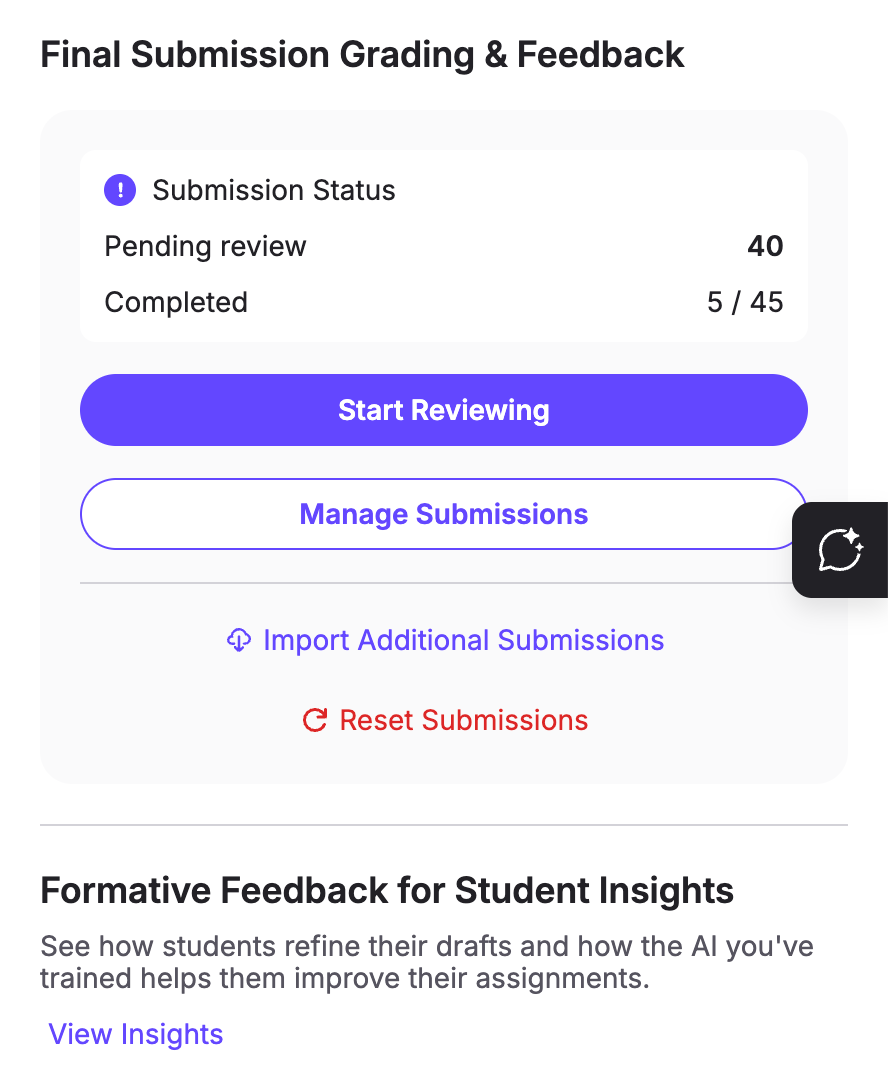
Open the grading view
Open the assignment and click Manage Submissions, or Start Reviewing to begin with the first submission ready for grading.
 Hugo's tip: Need to bring submissions in first? See Importing or Uploading Submissions.
Select grades
The grading view opens on the first submission ready for grading, with the rubric in the right sidebar. Select a criterion to see TimelyGrader's suggested grade, the reasoning behind it, and highlighted annotations on the submission.
Enter a grade by selecting a rating level or typing points in the Pts field. To apply suggestions in bulk, click Accept Suggestions at any time; it only fills criteria you haven't graded yet.
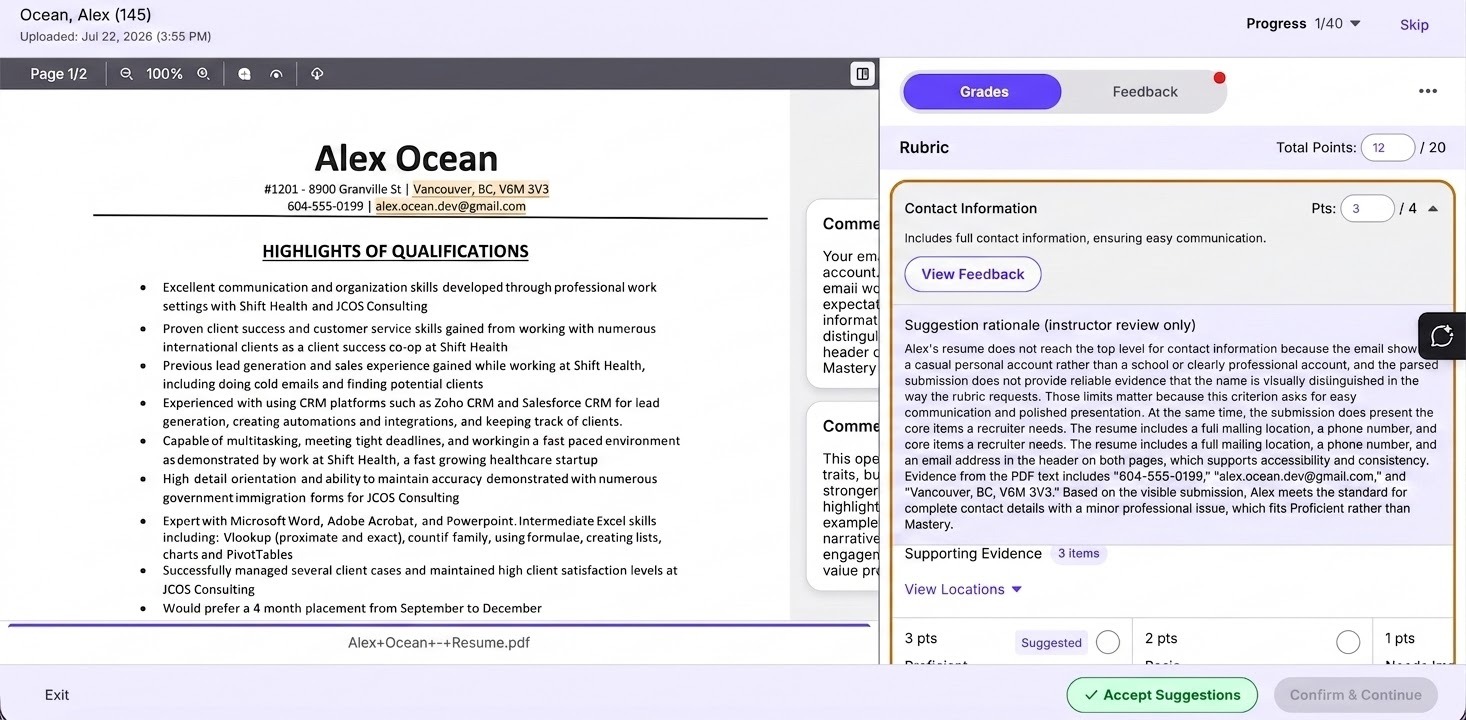
Hugo's tip: Use the Progress dropdown to jump to a specific submission.
Review and revise feedback
Switch to the feedback tab at the top of the right sidebar. A red dot means there is feedback you haven't viewed. Selecting a feedback item highlights the annotations it refers to.
Click into any feedback box to edit it. Changes save automatically when you click away.
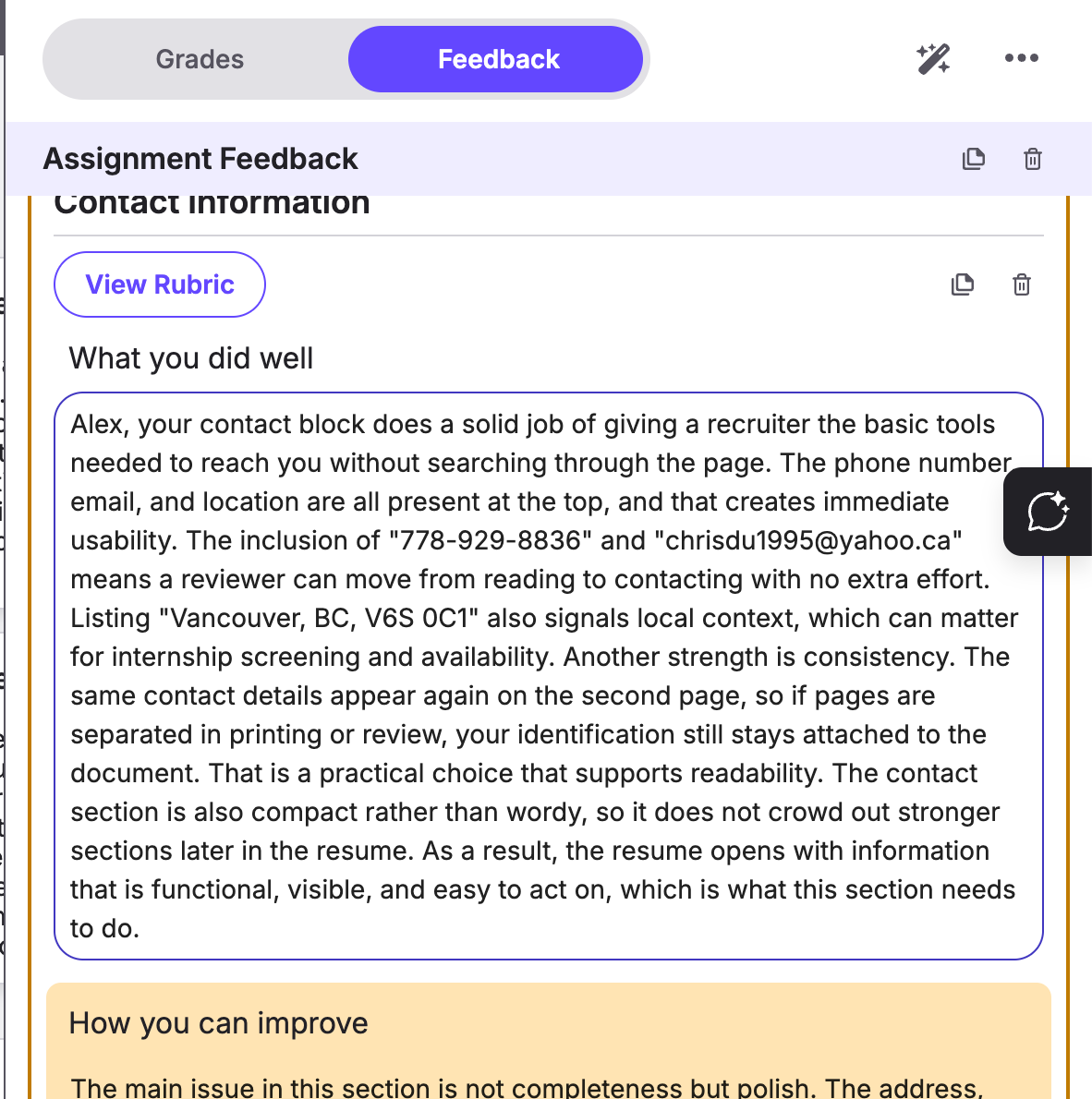
Hugo's tip: The default structure is Rubric-Based Feedback, with one item per criterion. You can change the structure in Feedback Settings; see Advanced: Customizing Feedback. What the feedback says follows the grading rationale, so to change its content, adjust Grading Settings first.
Related articles
Was this helpful?