

4. Pushing Grades & Feedback Back to Moodle
Send grades and feedback back to Moodle for assignments imported from Moodle.
For assignments imported from Moodle, you can send grades and feedback from TimelyGrader straight to the Moodle assignment, so students see them in Moodle like any other grade.
Before you push
Check two settings on the Moodle assignment, under Settings:
Feedback types: tick Feedback comments. Without it, Moodle has nowhere to put the written feedback and only the grade goes back.
Grading method: for criterion grades in Moodle, the assignment needs the same rubric you grade with in TimelyGrader. See Keeping Rubrics in Sync with Moodle.
Steps
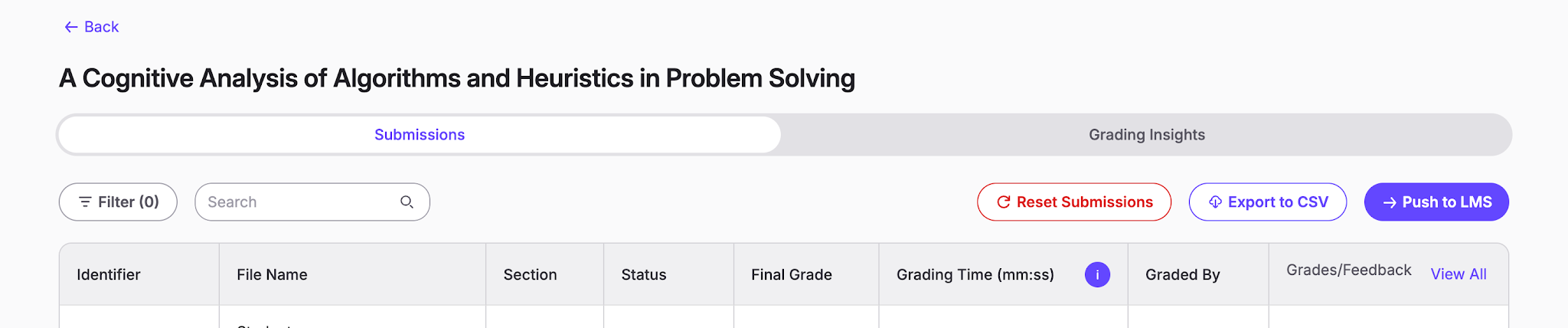
Choose how you want to push back the grades and feedback
You have two options here, which should cover all use cases:
Push Missing Entries: only pushes grades and feedback for students who don't already have a grade in Moodle. This prevents overwriting grades you entered by hand.
Update Existing Entries: use this when a student made an additional submission which you graded, leaving an outdated grade in Moodle. It deliberately overwrites any outdated scores we detect.
Leave the page while the push runs
Once the push starts, a message confirms that the LMS grade push has started. You can safely leave the page: the push continues in the background. Come back to the Manage Submissions page anytime to check progress in the Push to LMS banner, which shows how many grades have been pushed.

Where it lands in Moodle
Overall grade
The assignment's grade and the course gradebook
Criterion grades (rubric synced)
The rubric in the Moodle grading panel
Per-criterion feedback (rubric synced)
Each criterion's remark box in the rubric
Overall or summary feedback
Feedback comments
 Hugo's tip: Using marking workflow in Moodle? Pushed grades stay hidden from students until you set the workflow state to Released.
Related articles
Was this helpful?