> For the complete documentation index, see [llms.txt](https://help.timelygrader.ai/llms.txt). Markdown versions of documentation pages are available by appending `.md` to page URLs; this page is available as [Markdown](https://help.timelygrader.ai/moodle-support-articles/assignments/push-grades-to-moodle.md).
# 4. Pushing Grades & Feedback Back to Moodle
Send grades and feedback back to Moodle for assignments imported from Moodle.
For assignments imported from Moodle, you can send grades and feedback from TimelyGrader straight to the Moodle assignment, so students see them in Moodle like any other grade.
{% hint style="info" %}
Only instructors can push grades; TAs can't.
{% endhint %}
## Before you push
Check two settings on the Moodle assignment, under **Settings**:
* **Feedback types:** tick **Feedback comments**. Without it, Moodle has nowhere to put the written feedback and only the grade goes back.
* **Grading method:** for criterion grades in Moodle, the assignment needs the same rubric you grade with in TimelyGrader. See [Keeping Rubrics in Sync with Moodle](https://help.timelygrader.ai/moodle-support-articles/rubric-page-managing-and-creating-rubrics-moodle/rubrics-moodle.md).
## Steps
{% stepper %}
{% step %}
### Open the assignment
Go to the **Assignments** page and open the graded assignment.
{% endstep %}
{% step %}
### Push grades and feedback
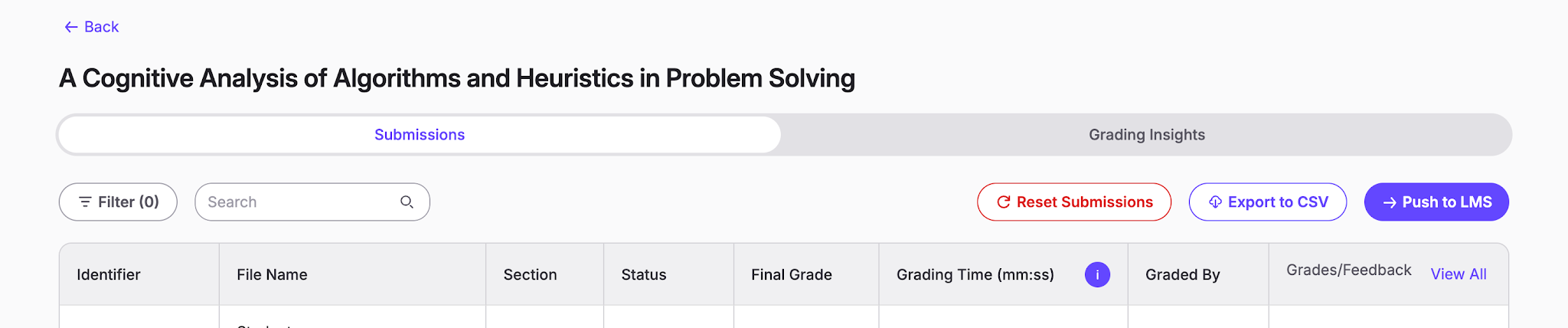
Open the **Manage Submissions** page and select **Push to LMS**.
{% endstep %}
{% step %}
### Choose how you want to push back the grades and feedback
You have two options here, which should cover all use cases:
1. **Push Missing Entries:** only pushes grades and feedback for students who don't already have a grade in Moodle. This prevents overwriting grades you entered by hand.
2. **Update Existing Entries:** use this when a student made an additional submission which you graded, leaving an outdated grade in Moodle. It deliberately overwrites any outdated scores we detect.
{% hint style="warning" %}
Update Existing Entries overwrites any existing Moodle grades for the selected students on this assignment.
{% endhint %}
{% endstep %}
{% step %}
### Review and confirm
Don't worry: before you confirm, there is an additional check so you can see whether the records that will be pushed back look correct. Once you hit **Push Grades**, there's no going back!
{% endstep %}
{% step %}
### Leave the page while the push runs
Once the push starts, a message confirms that the LMS grade push has started. You can safely leave the page: the push continues in the background. Come back to the **Manage Submissions** page anytime to check progress in the **Push to LMS** banner, which shows how many grades have been pushed.
{% endstep %}
{% endstepper %}
## Where it lands in Moodle
| What TimelyGrader sends | Where it appears in Moodle |
| -------------------------------------- | ----------------------------------------------- |
| Overall grade | The assignment's grade and the course gradebook |
| Criterion grades (rubric synced) | The rubric in the Moodle grading panel |
| Per-criterion feedback (rubric synced) | Each criterion's remark box in the rubric |
| Overall or summary feedback | **Feedback comments** |
{% hint style="success" %} **Hugo's tip:** Using **marking workflow** in Moodle? Pushed grades stay hidden from students until you set the workflow state to **Released**.
{% endhint %}
## Related articles
* [How We Handle New Submissions](https://help.timelygrader.ai/moodle-support-articles/assignments/new-submissions.md)
* [Exporting Grades and Feedback](https://help.timelygrader.ai/moodle-support-articles/assignments/export-grades.md)
* [Keeping Rubrics in Sync with Moodle](https://help.timelygrader.ai/moodle-support-articles/rubric-page-managing-and-creating-rubrics-moodle/rubrics-moodle.md)

 **Hugo's tip:** Using **marking workflow** in Moodle? Pushed grades stay hidden from students until you set the workflow state to **Released**.
{% endhint %}
## Related articles
* [How We Handle New Submissions](https://help.timelygrader.ai/moodle-support-articles/assignments/new-submissions.md)
* [Exporting Grades and Feedback](https://help.timelygrader.ai/moodle-support-articles/assignments/export-grades.md)
* [Keeping Rubrics in Sync with Moodle](https://help.timelygrader.ai/moodle-support-articles/rubric-page-managing-and-creating-rubrics-moodle/rubrics-moodle.md)