> For the complete documentation index, see [llms.txt](https://help.timelygrader.ai/llms.txt). Markdown versions of documentation pages are available by appending `.md` to page URLs; this page is available as [Markdown](https://help.timelygrader.ai/self-serve-support-articles/15.-advanced-customizing-grading.md).
# 15. Advanced: Customizing Grading
Customize Advanced Grading Settings.
Advanced Grading Settings let you guide how the AI generates grading suggestions, using general instructions, criterion-specific instructions, or both.
## Steps
{% stepper %}
{% step %}
### Open Advanced Grading Settings
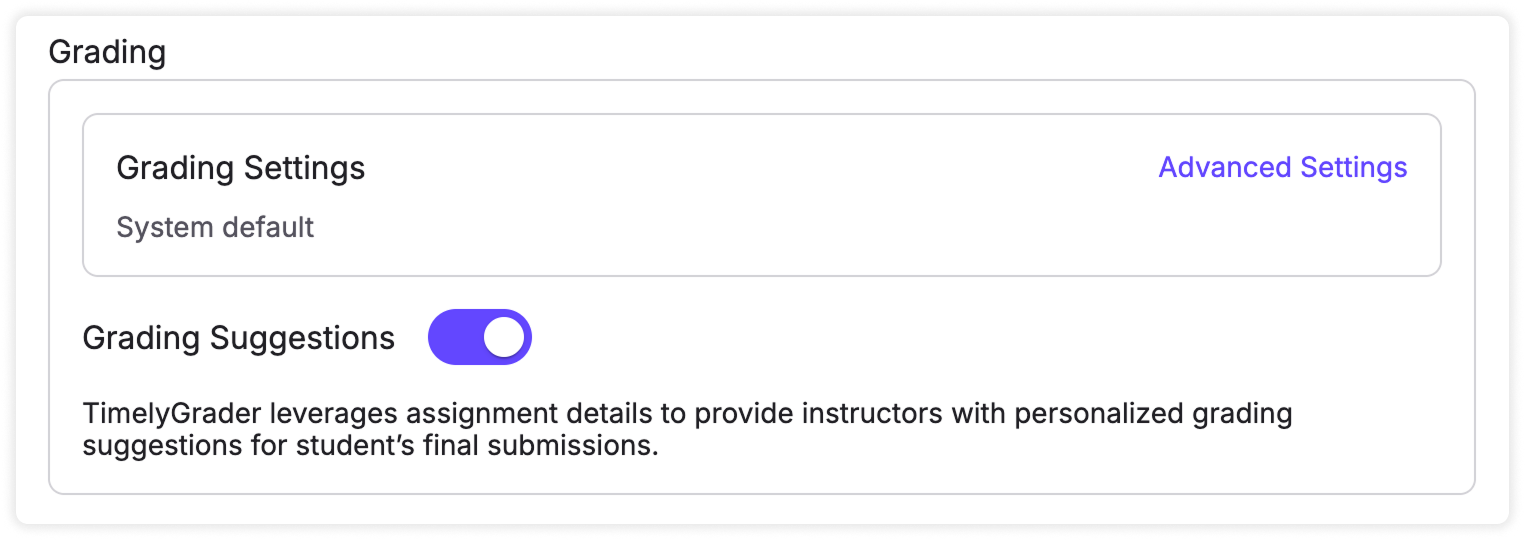
From the assignment setup view, scroll to the **Grading** section and click **Advanced Settings**.
{% endstep %}
{% step %}
### Customize your preferences
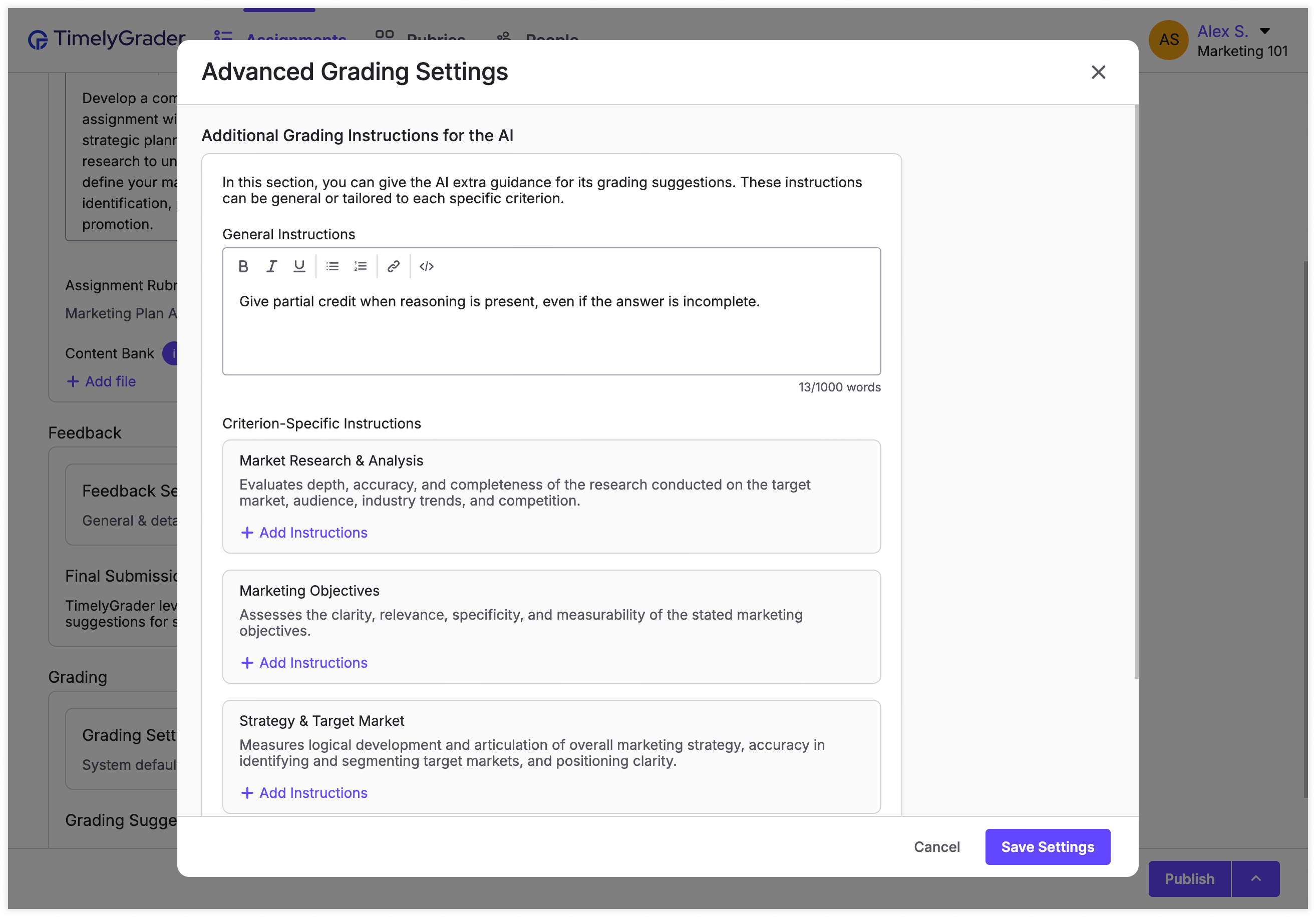
**General Grading Instructions**
Give high-level guidance that applies to the whole assignment. For example:
* "Focus on clarity of argument over grammar."
* "Give partial credit when reasoning is present, even if the answer is incomplete."
**Criterion-Specific Instructions**
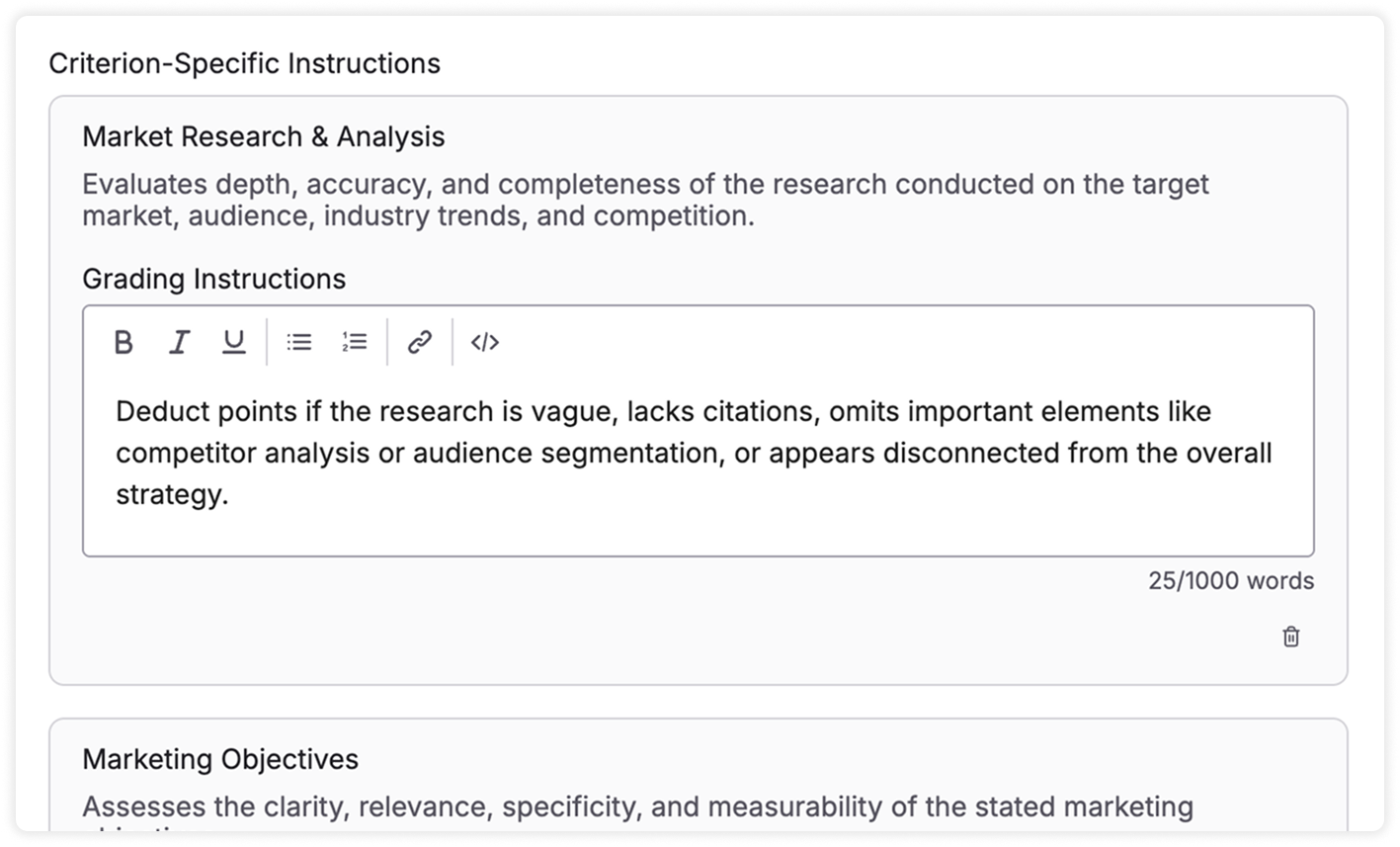
Give guidance for a single rubric criterion. Click **+ Add Instructions** and describe what the AI should consider when grading that criterion.
{% endstep %}
{% step %}
### Save your settings
When you're done, click **Save Settings**.
{% endstep %}
{% endstepper %}
{% hint style="warning" %}
These settings are added to the assignment, but they won't be saved permanently until you publish or save the assignment.
{% endhint %}
## Reviewing criterion-specific instructions while grading
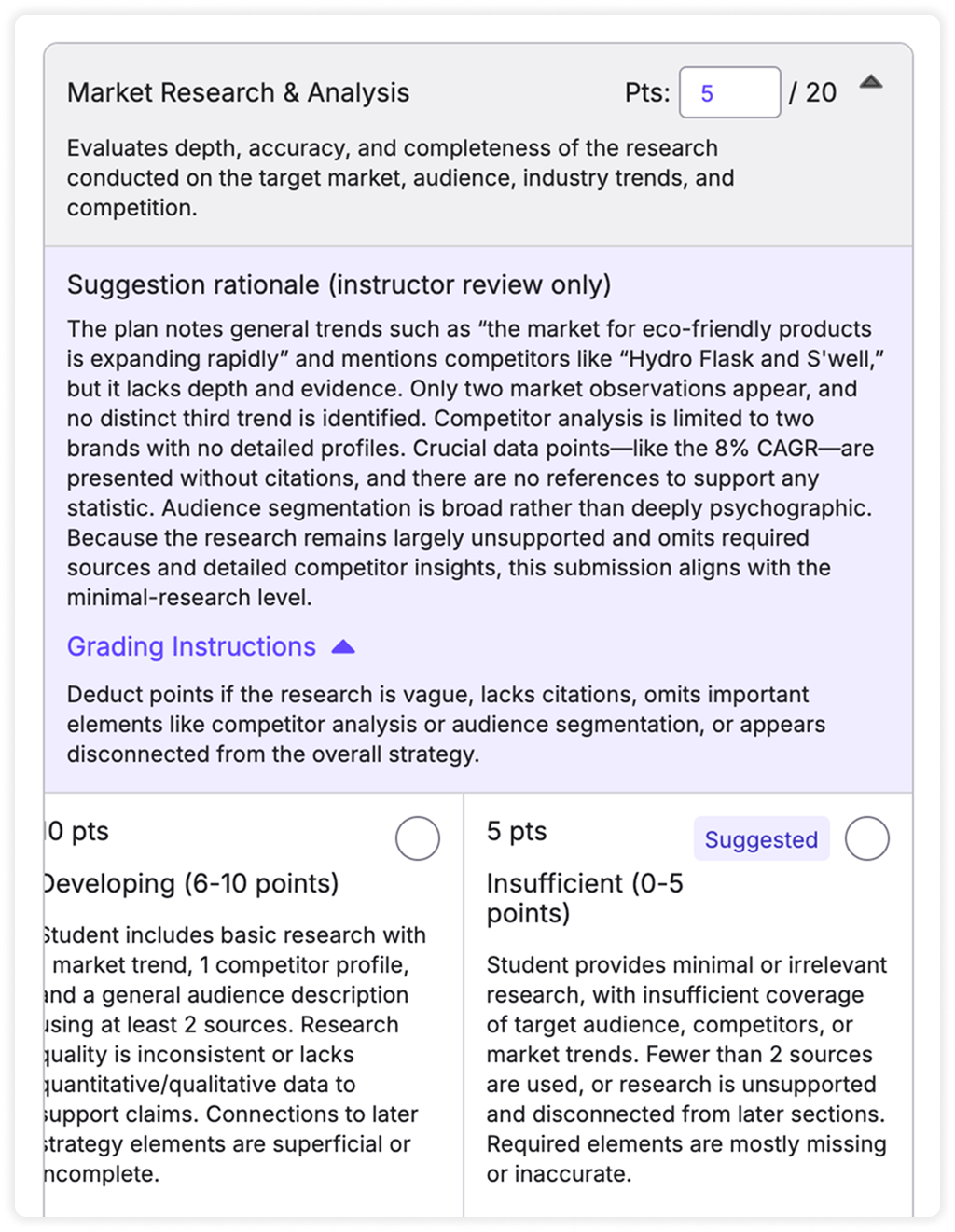
While grading, open the **Grading Instructions** dropdown on the rubric to review the criterion-specific instructions.
## Related articles
* [Regeneration for More Accurate Feedback](https://help.timelygrader.ai/self-serve-support-articles/18.-regeneration-for-more-accurate-feedback.md)
* [Refining Results in TimelyGrader: A Practical Guide](https://help.timelygrader.ai/self-serve-support-articles/17.-refining-results-in-timelygrader-a-practical-guide.md)
* [AI Rubric in Assignment Setup](https://help.timelygrader.ai/self-serve-support-articles/16.-ai-rubric-in-assignment-setup.md)