> For the complete documentation index, see [llms.txt](https://help.timelygrader.ai/llms.txt). Markdown versions of documentation pages are available by appending `.md` to page URLs; this page is available as [Markdown](https://help.timelygrader.ai/self-serve-support-articles/3.-creating-courses-on-timelygrader.md).
# 3. Creating Courses on TimelyGrader
Set up a new course in TimelyGrader to start managing assignments and submissions.
Creating a course is the first step to organizing your assignments and student submissions.
## Steps
{% stepper %}
{% step %}
### Go to the course dashboard
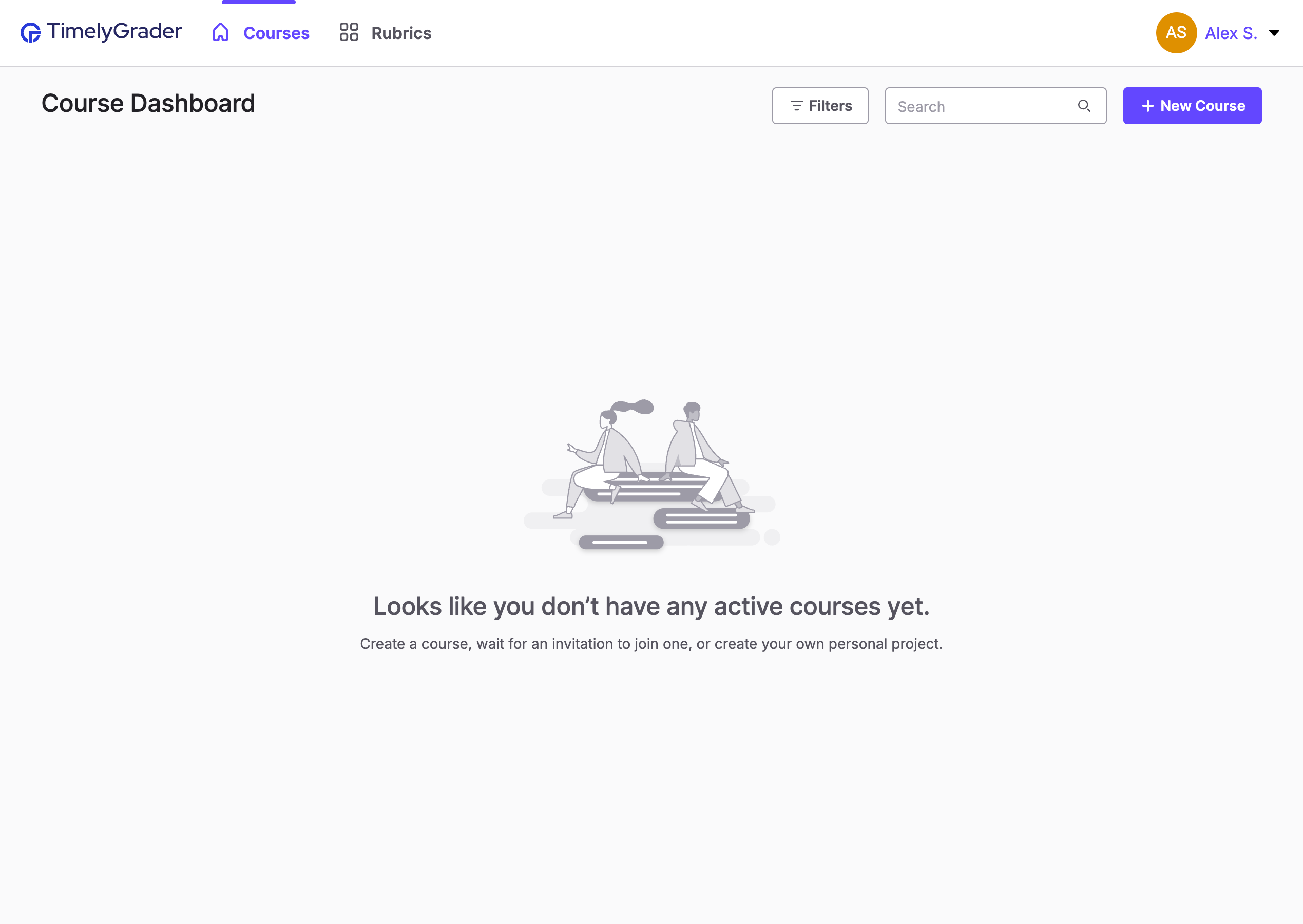
After you sign up or log in, click **+ New Course** on the course dashboard.
{% endstep %}
{% step %}
### Add a course name
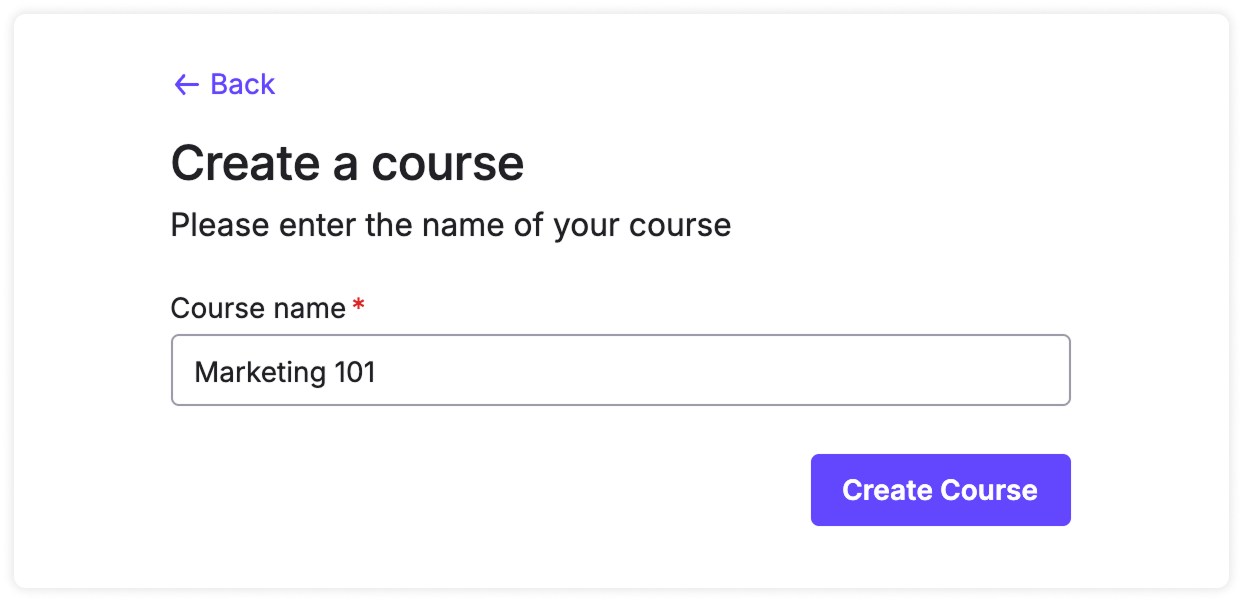
Enter a name for your course and click **Create Course**.
{% endstep %}
{% step %}
### Enter the course
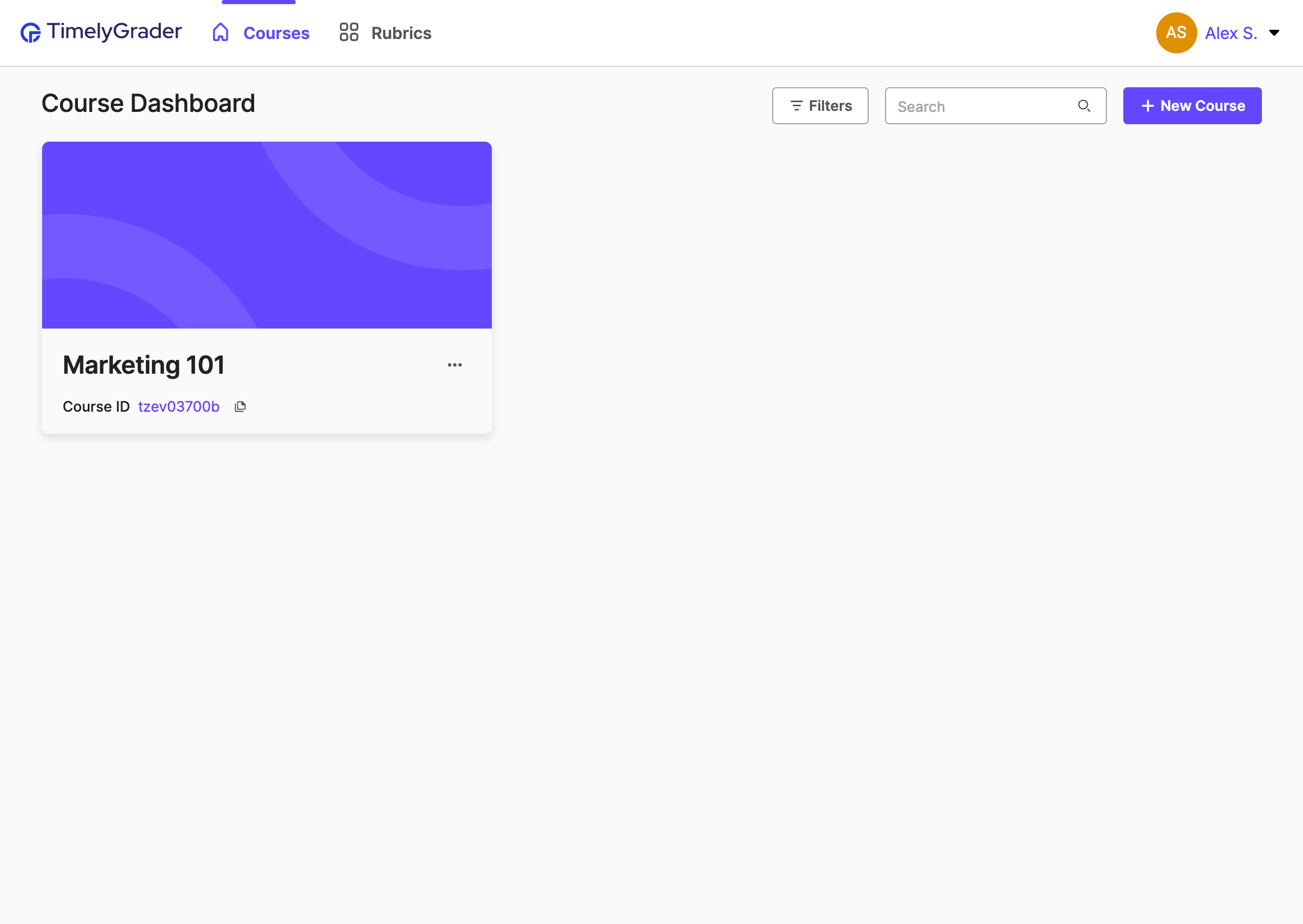
Click the course card to open your course.
Inside the course, you can create assignments, invite other instructors and manage course settings.
{% endstep %}
{% endstepper %}
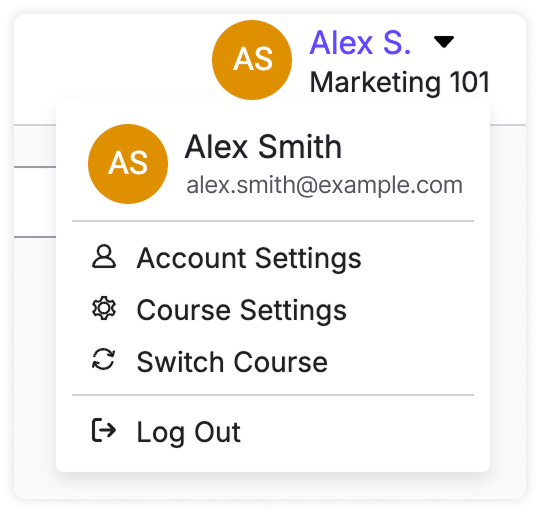
{% hint style="success" %} **Hugo’s tip:** To get back to the course dashboard, click **Switch Course** in the profile dropdown in the top right corner.
{% endhint %}
## Related articles
* [Inviting Other Instructors to Your Course](https://help.timelygrader.ai/self-serve-support-articles/4.-inviting-other-instructors-to-your-course.md)
* [Creating an Assignment](https://help.timelygrader.ai/self-serve-support-articles/5.-creating-an-assignment.md)
* [Not seeing your assignments or courses?](https://help.timelygrader.ai/technical-and-security-questions/not-seeing-your-assignments-or-courses.md)

 **Hugo’s tip:** To get back to the course dashboard, click **Switch Course** in the profile dropdown in the top right corner.
{% endhint %}