> For the complete documentation index, see [llms.txt](https://help.timelygrader.ai/llms.txt). Markdown versions of documentation pages are available by appending `.md` to page URLs; this page is available as [Markdown](https://help.timelygrader.ai/self-serve-support-articles/5.-creating-an-assignment.md).
# 5. Creating an Assignment
Set up your first assignment so that you can get started with grading.
Set up your first assignment so you can start grading. The assignment details give the AI the context it needs to produce accurate grading and feedback suggestions.
## Steps
{% stepper %}
{% step %}
### Create a new assignment
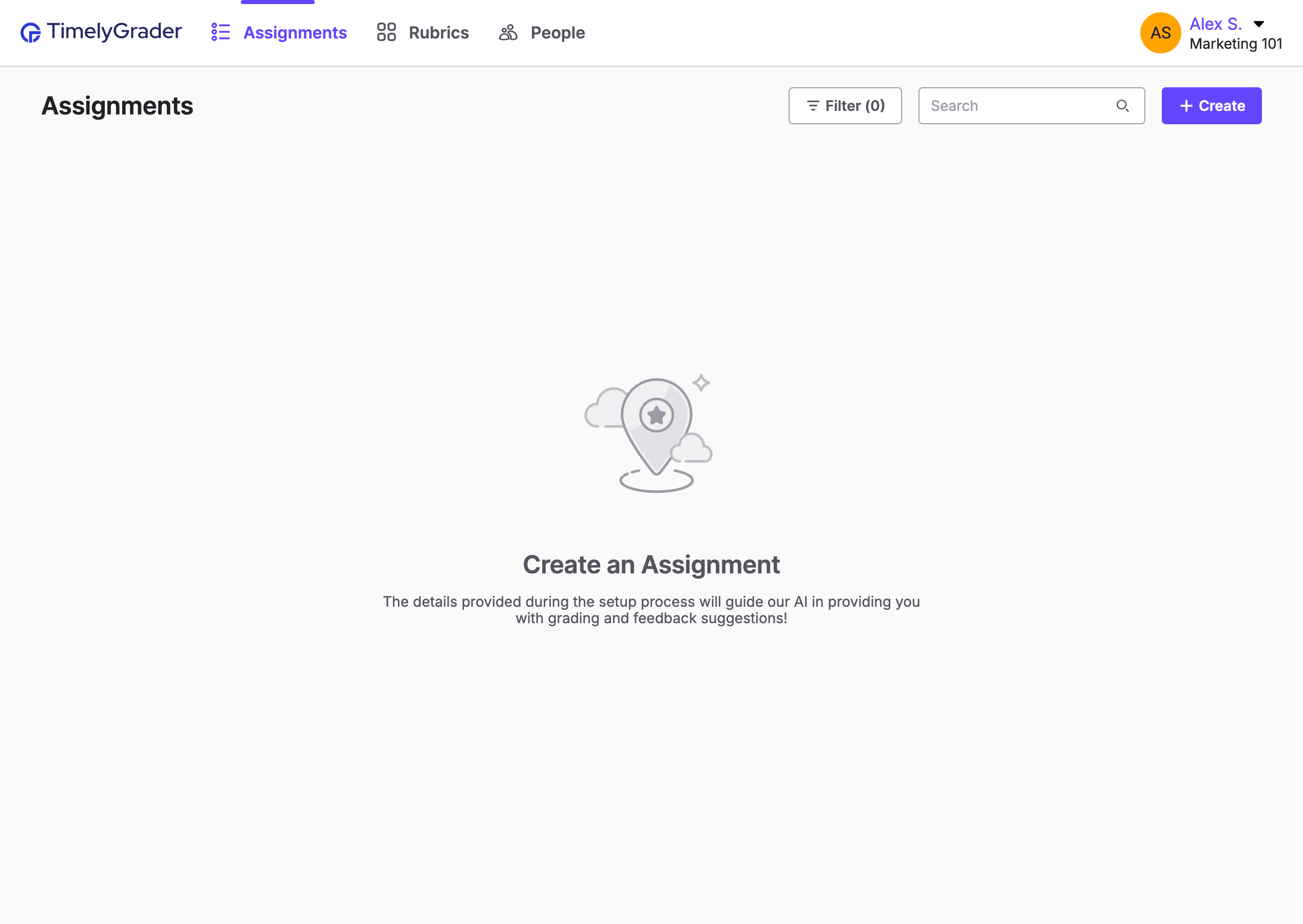
From your course's **Assignments** tab, click **+ Create** in the top right corner.
{% endstep %}
{% step %}
### Fill in the mandatory fields
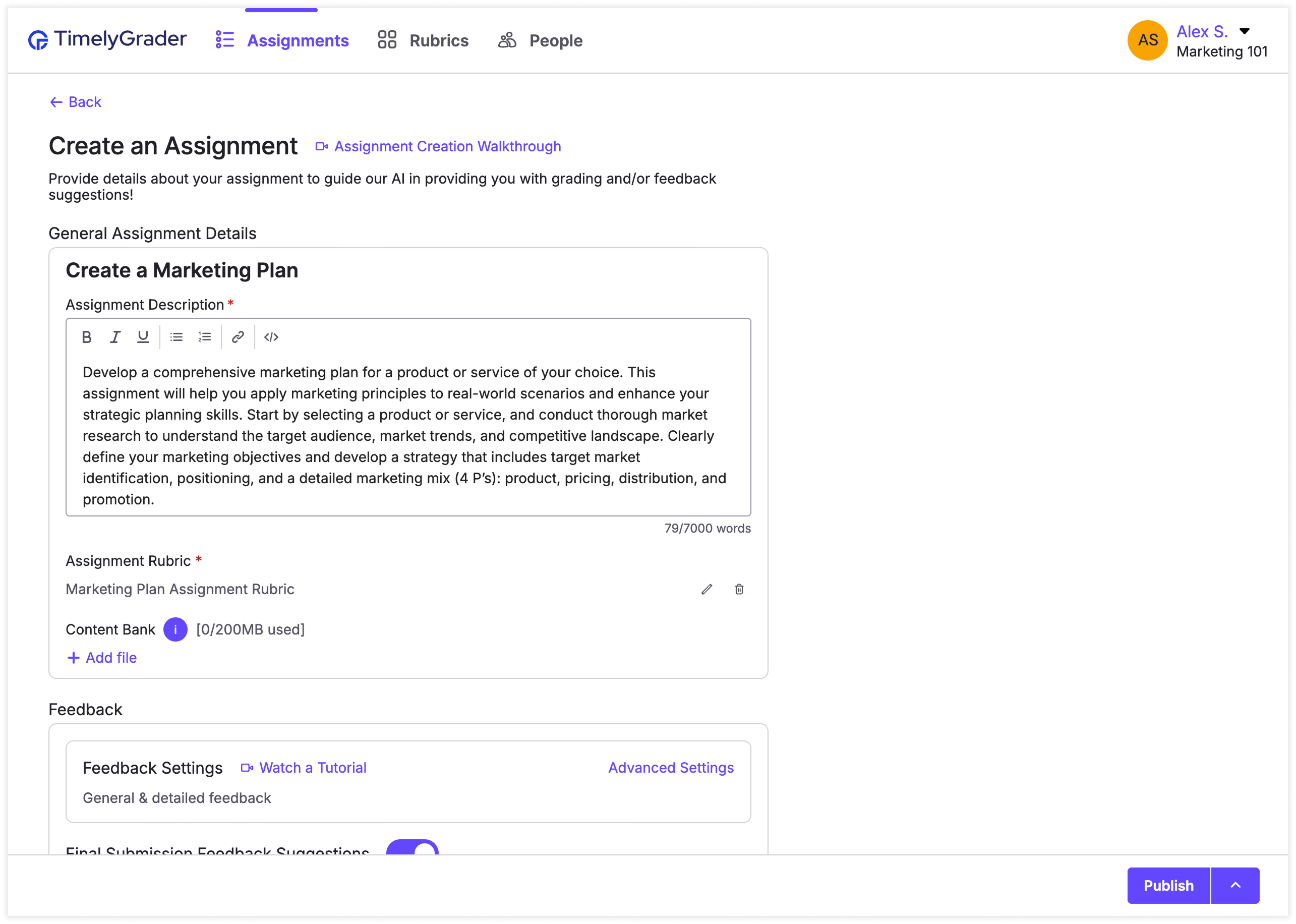
Every assignment needs:
* an assignment name
* an assignment description
* an assignment rubric
You can write the rubric yourself or have AI generate one from your description. See [Creating Rubrics on TimelyGrader](https://help.timelygrader.ai/self-serve-support-articles/6.-creating-rubrics-on-timelygrader.md).
{% endstep %}
{% step %}
### Decide which AI suggestions to enable
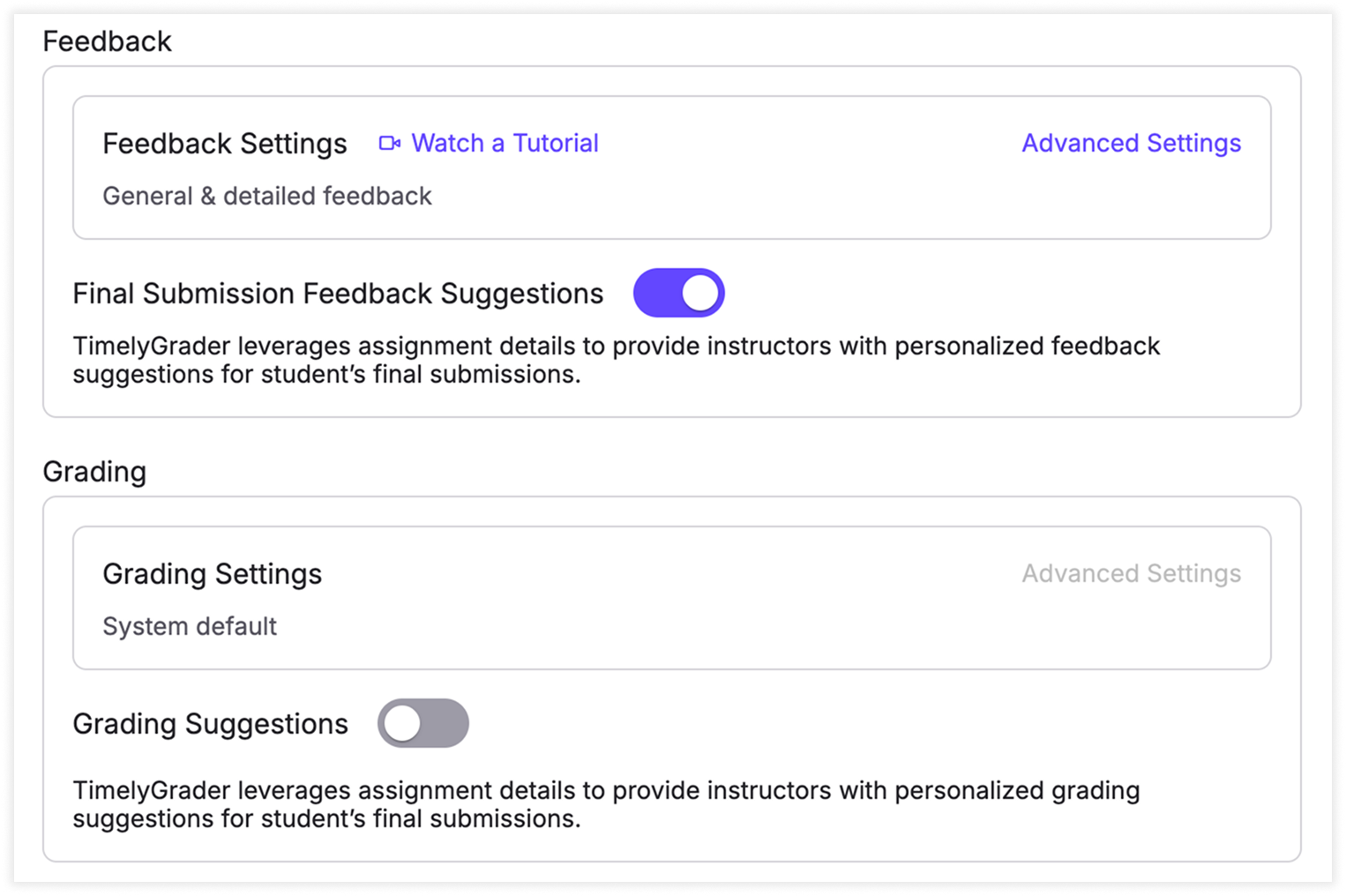
AI grading suggestions and AI feedback suggestions are both on by default. Turn either one off if you only need the other.
{% endstep %}
{% step %}
### Save as draft or publish
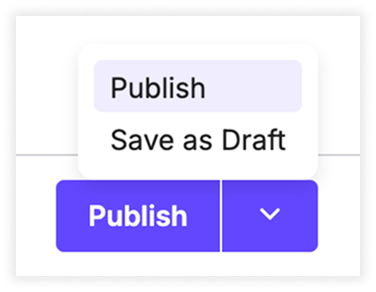
To save an unfinished assignment, click the arrow on the **Publish** button and choose **Save as Draft**. When the setup is complete, click **Publish**.
{% hint style="info" %}
You can save a draft without completing every required field. However, all required information must be filled in before you can preview grading and feedback suggestions or upload student submissions.
{% endhint %}
{% endstep %}
{% endstepper %}
## Advanced assignment setup
For more accurate suggestions, these optional guides help you fine-tune your assignment:
1. [Advanced: Creating a Content Bank](https://help.timelygrader.ai/self-serve-support-articles/13.-advanced-creating-a-content-bank.md)
2. [Advanced: Customizing Grading](https://help.timelygrader.ai/self-serve-support-articles/15.-advanced-customizing-grading.md)
3. [Advanced: Customizing Feedback](https://help.timelygrader.ai/self-serve-support-articles/14.-advanced-customizing-feedback.md)
## Related articles
* [Creating Rubrics on TimelyGrader](https://help.timelygrader.ai/self-serve-support-articles/6.-creating-rubrics-on-timelygrader.md)
* [AI Rubric in Assignment Setup](https://help.timelygrader.ai/self-serve-support-articles/16.-ai-rubric-in-assignment-setup.md)
* [Uploading Submissions for Grading and Feedback](https://help.timelygrader.ai/self-serve-support-articles/7.-uploading-submissions-for-grading-and-feedback.md)