> For the complete documentation index, see [llms.txt](https://help.timelygrader.ai/llms.txt). Markdown versions of documentation pages are available by appending `.md` to page URLs; this page is available as [Markdown](https://help.timelygrader.ai/self-serve-support-articles/6.-creating-rubrics-on-timelygrader.md).
# 6. Creating Rubrics on TimelyGrader
Create, reuse and manage rubrics.
Rubrics drive TimelyGrader's grading and feedback suggestions. You can create a rubric on its own from the Rubrics page, or while setting up an assignment.
## Manual or AI creation
* **Manual:** full control over every criterion and rating.
* **AI:** generates a starting rubric from your assignment description, which you then review and edit.
## Where to create a rubric
* **Rubrics page:** best for building rubrics ahead of time or reusing them across assignments.
* **Assignment setup:** best for a rubric specific to one assignment.
## Option 1: Create a rubric from the Rubrics page
{% stepper %}
{% step %}
### Start a new rubric
Go to the **Rubrics** tab and click **+ New Rubric**.
{% endstep %}
{% step %}
### Choose a creation method
Choose manual or AI creation. This example uses AI.
{% endstep %}
{% step %}
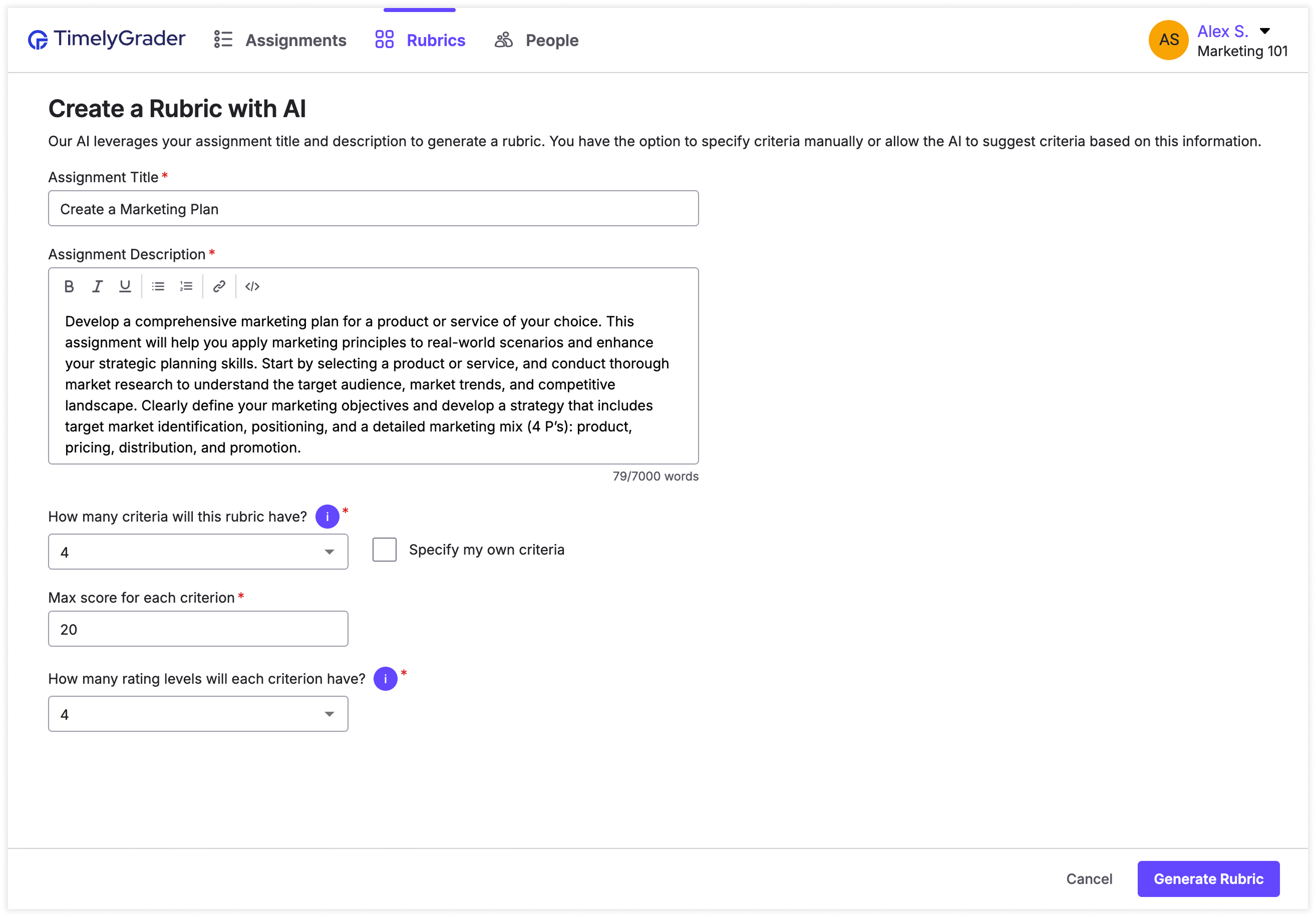
### Set the parameters
Fill in the required fields that set the parameters for the rubric.
{% hint style="info" %}
If you already know your criteria, choose **Specify my own criteria.** to enter a title and description for each criterion.
{% endhint %}
{% endstep %}
{% step %}
### Generate the rubric
Click **Generate Rubric**.
{% endstep %}
{% step %}
### Review the rubric
Check the generated rubric and edit it as needed.
{% endstep %}
{% step %}
### Save the rubric
Click **Create Rubric** and confirm that you've reviewed all AI-generated information.
{% endstep %}
{% endstepper %}
{% hint style="info" %}
Rubrics created on the Rubrics page are saved as templates you can use in all your assignments. You can open the Rubrics page from the course dashboard and from within any course.
{% endhint %}
## Option 2: Create a rubric during assignment setup
{% stepper %}
{% step %}
### Add a rubric
On the assignment setup page, click **+ Add a Rubric**.
{% endstep %}
{% step %}
### Select Create a new rubric
Choose **Create a new rubric** from the dropdown.
{% hint style="success" %} **Hugo’s tip:** You can also apply an existing rubric template from this dropdown, including any you created on the Rubrics page (Option 1).
{% endhint %}
{% endstep %}
{% step %}
### Choose a creation method
Choose manual or AI creation. This example uses manual.
{% endstep %}
{% step %}
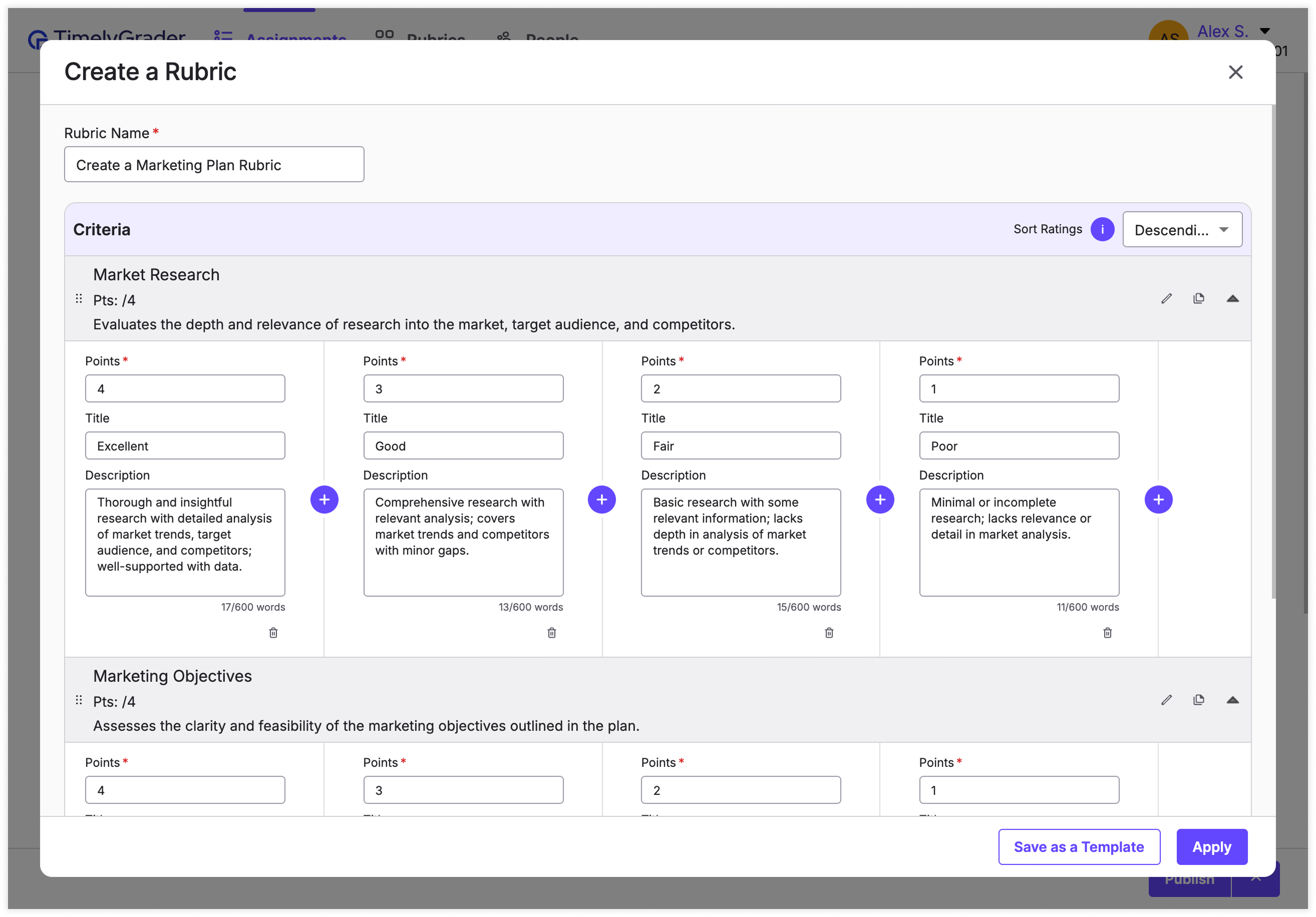
### Enter the rubric details
Fill in the rubric details.
{% hint style="info" %}
Rubrics created within an assignment aren't automatically saved to the Rubrics page. To reuse one in other assignments, click **Save as a Template**.
{% endhint %}
{% endstep %}
{% step %}
### Apply the rubric
Click **Apply** to add the rubric to your assignment.
{% hint style="warning" %}
The rubric isn't saved permanently until you publish or save the assignment, unless you saved it as a template.
{% endhint %}
{% endstep %}
{% endstepper %}
## Related articles
* [Creating an Assignment](https://help.timelygrader.ai/self-serve-support-articles/5.-creating-an-assignment.md)
* [AI Rubric in Assignment Setup](https://help.timelygrader.ai/self-serve-support-articles/16.-ai-rubric-in-assignment-setup.md)
* [Advanced: Customizing Grading](https://help.timelygrader.ai/self-serve-support-articles/15.-advanced-customizing-grading.md)



 **Hugo’s tip:** You can also apply an existing rubric template from this dropdown, including any you created on the Rubrics page (Option 1).
{% endhint %}
{% endstep %}
{% step %}
### Choose a creation method
Choose manual or AI creation. This example uses manual.