> For the complete documentation index, see [llms.txt](https://help.timelygrader.ai/llms.txt). Markdown versions of documentation pages are available by appending `.md` to page URLs; this page is available as [Markdown](https://help.timelygrader.ai/self-serve-support-articles/7.-uploading-submissions-for-grading-and-feedback.md).
# 7. Uploading Submissions for Grading and Feedback
Upload student submissions to generate grading and feedback suggestions.
Once your assignment is set up, upload your students' submissions so TimelyGrader can generate grading and feedback suggestions.
## Steps
{% stepper %}
{% step %}
### Open the assignment
Go to the **Assignments** page and select the assignment.
{% endstep %}
{% step %}
### Upload submissions
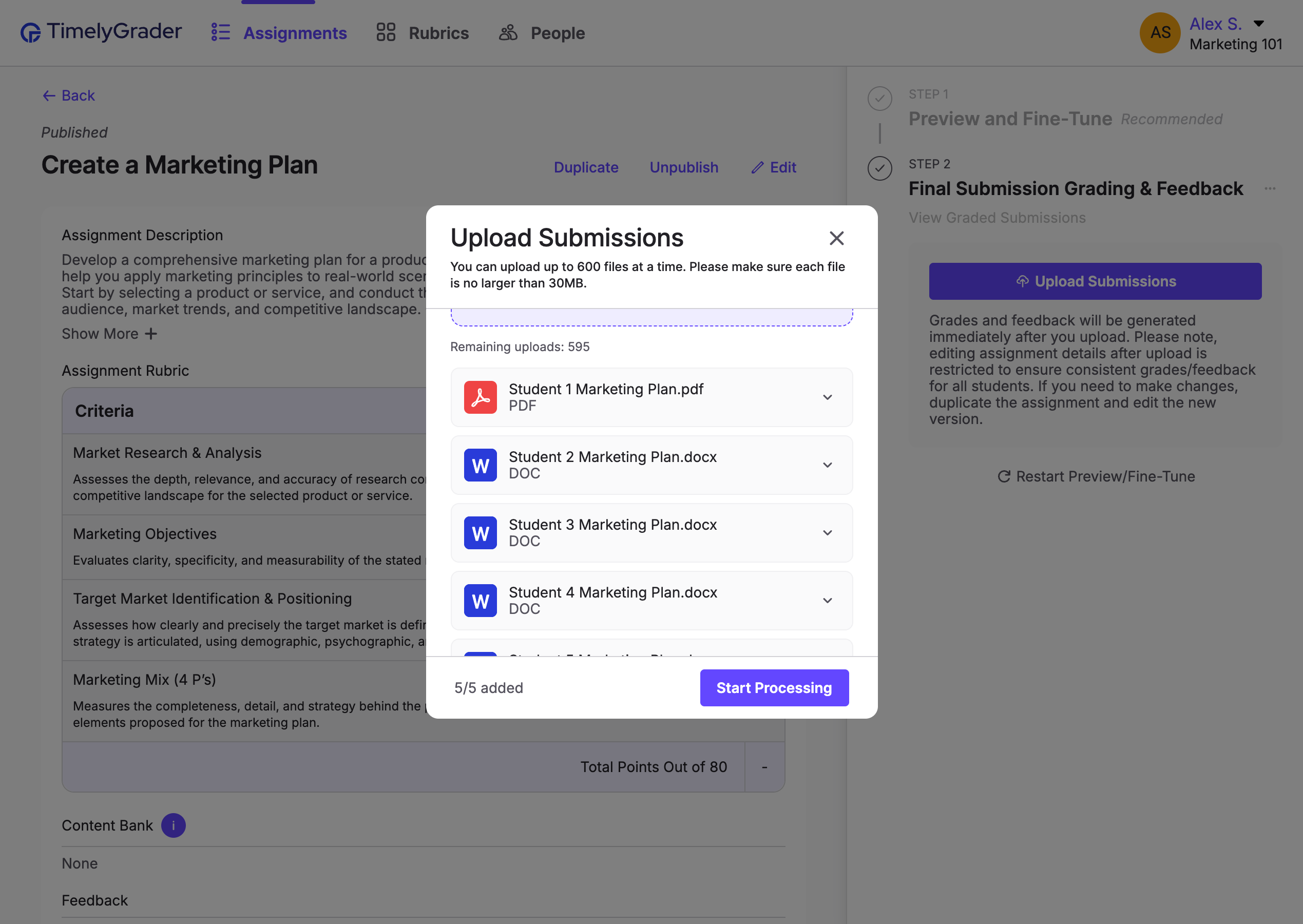
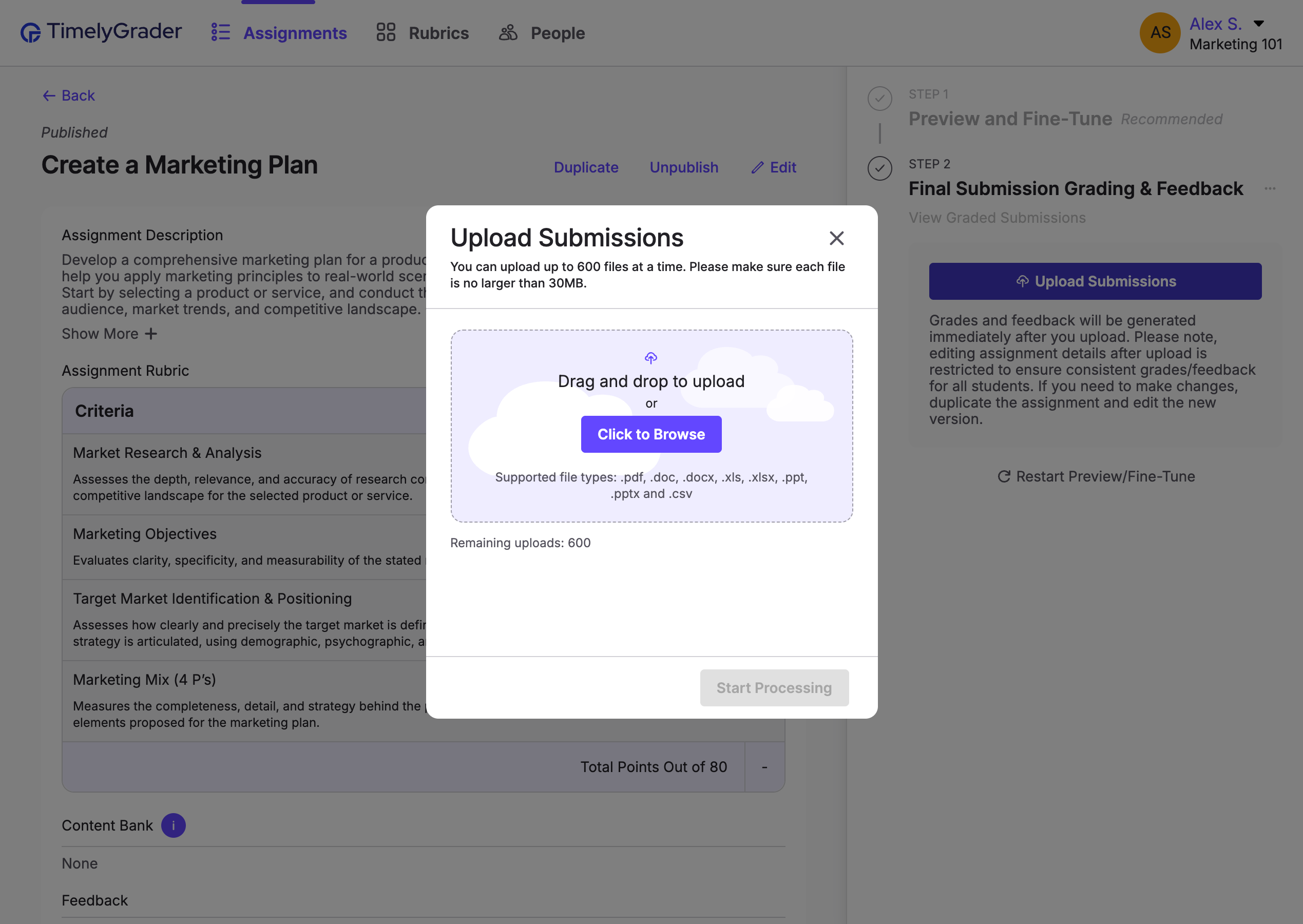
In the right sidebar, under **Final Submission Grading & Feedback**, click **Upload Submissions**. In the pop-up, click **Click to Browse** to select files, or drag and drop them into the upload area.
{% hint style="success" %} **Hugo’s tip:** Accepted file types are .pdf, .doc, .docx, .xls, .xlsx, .ppt, .pptx and .csv.
{% endhint %}
{% hint style="info" %}
You can upload up to 600 files, each under 30 MB. Wait until all files are added before you start processing.
{% endhint %}
{% endstep %}
{% step %}
### Start processing submissions
Once all submissions are added, click **Start Processing** to generate grading and/or feedback suggestions.
{% endstep %}
{% step %}
### Wait while submissions are processed
Track progress in the right sidebar. Processing runs in the background, so you can leave the platform and come back later.
When processing finishes, click **Start Reviewing** to open each submission, see the grading and feedback suggestions, make edits and finalize grades.
{% endstep %}
{% endstepper %}
## Resetting submissions
If you uploaded the wrong files or need to change the assignment details, reset grades and feedback first. See [How to Reset Grades and Feedback](https://help.timelygrader.ai/self-serve-support-articles/10.-how-to-reset-grades-and-feedback.md).
## Related articles
* [How to Grade Submissions with TimelyGrader](https://help.timelygrader.ai/self-serve-support-articles/8.-how-to-grade-submissions-with-timelygrader.md)
* [How to Reset Grades and Feedback](https://help.timelygrader.ai/self-serve-support-articles/10.-how-to-reset-grades-and-feedback.md)
* [AI Rubric in Assignment Setup](https://help.timelygrader.ai/self-serve-support-articles/16.-ai-rubric-in-assignment-setup.md)

 **Hugo’s tip:** Accepted file types are .pdf, .doc, .docx, .xls, .xlsx, .ppt, .pptx and .csv.
{% endhint %}
{% hint style="info" %}
You can upload up to 600 files, each under 30 MB. Wait until all files are added before you start processing.
{% endhint %}
{% endstep %}
{% step %}
### Start processing submissions
Once all submissions are added, click **Start Processing** to generate grading and/or feedback suggestions.