> For the complete documentation index, see [llms.txt](https://help.timelygrader.ai/llms.txt). Markdown versions of documentation pages are available by appending `.md` to page URLs; this page is available as [Markdown](https://help.timelygrader.ai/self-serve-support-articles/8.-how-to-grade-submissions-with-timelygrader.md).
# 8. How to Grade Submissions with TimelyGrader
Review and confirm grades and feedback in TimelyGrader's grading view.
Once submissions finish processing, review TimelyGrader's suggested grades and feedback, then make your final decisions.
## Steps
{% stepper %}
{% step %}
### Open the grading view
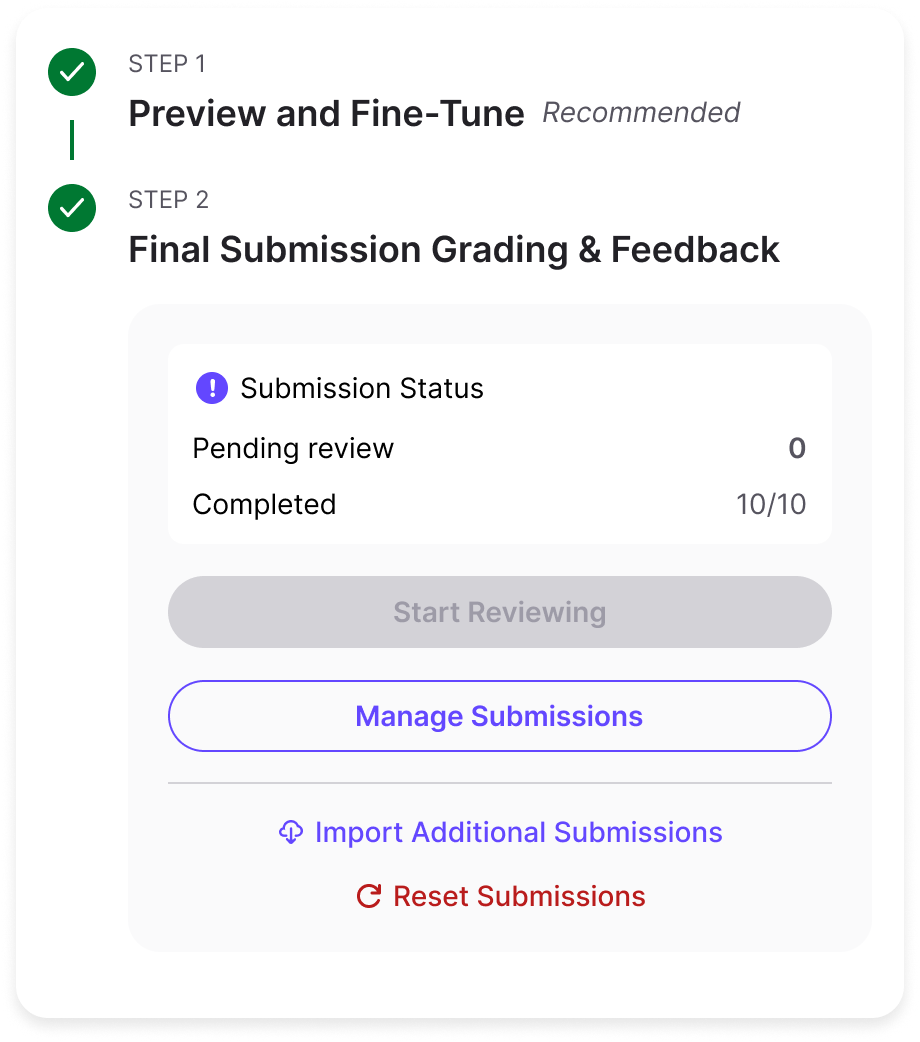
Open the assignment and click **Manage Submissions**.
{% hint style="info" %}
Need help uploading submissions for grading and feedback? See [Uploading Submissions for Grading and Feedback](https://help.timelygrader.ai/self-serve-support-articles/7.-uploading-submissions-for-grading-and-feedback.md).
{% endhint %}
{% endstep %}
{% step %}
### Select grades
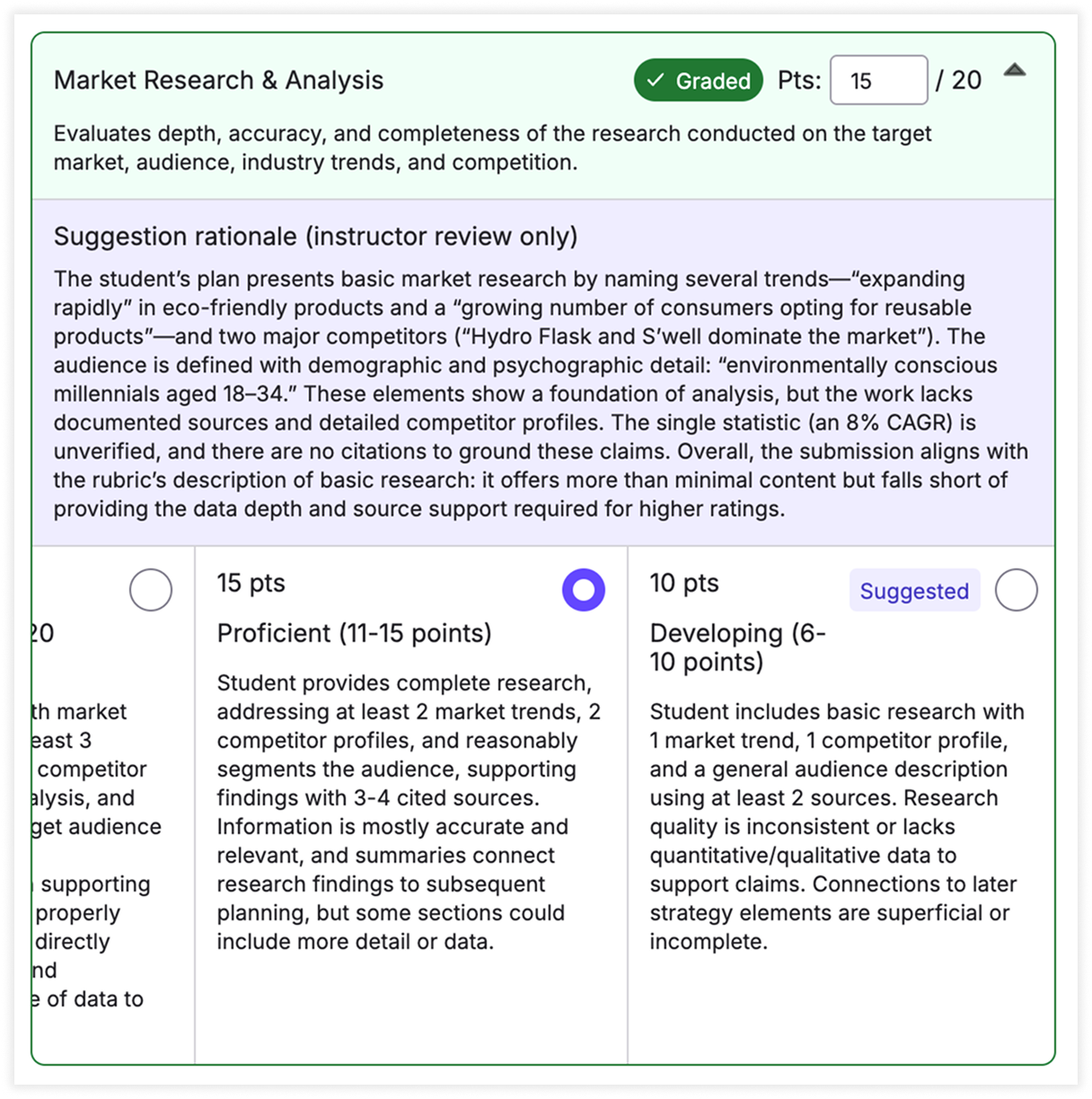
**Grading overview**
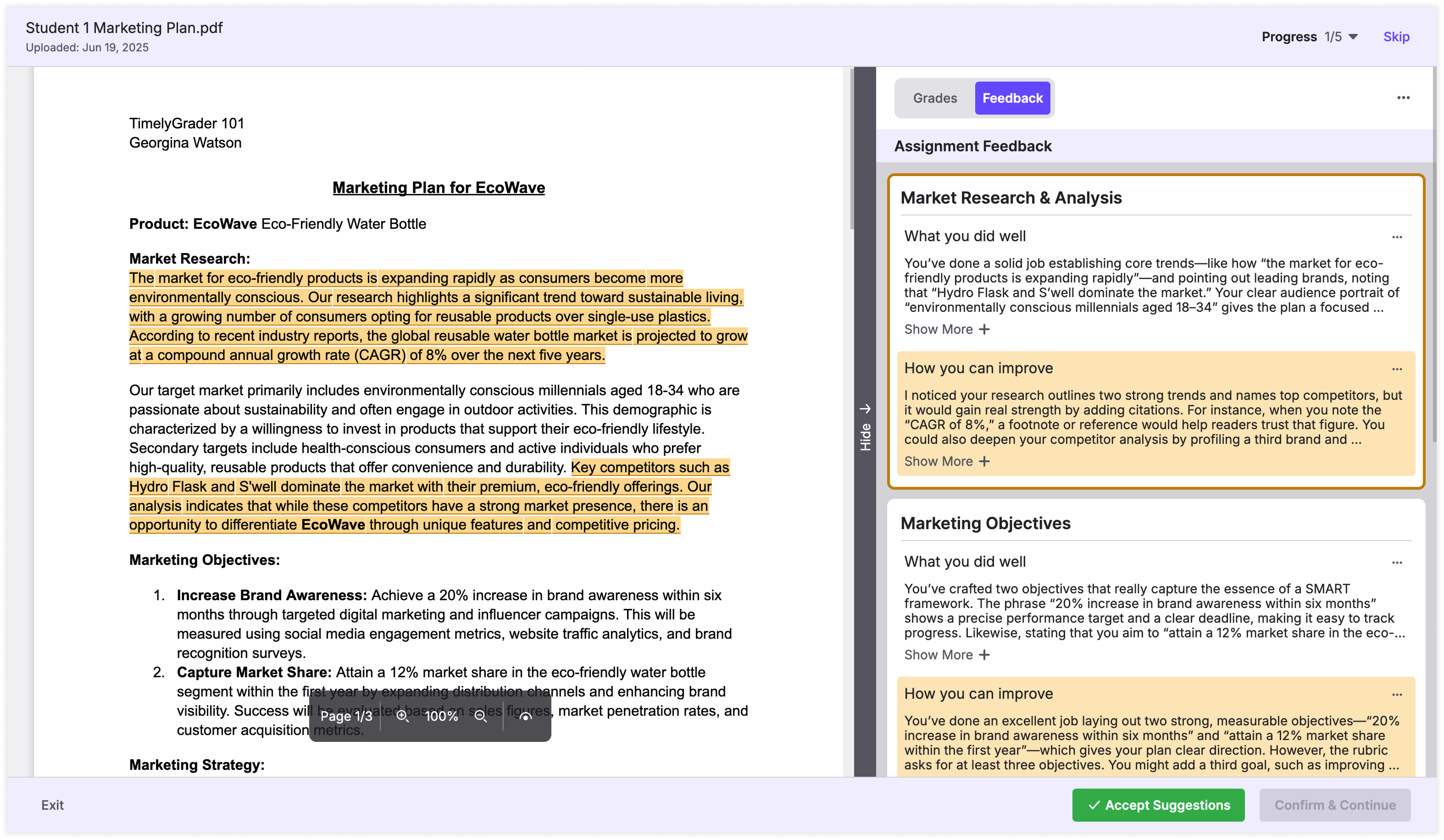
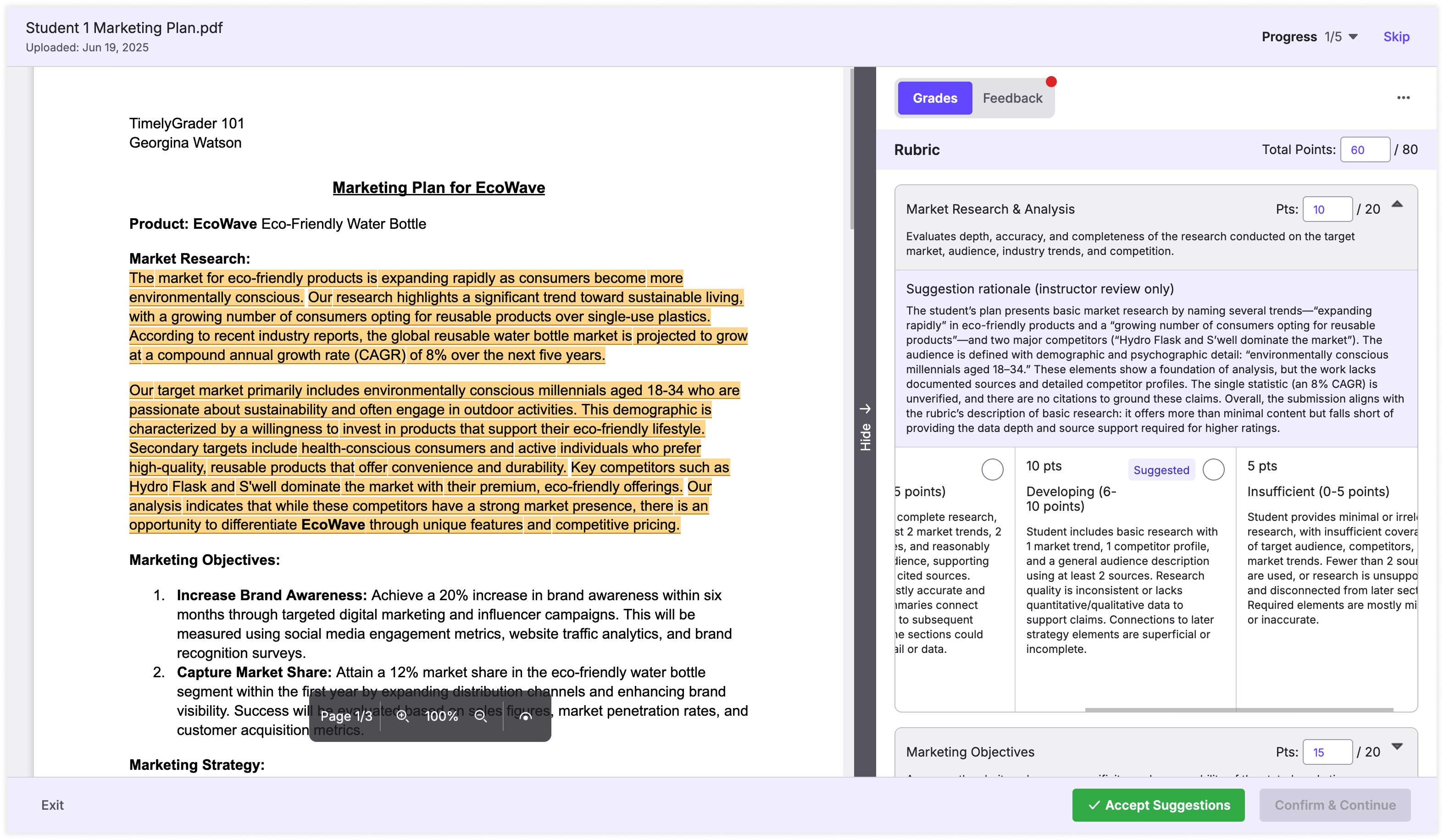
The grading view opens on the first submission that is ready for grading, with the rubric in the right sidebar. Select a criterion to see TimelyGrader's suggested grade, the reasoning behind it, and the highlighted annotations on the submission.
{% hint style="success" %} **Hugo’s tip:** Looking for a specific submission? Select it from the **Progress** dropdown.
{% endhint %}
**Selecting grades**
Choose a rating, or enter a point value in the **Pts** field. **Accept Suggestions** applies the suggested grades, but only to criteria that are still ungraded.
{% hint style="success" %} **Hugo’s tip:** If a student's score falls between two rating levels, enter a custom score (decimals are allowed) for more precise grading.
{% endhint %}
{% endstep %}
{% step %}
### Review and revise feedback
Switch to the feedback tab at the top of the right sidebar. A red dot marks feedback you haven't viewed yet.
**Feedback overview**
The feedback tab shows the suggested feedback for the assignment. Select a comment to highlight its annotations on the submission.
{% hint style="info" %}
The default feedback structure is Rubric-Based Feedback, where students get one comment for each criterion. You can change this in **Advanced Feedback Settings**. To learn about other feedback structures, see [Advanced: Customizing Feedback](https://help.timelygrader.ai/self-serve-support-articles/14.-advanced-customizing-feedback.md).
{% endhint %}
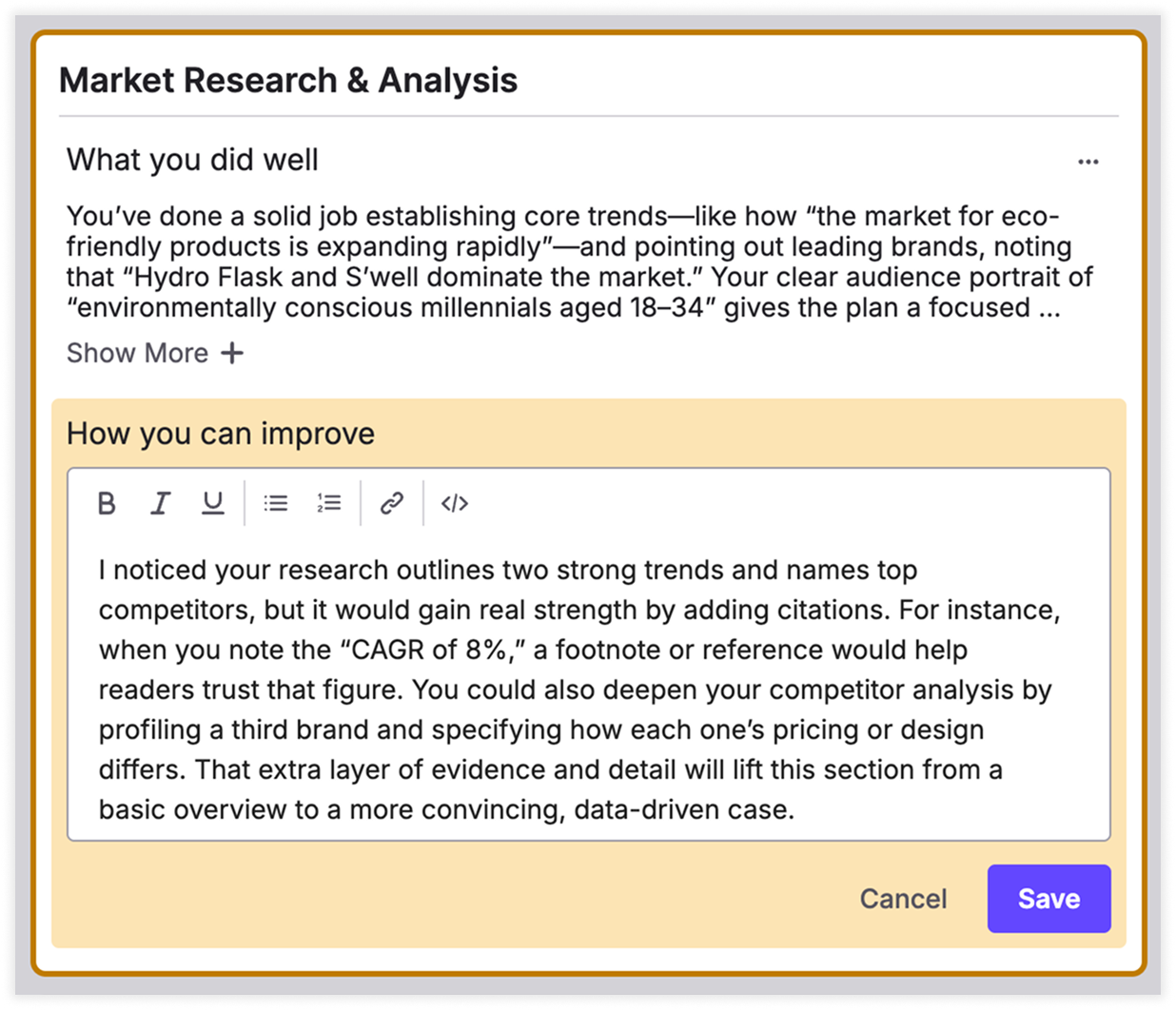
**Editing feedback**
Click the **...** menu next to a comment, select **Edit**, make your changes and click **Save**.
{% endstep %}
{% step %}
### Confirm grades and feedback
Once you've graded every criterion and reviewed the feedback, click **Confirm & Continue** to move to the next submission.
{% hint style="info" %}
You can leave the grading view at any time. Grades and feedback for confirmed submissions are saved, and you can review or edit them from the **View Graded Submissions** page.
{% endhint %}
{% endstep %}
{% endstepper %}
## Related articles
* [Uploading Submissions for Grading and Feedback](https://help.timelygrader.ai/self-serve-support-articles/7.-uploading-submissions-for-grading-and-feedback.md)
* [Exporting Grades and Feedback](https://help.timelygrader.ai/self-serve-support-articles/9.-exporting-grades-and-feedback.md)
* [Advanced: Customizing Feedback](https://help.timelygrader.ai/self-serve-support-articles/14.-advanced-customizing-feedback.md)

 **Hugo’s tip:** Looking for a specific submission? Select it from the **Progress** dropdown.
{% endhint %}
**Selecting grades**
Choose a rating, or enter a point value in the **Pts** field. **Accept Suggestions** applies the suggested grades, but only to criteria that are still ungraded.