> For the complete documentation index, see [llms.txt](https://help.timelygrader.ai/llms.txt). Markdown versions of documentation pages are available by appending `.md` to page URLs; this page is available as [Markdown](https://help.timelygrader.ai/self-serve-support-articles/9.-exporting-grades-and-feedback.md).
# 9. Exporting Grades and Feedback
Export grades and feedback as a CSV in just two steps.
Once grading is done, you can export the grades and feedback for an assignment from TimelyGrader as a CSV file.
## Steps
{% stepper %}
{% step %}
### Open the assignment
From your course's assignments page, open the assignment you want to export.
{% endstep %}
{% step %}
### Export grades and feedback
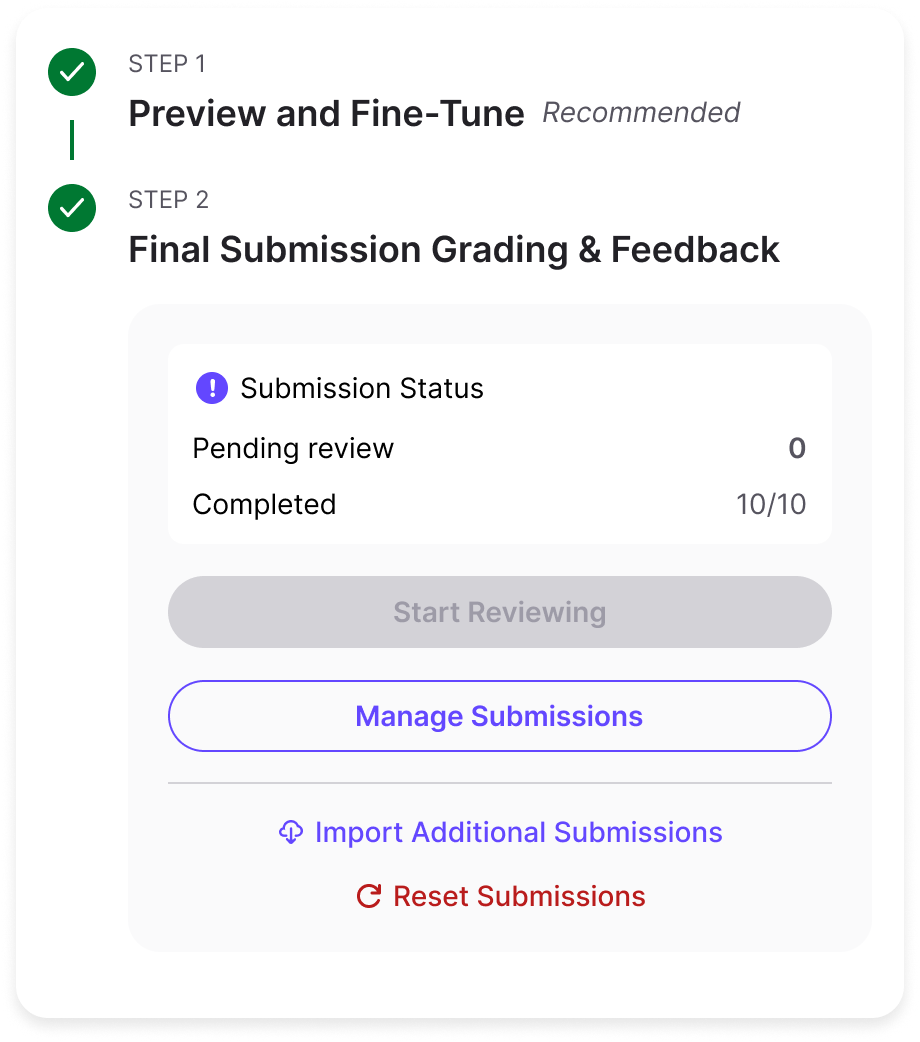
Open the **Manage Submissions** page and select **Export to CSV**.
The CSV downloads automatically and contains all grades and feedback for the assignment.
{% endstep %}
{% endstepper %}
## Related articles
* [How to Grade Submissions with TimelyGrader](https://help.timelygrader.ai/self-serve-support-articles/8.-how-to-grade-submissions-with-timelygrader.md)
* [How to Reset Grades and Feedback](https://help.timelygrader.ai/self-serve-support-articles/10.-how-to-reset-grades-and-feedback.md)
* [Advanced: Customizing Feedback](https://help.timelygrader.ai/self-serve-support-articles/14.-advanced-customizing-feedback.md)